

Quickstart: Get Work Done in Chat
Quickstart for FlowGenX Chat: ask for a real result and control what the coordinator can touch. A first run in about ten minutes, no setup required.
FlowGenX Chat is where you work with Flux, the coordinator agent. You describe what you want in plain language and Flux does the work — answering from your documents, calling your connected apps, running Python/SQL, and returning real artifacts like charts, decks, and dashboards. This guide takes you from an empty chat to your first result. Budget about 10 minutes.
Before you begin
- A FlowGenX Chat account (opens via single sign-on from the platform — no separate signup).
- Optional: at least one connected app or Knowledge Base document if you want Flux to reach your systems. With nothing connected it can still reason, research the web, and generate artifacts.
- A modern browser. Everything happens in the web app.
Flux acts under your account's connections and calls only the tools you've registered. Every tool run can require your approval before it executes (see Step 3).
Step 1 — Open FlowGenX Chat
Goal: land on a new chat and see what you can ask for. (~2 min)
- Open FlowGenX Chat (from the platform's The FlowGenX suite → Open Chat, or your Chat URL).
- You arrive on a New chat, greeted by name: "What can I help with?"
- Below the composer are starter prompts — Summarise this week, Update a record, Set up a routine, and Describe a goal — quick ways to see what Flux can do.
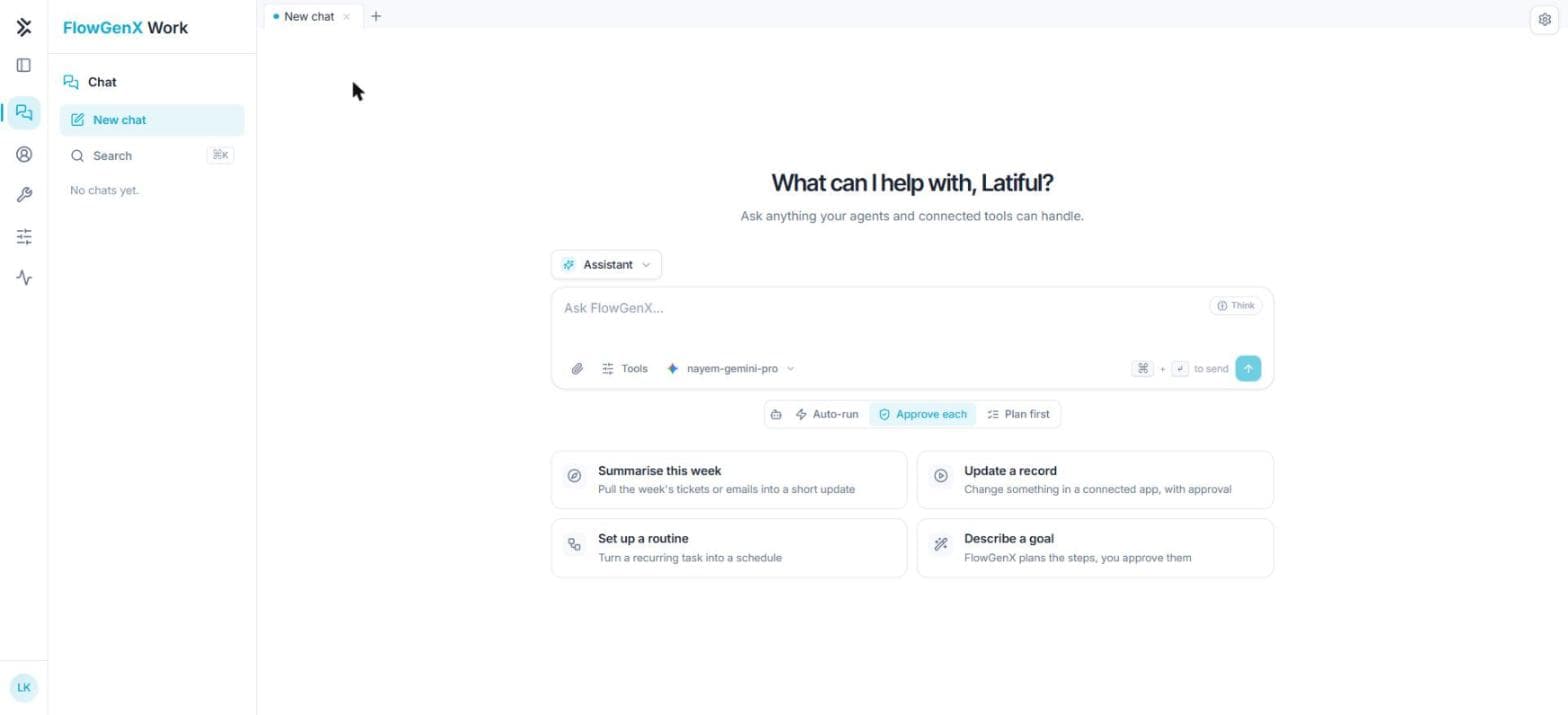
✅ Verify: you're on a New chat with the composer ready and the starter prompts visible.
Step 2 — Ask for something
Goal: send your first request and get a real answer back. (~4 min)
- Type a request in the composer, or click a starter prompt. For a safe first run, ask a plain question — for example:
In one short paragraph, what kinds of work can FlowGenX Chat help my team get done?- Optionally pick a model and open Tools (next step) from the composer's controls.
- Press Enter to send. Flux plans, then answers — pulling in tools only when the request needs them.
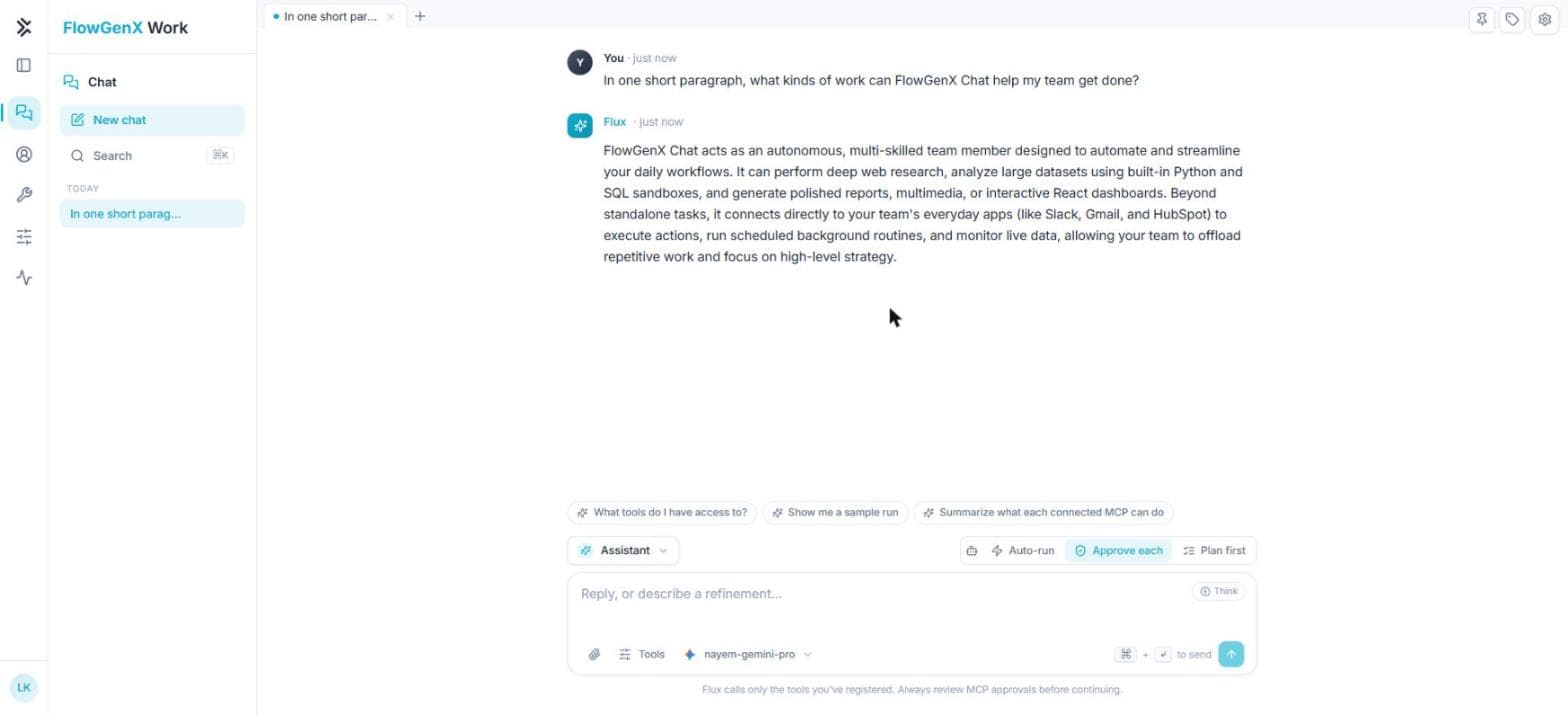
When the answer arrives, Flux also offers follow-up suggestions (e.g. "What tools do I have access to?", "Show me a sample run") so you can keep going in one click. Ask for a chart, a dashboard, or a document and the result renders in the panel, not just as text.
✅ Verify: your message appears as You, and Flux replies below it with an answer and follow-up chips.
Step 3 — Control what it can touch
Goal: see the tools available to this chat and keep actions under your approval. (~3 min)
Two controls decide how much autonomy Flux has:
- Tools — open the Tools menu in the composer to see every tool available for this chat (built-in tools like web search and file operations, plus your connected apps and MCP servers). Toggle any of them on or off per chat with All / None.
- Approval mode — choose how tool calls run:
- Approve each — you approve every tool call before it runs (the safe default)
- Auto-run — Flux runs tools without pausing
- Plan first — Flux drafts the full plan for your review before doing anything
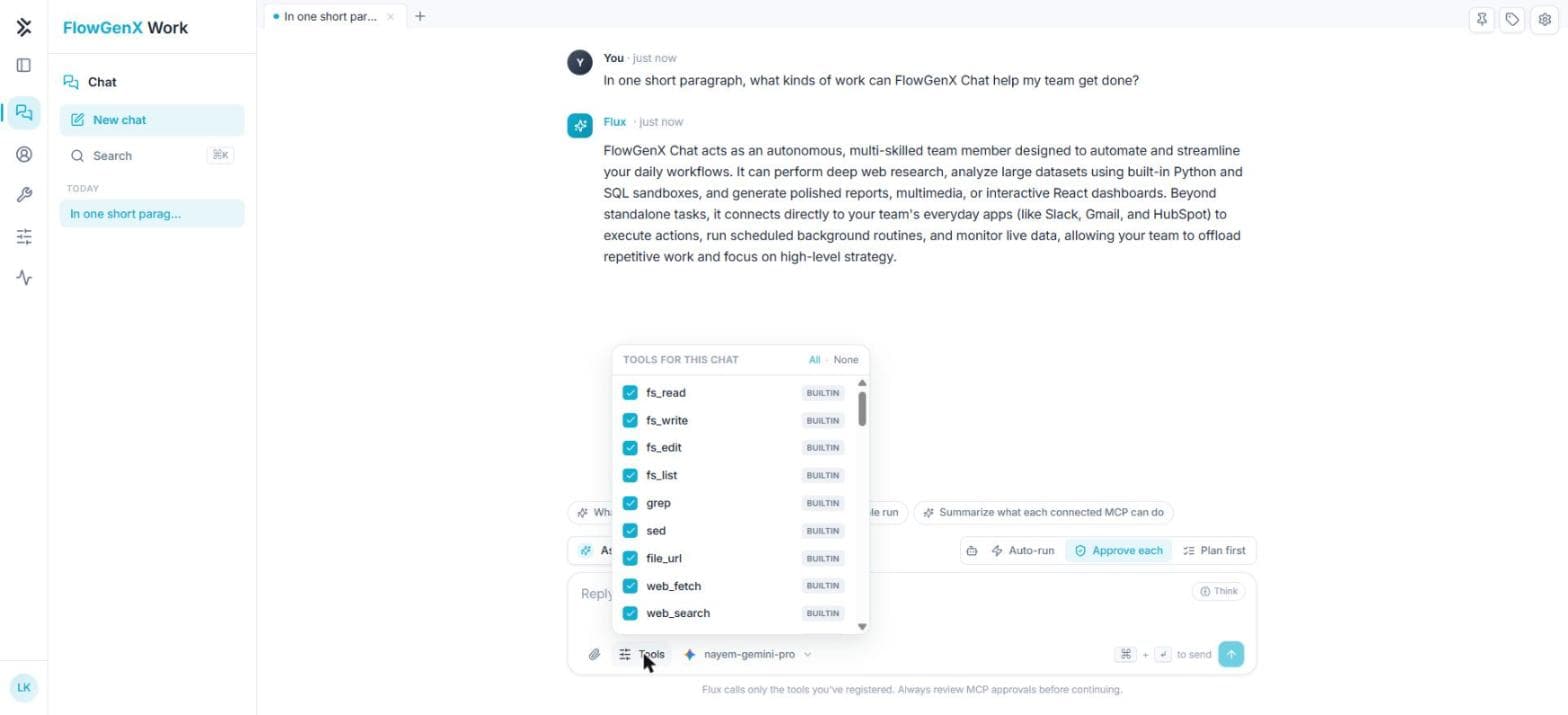
Leave Approve each on until you trust a given flow. Flux never calls a tool you haven't registered, and with Approve each you confirm every action — including any MCP approval — before it happens.
Where to go next
Build a dashboard app
Turn a question into a live React dashboard with charts and tabs, then publish it to a link.
Produce charts, docs and decks
Generate readable charts, exportable PDFs, and PowerPoint decks straight from chat.
Search your documents
Semantic search across your Knowledge Base with ranked, cited source matches.
Connect MCP servers
Add external MCP servers so their tools become available to Flux, with per-tool approval.
Save work as a routine
Turn a recurring task into a schedule that runs on its own.
Set up your Teammate
Give the assistant a name, a job, and skills so your team can reach it in Slack, Microsoft Teams, Google Chat, or Discord.
FlowGenX Chat
An agentic workspace where a conversation produces real artifacts. Ask a question, get a dashboard, a deck, a chart, or a cited answer from your documents.
Working in a Chat
Run modes, tool scoping, attachments, extended thinking, and how to resume a long task. The controls that decide how much rope Flux gets.