

Working in a Chat
Run modes, tool scoping, attachments, extended thinking, and how to resume a long task. The controls that decide how much rope Flux gets.
A chat in FlowGenX is not just a text box. The composer carries the controls that decide which tools Flux may call, whether it asks first, which model it uses, and how hard it thinks. Learning those five controls is most of learning the product.
Run modes
The segmented control above the input sets how the run behaves. It applies to the current session and you can change it between messages.
| Mode | Behavior | Use when |
|---|---|---|
| Auto-run | Runs tools without asking | You know the shape of the work and it is read-heavy |
| Ask each | Approves every tool call | The run writes to a system of record, or you are exploring a new connector |
| Plan first | Drafts a plan, then waits for your approval | The task is long enough that you would rather correct the approach than the output |
In Plan first, the plan arrives as a card you approve or reject before any tool runs. In Ask each, every call surfaces an approval card with the tool and its arguments.
Auto-run is not a blanket permission. Tools marked sensitive still prompt in the modes that ask, and a decision you make on one lasts for the current session only. See Governance and control.
Scoping the tools for a run
The Tools button opens the list of tools this run may use. Unchecking a tool removes it from the run rather than merely discouraging it.
This is the sharpest instrument in the composer. When Flux keeps reaching for the wrong system, or you want a question answered strictly from one source, uncheck everything else and ask again. It is faster than arguing with a prompt.
Choosing a model
The model picker sits next to the Tools button. The list is whatever your account has configured, under the names you gave them, so a picker may read nayem-gemini-pro rather than a vendor model id. Add, edit, and remove entries in Configuration.
Pick per session. A fast model is fine for lookups and formatting; reasoning-heavy work benefits from a stronger one.
Extended thinking
The Think pill in the top-right of the input toggles extended thinking:
- On. Slower, deeper reasoning.
- Off. Faster replies.
Leave it off for retrieval and formatting. Turn it on for analysis, tradeoffs, and anything where the first plausible answer is often the wrong one.
Attachments
Attach files with the paperclip and ask for what you want done with them. Data files are the common case: attach a CSV and ask for exploratory analysis, and Flux profiles it, computes the summary, and renders charts alongside the write-up.
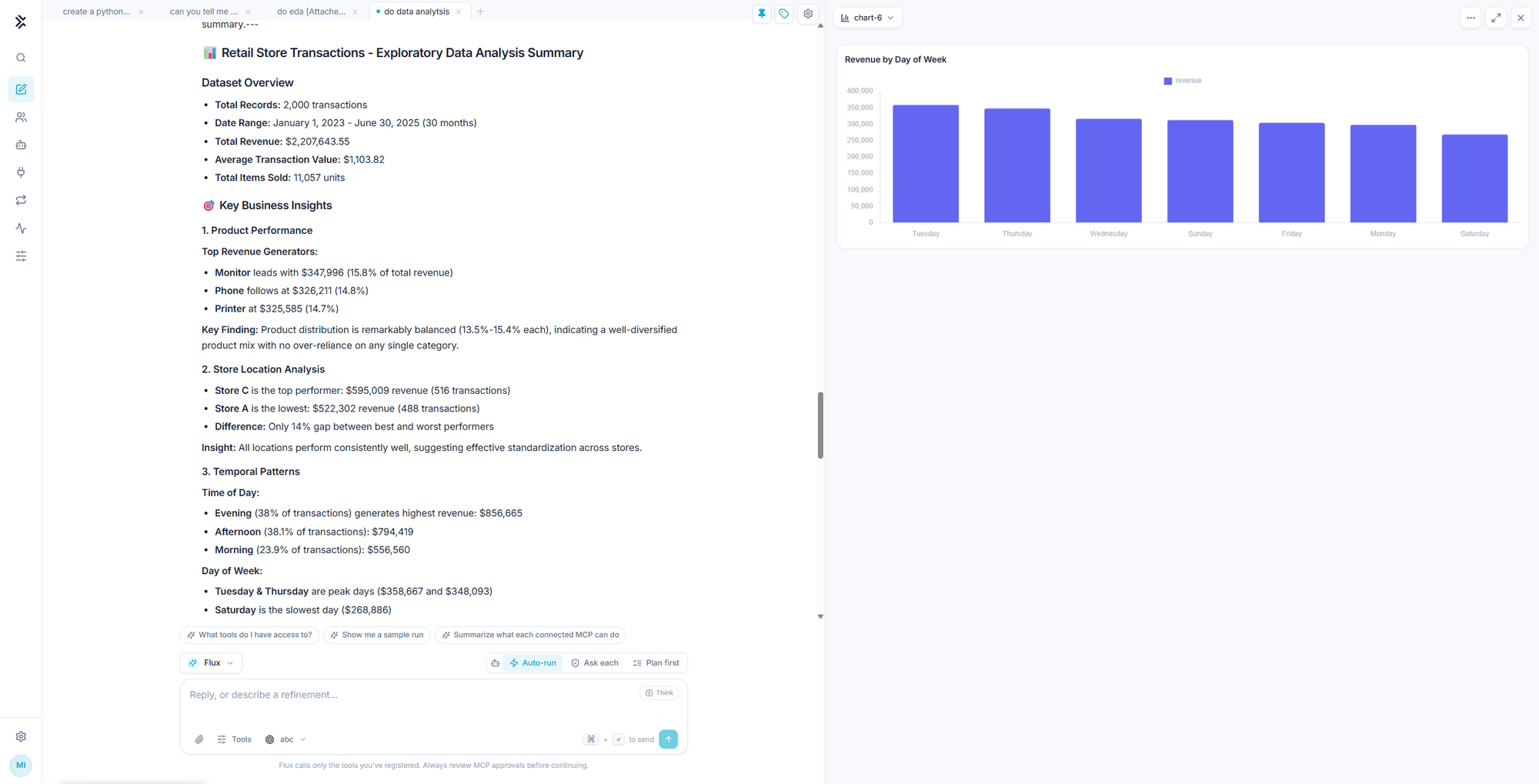
The chart on the right is a real artifact, not an image pasted into the reply. It has its own entry in the panel, and you can refine it by asking.
Long runs and resuming
Some tasks take many tool rounds. When a run reaches its limit before finishing, it says so:
⚠️ This run stopped before completing the task. Say "continue" to resume from where it left off.Say continue and it resumes properly. It reads the tool activity from the previous turn to see which steps already completed and with which results, skips those, and picks up at the first unfinished one. It does not start over.
Every tool result is also saved into the session workspace, so a result from early in a long run stays readable later even after the conversation has been compacted.
Tip. If a run stops repeatedly on the same task, narrow it. Two focused requests almost always beat one that asks for a scan, an analysis, and a deck in a single sentence.
Organizing your work
| Feature | How it works |
|---|---|
| Tabs | Several conversations open at once across the top of the workspace |
| Pinned | Pin a chat to keep it at the top of the list |
| Tags | Label a conversation, for example csv data processing or HubSpot, and the tag shows under it in the list |
| Search | ⌘K searches your chats by content |
| Suggestions | Chips above the composer offer next questions, such as asking which tools you have access to |
Tabs plus tags is the combination worth adopting early. Long agentic runs are worth returning to, and an untagged list of forty conversations named after their first message is not navigable.
Mentioning an agent
Type @ to call a registered agent directly, for example @sop-agent what is sop?. The agent runs as a tool, its card appears in the transcript like any other call, and Flux uses the result to answer. See Agents.
FlowGenX Chat
An agentic workspace where a conversation produces real artifacts. Ask a question, get a dashboard, a deck, a chart, or a cited answer from your documents.
Charts, Docs & Decks
Artifacts are the real output of a chat. Render them in the panel, switch between visual and source, export to PowerPoint or PDF, and publish one to a link.