

MCP Servers
Connect external Model Context Protocol servers to the chat. Their tools become available to Flux, with per-tool approval and a visible card for every call.
Connect an external Model Context Protocol server and its tools become available to the coordinator, with per-tool approval prompts. This is how most real systems reach the chat.
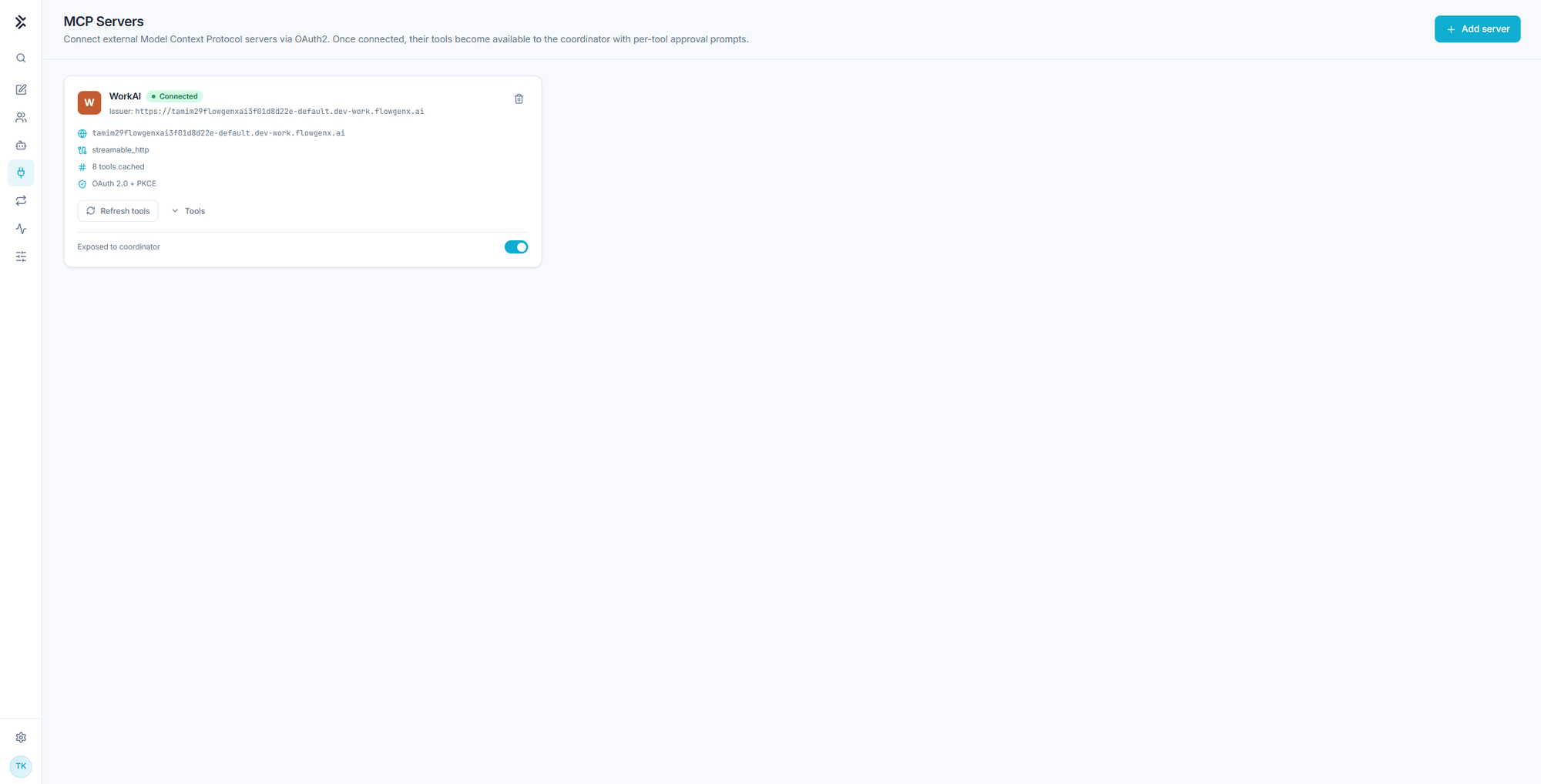
Save, connect, expose
Three steps, in that order. They are separate on purpose: registering a server, proving it works, and letting the model reach it are three different decisions.
1. Save the server
Add server opens the registration dialog.
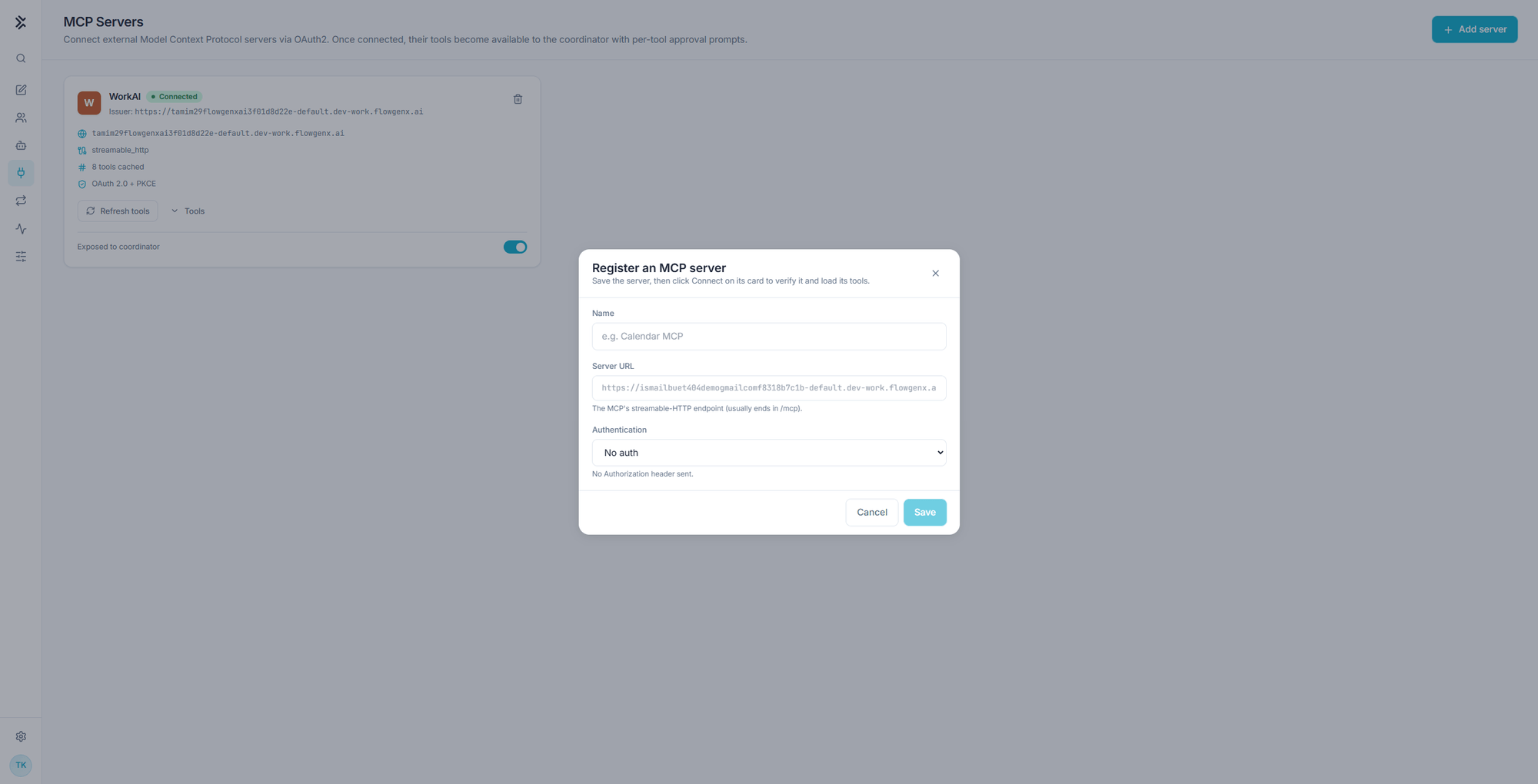
| Field | What to enter |
|---|---|
| Name | How the server appears on its cards and in the transcript, for example Calendar MCP |
| Server URL | The server's streamable-HTTP endpoint. It usually ends in /mcp |
| Authentication | How to authenticate, from the table below |
| Authentication | What happens |
|---|---|
| No auth | No Authorization header is sent |
| Bearer token | Sent as Authorization: Bearer <token> |
| API key | A static token in a custom header, X-API-Key by default |
| OAuth 2.0 + PKCE | The authorization server is discovered and the OAuth flow runs when you press Connect |
A wrong URL is the most common failure here, and it fails at Connect rather than at Save. If the server's base URL does not end in /mcp, check the server's own documentation before assuming the credentials are wrong.
2. Connect
Saving does not verify anything. Press Connect on the card and the server is contacted, credentials are exercised, and its tool catalog is loaded and cached.
Until that succeeds the card reads Not connected, or Failed to connect if the attempt errored.
The OAuth flow opens in a popup. If nothing happens when you press Connect, allow popups for the site and try again.
3. Expose to coordinator
Exposed to coordinator is the switch that decides whether Flux may use the server at all. A server cannot be exposed before it connects.
That separation gives you a clean off switch. Turning exposure off leaves the server registered and its credentials intact, and simply removes its tools from every run. It is the right move during an incident, or while you audit a new integration, and it beats deleting a server you will have to register again.
Reading a server card
| On the card | Meaning |
|---|---|
| Connected badge | The server answered and its catalog loaded |
| Issuer | The identity provider behind an OAuth connection |
| Host | Where calls go |
| Transport | The protocol in use, for example streamable_http |
| N tools cached | How many tools the last catalog load found |
| Auth mode | For example OAuth 2.0 + PKCE |
| Refresh tools | Re-reads the catalog |
| Tools | Expands the cached catalog so you can read the tool list |
| Exposed to coordinator | Whether Flux may call it |
Refresh tools matters more than it looks. Flux offers what the cached catalog says exists, so after a server ships new tools they stay invisible until you refresh. If a server "cannot do" something you know it supports, refresh before debugging anything else.
Calls in the transcript
Every MCP call appears in the conversation as its own card:
| On the card | Meaning |
|---|---|
| Server and tool name | Which tool ran, for example execute_mcp_tool |
| Status | OK, or the error |
| Endpoint | The server the call went to |
| Arguments | How many keys were passed, expandable |
| Result | The response, expandable |
| Monitor | Opens that execution's record. See Monitor |
A single request often produces a run of these: a list call to see what exists, a search call to find the right tool, then the execute calls that do the work. That sequence is worth reading when an answer surprises you, because it shows exactly which records the answer was built from.
Approvals
Tools reached through MCP are subject to the same approval behavior as everything else. In Ask each mode every call prompts; in Auto-run they proceed. Tools marked sensitive always prompt in the modes that ask, and a decision applies to the current session rather than persisting. See Working in a chat.
Hosting your own MCP servers
This page is for connecting servers that already exist. To build and host them, use Integration Studio:
MCP support overview
Native, external, and OpenAPI-backed MCP servers on the platform.
Turn an API into MCP tools
Generate an MCP server from an OpenAPI spec.
MCP Composer
Compose a server from selected tools rather than exposing everything.
MCP Playground
Exercise a server's tools before you point the chat at it.
Tip. Connect narrow servers rather than one that exposes everything. A server with a focused tool catalog gets called correctly far more often, and it makes the approval prompts meaningful instead of routine.
Agents
Register a webhook agent by pasting a curl command, or pick one from the Agent Registry. Registered agents become tools Flux can call, and you can mention them by name.
Routines & Watchers
Saved playbooks that run on a schedule, a webhook, or a channel message, deliver their own result, and can pause for your approval.