

Governance & Control
What Publish gates, what bounds a Teammate's reach, how to decide tool by tool what it may do alone, what it masks, and where to see everything it did.
A Teammate acts in your systems, in channels, sometimes while nobody is watching. That is the point of it, and it is also the reason this page exists. Read it before you publish one.
The short version: you decide what it can reach, what it can do without asking, and what it must never show. One button stops it everywhere. Every run is kept.
Publish, Pause and Resume
One button at the top of the Teammate section is the master control. It has three faces.
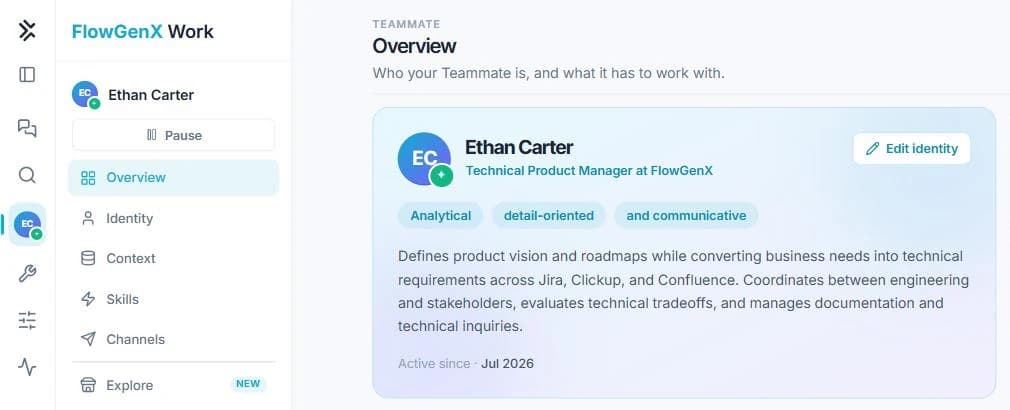
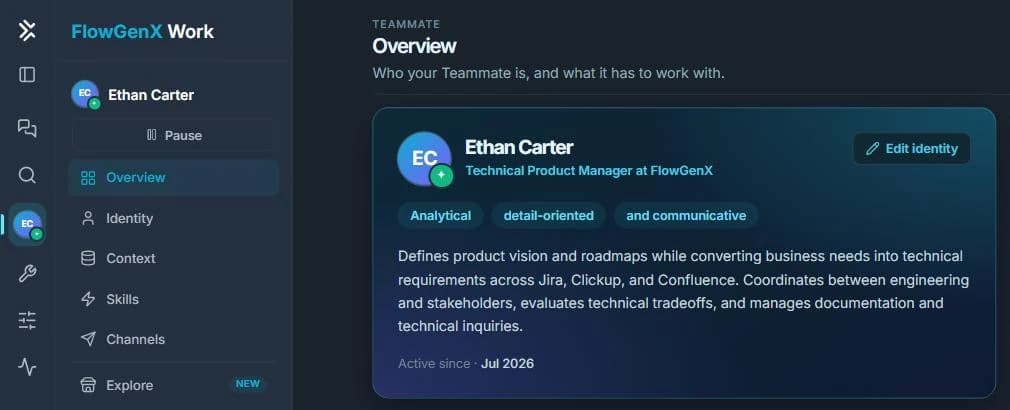
| Button | When you see it | What it does |
|---|---|---|
| Publish | The Teammate is a draft | Makes it live, and turns on every connected channel |
| Pause | The Teammate is live | Quiets it in every channel at once |
| Resume | The Teammate is paused | Brings it back exactly as it was |
Each one takes effect on the very next message. There is nothing to redeploy and nothing to wait for, which is what makes Pause usable as a real stop control.
Until a Teammate is published, the account answers as the default assistant:
| While published | While it is a draft |
|---|---|
| The persona applies: name, title, personality, job description | The account answers as the default assistant |
| Its equipped skills are used | Base abilities only |
| It answers in connected channels | It is silent in every channel |
| It searches the company Knowledge Base and its own history | Those are not available |
If it is ever unclear whether a Teammate should be answering, it does not guess. The message fails with a visible error, and you send it again. It never runs under the wrong identity.
Each channel also has its own pause toggle, for when one workspace needs quiet and the others do not. See Channels.
What actually bounds its reach
Five things, in descending order of strength.
- The account's connections. A Teammate works through the connected apps, APIs and servers of the account that owns it, and cannot exceed them. This is the real boundary.
- The Capabilities page. A tool that is switched off cannot be used at all.
- Approvals. A tool set to Ask first waits for a person every time. See Approvals in the thread.
- Equipped skills. A skill carries a list of allowed tools. A run that follows the skill, and any routine, uses only those. Removing a skill removes a route the Teammate was reaching for.
- The job description. It steers judgment. It does not enforce anything.
One Teammate per role, not one Teammate for everything. An account authorized against the CRM, the ledger, the task board and the HR policy base produces a Teammate that can reach all four. "Was it allowed to do this?" has no useful answer when the answer is always yes. Scope the account first, and the Teammate follows.
The Capabilities page
Capabilities, under Tools, lists every tool the Teammate has, grouped by what it touches: connected apps, knowledge, files, data, code, web, media, background work.
| Control | What it does |
|---|---|
| On / Off | Off means the Teammate cannot use the tool at all |
| Auto / Ask first | Auto goes ahead. Ask first posts an approval card in the thread and waits |
| Set all | Applies Auto or Ask first to a whole group |
| Ask mode | One switch. The Teammate asks before every action, not only the sensitive ones |
Tools that write are marked, and they start on Ask first. Tools that only read start on Auto.
The same page holds separate settings for FlowGenX Chat and for the Teammate, so you can be relaxed with your own chat and strict with the account that works in public channels.
When someone answers an approval card with Always allow for team, the matching tool moves to Auto here. This page is where you see that it happened, and where you change it back.
Masking rules
Guardrails, under Settings, controls what a Teammate will never show in a reply, whatever it found while working.
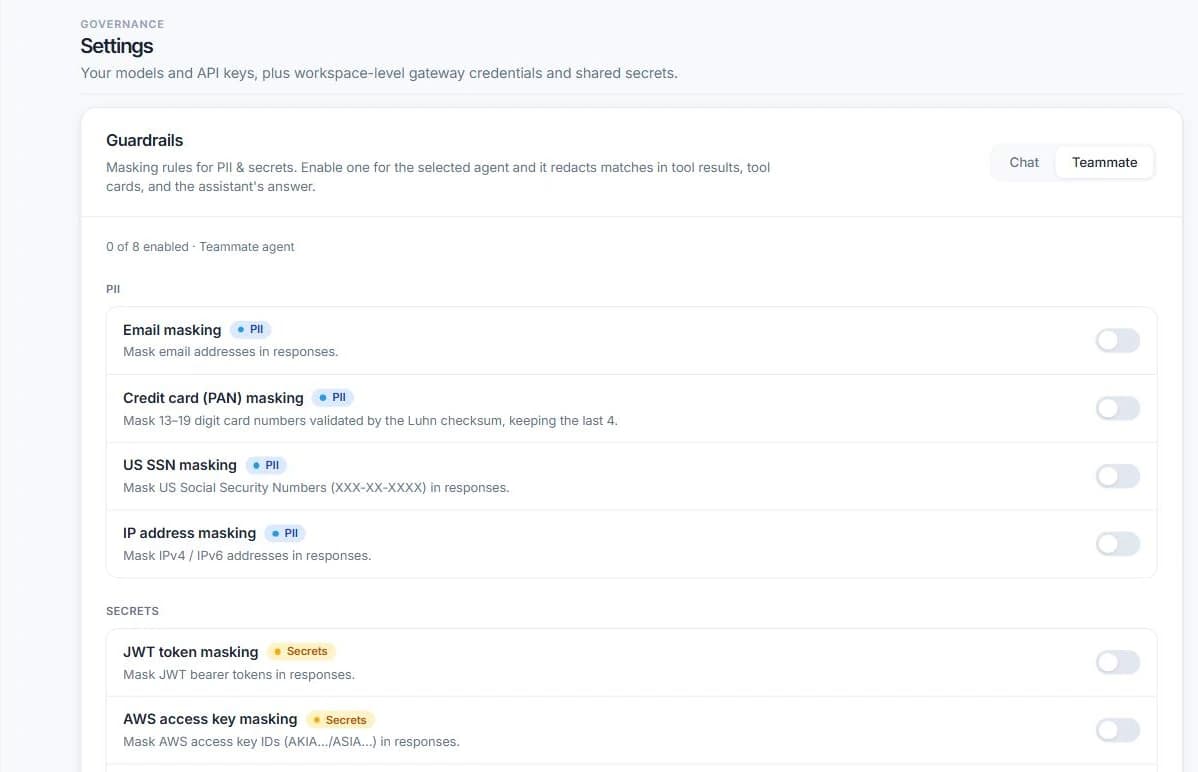
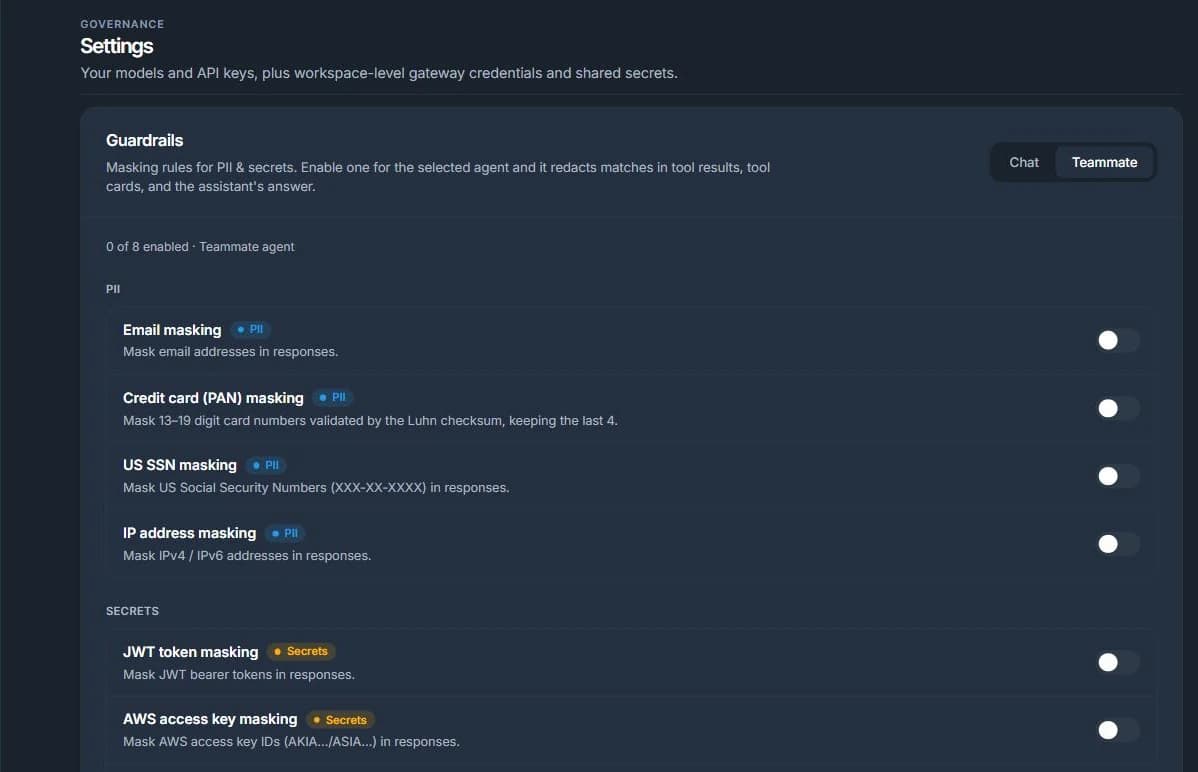
| Category | What is masked |
|---|---|
| Personal data | Email addresses, credit card numbers, US Social Security numbers, IP addresses |
| Secrets | Access tokens, cloud access keys, source-control tokens, private keys |
Each rule has its own toggle. A masked value is replaced in the reply, in every channel. The Teammate can still use a value to do its work. It will not repeat it to the room.
Staying on track
The likeliest failure of an AI that works on its own is not a dangerous action. It is a spiral: the same search rephrased twenty times, or the same page fetched again and again while every attempt reports success.
A Teammate is watched for exactly this. When it starts repeating itself without getting anywhere, it is first warned, then the repeated step is blocked, and if it still makes no progress the run ends gracefully with what it has. You get a real answer and an honest note about what it could not find. You do not get silence, and you do not get a bill for an hour of going in circles.
Waiting for a person is not counted against it. A run that is parked on an approval is not stuck.
Two more limits apply everywhere:
- A ceiling on how fast it can act, so a Teammate cannot flood a channel or an app.
- It ignores itself and other bots, so two automated accounts cannot set each other off.
What it learns
A Teammate improves by reviewing finished work in the background. That review can do two things only: save or update a memory, and save or update a skill. It cannot send, post, update or delete anything in your systems.
Whatever it writes into a skill is checked first, and content that looks like planted instructions or an attempt to move data out is rejected. See Memory and knowledge.
Auditing what it did
| Question | Where to look |
|---|---|
| What has it been doing lately? | Overview: activity charts, a timeline of recent runs, and the tools it used most |
| What exactly happened in one run? | Open the run from the timeline. Every step and every tool call is listed, in order |
| Who approved an action? | The approval is part of the run, and the card stays in the channel thread |
| What is happening across the account? | Activity in the FlowGenX Chat sidebar. See Monitor |
| Did a routine run? | The run history on the Routines page |
| What does it remember? | The Context page |
The difference matters when someone asks whether something happened. The run record answers that. A summary does not.
Data handling
- The Knowledge Base is read-only to the Teammate. Documents are written and managed in the Knowledge Base. A Teammate retrieves from them and cannot change them.
- Credentials are used, never read. Sign-in details are stored encrypted and used only at the moment of a call. The model never sees them.
- Incoming messages are verified. A message is accepted only when it demonstrably came from the platform it claims to come from, and duplicates are recognized and dropped.
- Unknown senders are ignored. A Teammate answers members of your workspace. It does not answer people it cannot identify.
- Memory is account-scoped. It belongs to the account, not to the persona, so renaming a Teammate does not clear what it learned.
- Your model, if you want it. Run on platform models, or add your own key, which is stored encrypted and visible only to you.
For the platform-level controls that sit above all of this, see Security and Governance.
Apps, APIs & Tools
What a Teammate works with. Your connected apps, any API you import, your MCP servers, your agents and workflows, plus files, data, charts and media.
Flow Companion
Flow Companion builds on FlowGenX from plain language: describe an automation and it designs the graph, connects the apps, saves, and publishes it.