

Flow Companion
The AI copilot for building on FlowGenX. Describe an automation in plain language and Companion designs the graph, connects the apps, saves the workflow to your canvas, and publishes it.
Flow Companion is a chat surface inside the FlowGenX platform where you build automations by describing them. You type what you want to happen; Companion asks what it needs to know, connects the apps it needs, designs the workflow graph, saves it as a real workflow record, and publishes it to the engine.
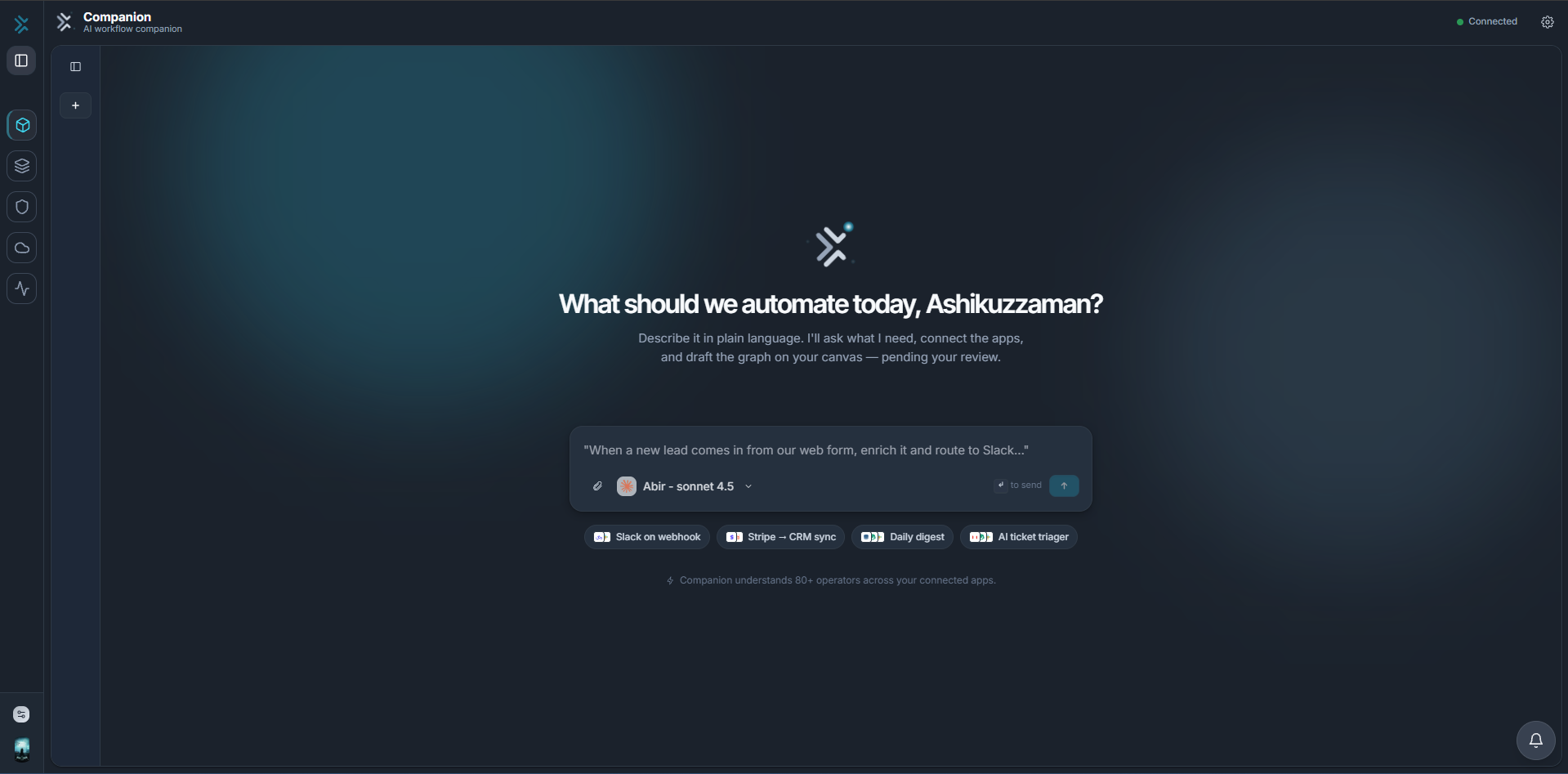
The difference from a general assistant is that Companion acts on your tenant. Every workflow it drafts becomes a row you can open in the canvas. Every app it connects becomes a connection in Integration Studio. Nothing it produces is a mock-up you have to rebuild by hand.
Early Access. Flow Companion is in early access and its surfaces change between releases. See What's New for the current state.
What you can ask it to do
Build and publish a workflow
Describe the outcome. Companion plans the graph, streams its progress, creates the workflow record, saves the graph to your canvas, and publishes it to the engine.
Connect an app
Ask for Slack, Gmail, Postgres or any connector. Companion opens the real provisioning drawer in place, so credentials go straight to the platform and never through the model.
Inspect and manage platform resources
Ask what is connected, what models are configured, or what an endpoint looks like. Results come back as sortable tables with actions, not walls of JSON.
Control what it is allowed to do
Consequential actions pause for your approval, destructive ones require a written justification, and every tool the agent can call is listed with an off switch.
Where it fits
| Surface | Use it for |
|---|---|
| Flow Companion | Building on the platform itself — designing, saving, publishing, and wiring up workflows and connections by conversation |
| FlowGenX Chat | Open-ended knowledge and analysis work with Flux, producing dashboards, decks, and cited answers |
| FlowGenX Co-Worker | A named teammate with persistent memory and its own presence in Slack and Google Chat |
| The workflow canvas | Direct, node-by-node authoring and fine-grained editing of what Companion drafts |
Companion and the canvas operate on the same records. A workflow Companion creates opens in the editor; a workflow you built by hand can be refined in Companion. There is no import step between them.
Opening it
In the platform's left sidebar, open Flow Companion. The page occupies the full content area — the platform header is hidden while you are in it.
On first open you land on the empty state: a composer, four starter prompts, and the headline "What should we automate today?". Anything you type there begins a new conversation.
The three panels
| Panel | What it holds |
|---|---|
| Conversation list (left) | New conversation, search, and your recent conversations. Collapses to an icon rail the moment you start typing. |
| Chat column (centre) | The transcript: your messages, Companion's replies, and an inline card for every tool call, approval request, form, link, and table. |
| Workflow preview (right) | Labelled Live from the Workflow Designer — a read-only canvas, a summary, an operator list, the raw JSON, and the create → save → publish status strip. |
The preview panel appears when a workflow is in play and can be collapsed when it is not.
What it runs on
Companion talks to the FlowGenX harness over a live WebSocket, scoped to your signed-in user and to the tenant and environment currently selected in the platform. Writes are scope-sensitive: a workflow published from Companion lands in the environment shown in the connection badge, so check that badge before publishing anything real.
The model that answers each turn is yours to choose from the composer's model picker, drawn from the LLM models configured for your tenant.
Start here
Governance & Control
What the enable switch actually gates, how the co-worker's scope is bounded, the guardrails that stop a runaway tool loop, and where to audit what it did.
Build Your First Workflow
From an empty conversation to a published, invocable workflow — the full create, save, and publish path driven entirely from chat.