

Settings
The four settings tabs — MCP servers and platform services, the per-tool catalog with an off switch, model assignments, and general preferences.
Open settings with the gear button at the top right of the Companion header. The modal has four tabs.
Almost everything here takes effect on your next conversation. The agent's tool set is assembled once, when a conversation connects, and stays fixed for its lifetime. After changing what is available, start a new conversation.
MCP
Controls which tool sources the agent can draw from. Three sections.
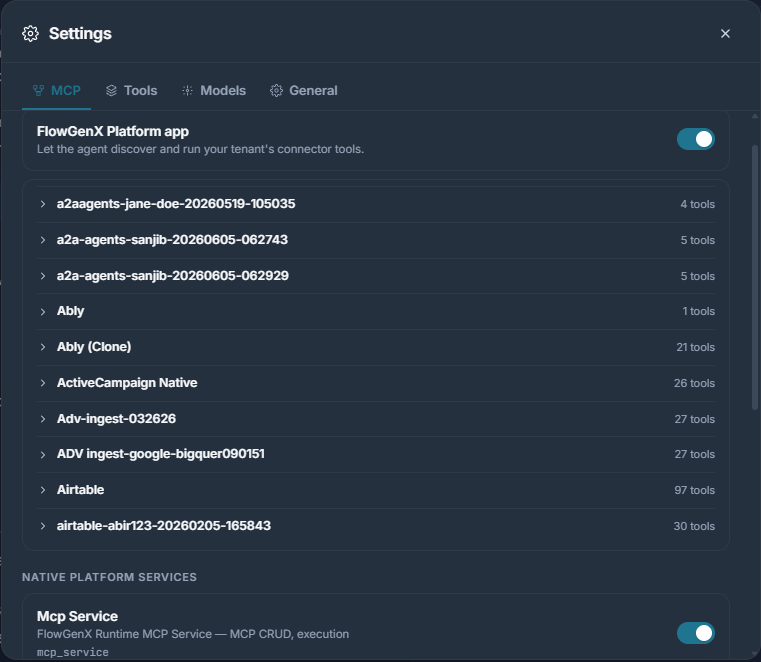
Built-in platform MCP
One card, FlowGenX Platform app — "Let the agent discover and run your tenant's connector tools." Its toggle exposes the platform's own app tools: the ones that list your connected apps, search them for a capability, and execute an endpoint.
Below it, every connected app is listed with its tool count. Expand one to see its individual tools and what they do.
Turning this off leaves Companion able to converse and design, but unable to reach your connected apps.
Native platform services
Per-user opt-in for the platform's internal services — the workflow engine, the MCP service, and others. Each enabled service adds its own tools to the agent's set.
This section hides itself when the feature is off or no services are configured for your tenant.
External MCP servers
Connect any Model Context Protocol server and its tools become available to Companion.
| Control | What it does |
|---|---|
| Add MCP server | Reveals a form; enter the server's URL. |
| Connect | Runs the OAuth flow in a popup and stores the token. |
| Reconnect | Shown when the stored authorization has expired. |
| Enable toggle | Exposes the server's tools to the agent. Locked until a token is stored. |
| Refresh tools | Re-reads the server's tool list. |
| Tools | Expands to show the server's tools and descriptions. |
| Remove | Deletes the server and its token. |
Each server shows its host, its tool count, and one of three states: Connected, Reconnect, or Not connected.
Tools
The per-tool view. Where the MCP tab controls sources, this tab controls individual tools — including the ones that are always present.
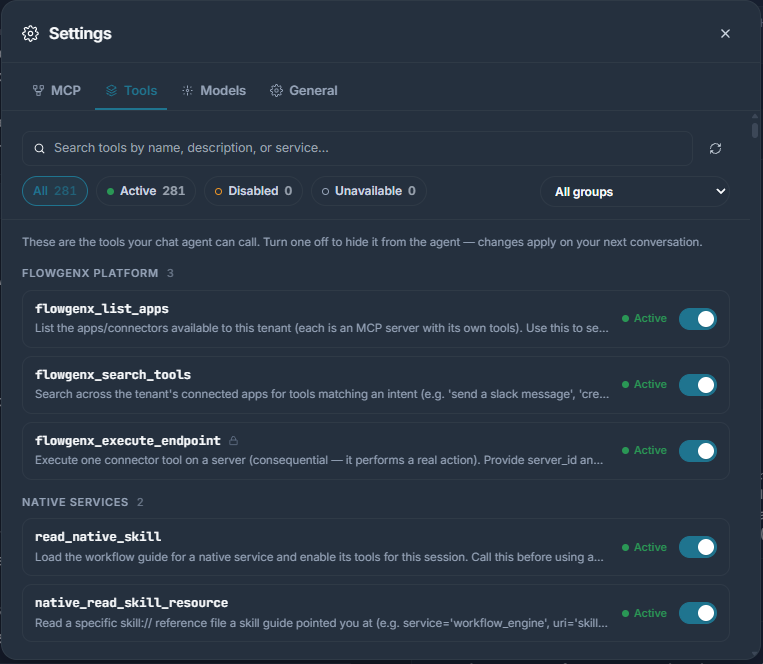
A line above the list states the contract plainly: "These are the tools your chat agent can call. Turn one off to hide it from the agent — changes apply on your next conversation."
Every tool the agent could call is listed, grouped by family and service:
| Group | What it covers |
|---|---|
| FlowGenX Platform | Listing, searching, and executing against your connected apps |
| External MCP · server | Tools from each connected external MCP server |
| Native services · service | Tools from each enabled native platform service |
| Workflow designer | Generating, refining, and answering questions about a design |
| Workflow lifecycle | Creating, saving, and publishing workflows |
| Utilities | Forms, OAuth, and the table renderer |
Reading the statuses
| Status | Meaning |
|---|---|
| Active | In the agent's set. It can call this right now. |
| Inactive | Available, but you disabled it. Filtered out before the model sees it. |
| Unavailable | Not in the set. The row shows the reason — the service is off, unreachable, or not authorized. |
These badges are not an estimate. The panel builds the tool set using the same code a real conversation uses, so what you see is exactly what the agent would get.
Finding a tool
A control bar stays in view while the list scrolls — worth having, since a tenant with many connected apps can reach several hundred tools:
- Search matches tool names, descriptions, and service names.
- Status pills — All, Active, Disabled, Unavailable — filter the list and double as the count legend.
- Group filter (All groups) narrows to one family or service.
Each row shows the tool's name in monospace, its description, its status, and its toggle. Consequential tools carry a small lock glyph next to the name, and their descriptions say so outright — flowgenx_execute_endpoint, for instance, is described as "consequential — it performs a real action".
Disabling a tool
Toggle it off. The tool is removed from the agent's set entirely — the model is never told it exists, so it cannot try and be refused.
The toggle is only enabled for tools that are currently available; there is nothing to disable on a tool the platform cannot reach anyway.
Occasionally a disable saves for the current session only, and the panel says so: "Saved for this session only — this will reset on reload." When you see that message, the preference is not stored and will not survive a refresh.
Disabling is a blunt, reliable control and pairs well with approvals: approvals catch individual calls you want to review, disabling removes capabilities you never want exercised.
Models
Assigns which model handles which part of Companion's work. This is separate from the composer's model picker — the picker chooses the model for the turn you are about to send; this tab sets the standing assignments.
Models offered here come from your tenant's LLM catalog. To add one, see Configuring an LLM model.
General
General preferences for the Companion surface.
Companion follows the platform's light/dark theme automatically — flipping the theme switch in the platform sidebar re-themes the chat immediately. There is no separate theme control here.
Approvals and Tool Tiers
Every tool Companion can call carries a governance tier. Reads run immediately, consequential actions pause for your approval, and destructive ones require a written justification.
Troubleshooting
What to check when the composer is disabled, a tool is missing, a workflow will not publish, or the preview panel stays empty.