

Connecting Apps and Credentials
How Companion connects apps, configures models, and mints API keys mid-conversation — and why your credentials never pass through the model.
A workflow is only as useful as the systems it can reach. Companion connects those systems without sending you elsewhere: when it needs an app, it opens the platform's real provisioning drawer over the conversation, waits while you complete it, and picks up exactly where it left off.
The rule that governs all of it
Secrets never enter the model's context.
Every credential flow in Companion works the same way: the agent asks the client to open a real platform form, you type the secret into that form, and the value goes straight from your browser to the platform API. What comes back to the agent is identifiers only — a connection name, an auth-config id, a status. The password, token, or API key is never in the transcript, never in a tool result, and never in anything the model reads.
This is why Companion opens a drawer instead of asking you to paste an API key into the chat. Pasting it into the chat would put it in the model's context permanently.
Connecting an app
Ask for it directly, or let it come up while a workflow is being designed:
Connect our Slack workspace.What happens:
- A connection card appears in the transcript.
- The Provision App Toolkit drawer opens over the page — the same component Integration Studio uses.
- You complete the setup there: choose the auth type, enter credentials or run the OAuth consent flow, name the connection.
- The drawer closes, the card records the outcome, and Companion continues the task with the new connection in hand.
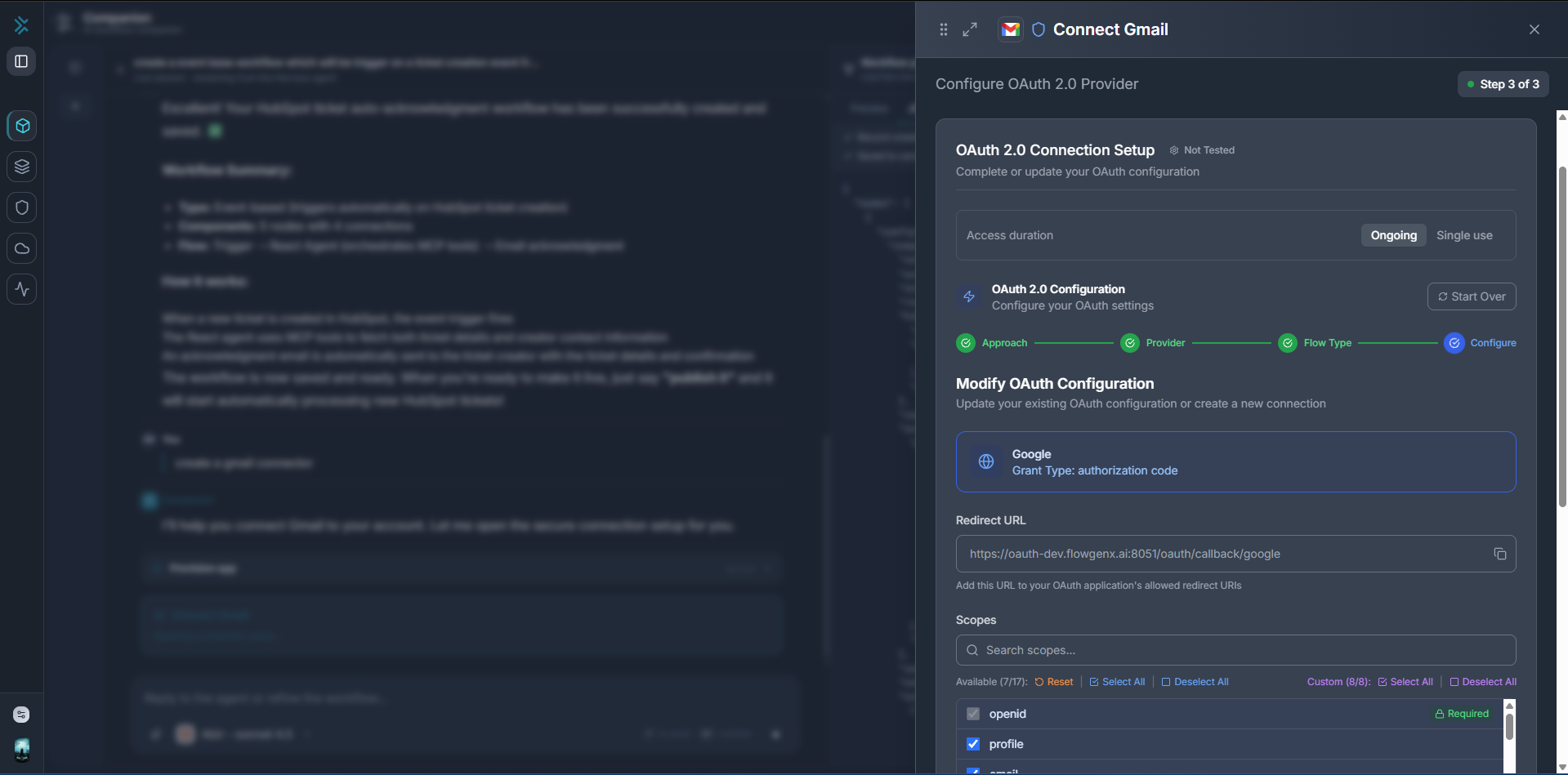
The drawer is the connector's full setup flow, not a cut-down version: access duration, provider and grant type, the redirect URL to register with the provider, and per-scope selection are all there.
The conversation is genuinely paused while the drawer is open — the agent is waiting on your completion, not polling or guessing. Provisioning sessions allow generous time by default, since OAuth connectors involve a provider popup and a redirect.
Resuming an unfinished setup
If you close the drawer part-way through and come back to it, Companion resumes where you left off rather than restarting from a blank form.
When the app has no connector
Companion says so plainly and suggests apps that are available, rather than pretending to connect something that does not exist. The connection card records the outcome as unavailable. Nothing is created.
Checking what is already connected
What apps do we have connected?The answer comes back as a table of connected apps with their tool counts. You can drill into any of them by name.
Configuring an LLM model
Companion can add or update models in your tenant's LLM catalog:
Add an Anthropic model for the tenant.This opens the LLM model drawer — the LLM Catalog's own form — in create or update mode. Companion pre-fills the non-secret details it already worked out from the conversation (provider, model name, model type). You type the provider API key into the drawer, and it goes straight to the platform API.
Models added this way appear in the composer's model picker and are available to the rest of the platform.
Ask for a list first — what models are configured? — and you get a table with Modify actions that open the drawer directly on the row you clicked, rather than re-describing which model you meant.
Minting an API-gateway key
Create an API gateway key for the reporting service.The key is minted in your browser against the ACL service and shown to you once. Only metadata — the consumer, the key's name, when it was created — goes back to the agent.
Gateway keys are shown once. Copy the value when the drawer displays it; it cannot be retrieved afterwards. Companion cannot show it to you again because it never had it.
If Companion knows which consumer the key belongs to, the drawer targets it directly; otherwise the drawer shows its own consumer picker.
Inline forms
Some steps need a handful of values rather than a whole drawer — a host and port, a database name, a bearer token. Companion renders a form card in the transcript with typed fields: text, password, URL, email, number, textarea, select, and toggle, each with its own help text and validation.
Fields marked as secrets are masked as you type and are routed directly to the next tool call. After you submit or cancel, the card flips to a read-only Submitted or Cancelled record so you have a durable trace of what you chose.
Forms can carry an expiry. If one lapses before you fill it in, ask Companion to try again and a fresh form is issued.
Link prompts
When a flow needs you to visit a URL — a provider consent screen, a verification page — Companion renders a link card with a label, an explanation, and a button.
Some link cards collect a field or two before the button works, such as a name for the connection you are about to create. Fill those in, then click through; the values are submitted at the same moment the URL opens.
Link cards can expire. Once the deadline passes the URL stops working, and you ask Companion to generate a new one.
Connecting external MCP servers
Beyond app connectors, Companion can use tools exposed by external Model Context Protocol servers. These are managed in Settings → MCP rather than through the conversation:
- Open Settings (the gear in the header) and go to the MCP tab.
- Under Connect an MCP server, click Add MCP server and enter its URL.
- Click Connect to run the OAuth flow in a popup.
- Once connected, enable the server with its toggle to expose its tools to the agent.
A server shows one of three states: Connected, Reconnect (its authorization expired), or Not connected. The enable toggle stays locked until a token is stored — you cannot expose a server the platform cannot reach.
Refresh tools re-reads the server's tool list, and the Tools expander shows what it offers. Remove deletes the server and its stored token.
See Settings → MCP for the full tab, including built-in platform MCP and native platform services.
Newly connected servers and newly enabled tools take effect on your next conversation. The tool set is fixed when a conversation connects. Start a new conversation after changing what is available.
What Companion does with connections
Once an app is connected, Companion can:
- List what is available to the tenant, with tool counts.
- Search across connected apps for a capability described in plain language — "send a Slack message", "create a Jira issue".
- Execute an endpoint on a connected app when the task calls for it.
- Wire the connection into a workflow it is designing, so the published workflow uses it at runtime.
Searching and listing are read-only and run immediately. Executing an endpoint against a live system is governed by tool tiers — consequential calls pause for your approval.
Building Workflows
How Companion designs a graph, what the live preview panel shows you, and the create → save → publish lifecycle that turns a draft into a running workflow.
Approvals and Tool Tiers
Every tool Companion can call carries a governance tier. Reads run immediately, consequential actions pause for your approval, and destructive ones require a written justification.