

Building Workflows
How Companion designs a graph, what the live preview panel shows you, and the create → save → publish lifecycle that turns a draft into a running workflow.
Building a workflow in Companion is a conversation with a visible artifact. The chat column carries the dialogue; the right-hand panel shows the graph taking shape and tracks how far it has travelled toward being a real, published workflow.
The design loop
- You describe an outcome. A trigger, some work, a destination.
- Companion asks what it needs. Ambiguities become questions, not assumptions.
- A workflow record is created. Before any design work — see create-first below.
- The designer plans and generates. Progress streams into the preview panel.
- A graph lands and is saved. The preview fills with a canvas, a summary, and the operator list.
- You review and refine. Describe changes; the existing design is refined, not rebuilt.
- You publish. The only step that waits for you to ask.
Steps 3 through 7 are the interesting ones.
Writing a good first prompt
Describe the outcome and the boundaries. Name systems, not node types.
When a new lead comes in from our web form, enrich it with company data,
score it, and route high-value leads to the sales team on Slack while
adding them to our CRM.
That prompt gives Companion a trigger (web form webhook), work (enrich, score), a branch (high-value or not), and two destinations. What it deliberately leaves open — which CRM, what counts as high-value — comes back as questions rather than guesses.
Tip. Companion resolves operators against the platform's catalog and the apps connected to your tenant. You do not need to know node names. If you do know exactly which operator you want, naming it works fine.
Answering clarifying questions
Questions arrive in two places:
- In the transcript, as ordinary prose from Companion. Reply in the composer.
- In the preview panel, under a Needs your input header, numbered, sometimes with suggested options shown as chips.
Both are answered the same way: reply in the chat. The chips in the preview panel are hints, not buttons — type your answer and Companion passes it back to the designer.
Refining
Once a graph exists, describe changes in place:
For low-score leads, send to HubSpot instead of Salesforce.Companion refines the current design and saves the result automatically. The preview updates and the operator counts move. You can iterate as many times as you like; ask it to publish again to make the change live.
Refining also pulls in canvas edits first. If you opened the workflow in the editor and changed something by hand, Companion syncs that latest version before refining, so it never edits a stale copy. The two surfaces share one design conversation.
The preview panel
Titled Workflow preview, subtitled Live from the Workflow Designer. The panel is live from the first turn that involves a workflow. Its header shows the design status:
| Status | Meaning |
|---|---|
| Designing… | The designer is planning. Progress lines stream under Designer activity. |
| Needs your input | Questions are waiting. Answer them in the chat. |
| Ready for review | A graph exists and is rendered below. |
| Failed | The design could not be produced. The reason is shown in the panel. |
The panel can be collapsed with the control in its header when you want the full width for the conversation.
The Preview tab
Once a graph lands, the Preview tab shows four sections in order:
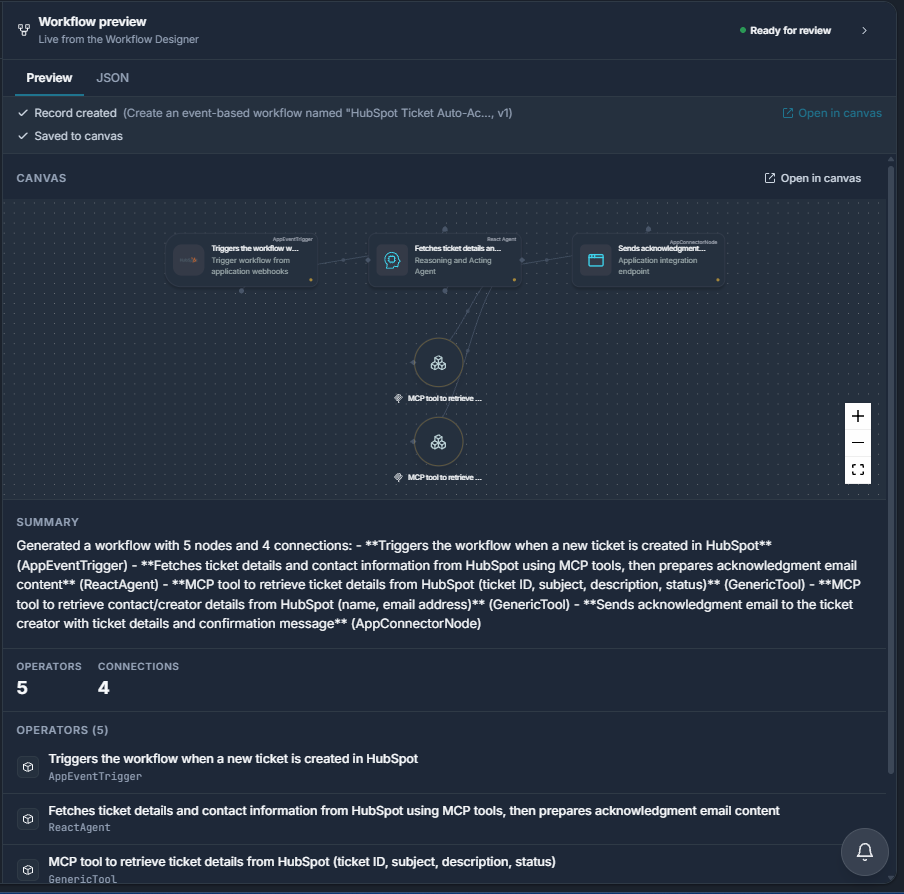
Canvas. A read-only rendering of the graph using the same node components as the real workflow editor — not a stylized approximation. Pan, zoom, and fit-to-view controls sit in the corner. You cannot drag, select, connect, or delete; editing happens in the real editor. Clicking anywhere on the canvas opens the workflow in the editor, once it has been saved.
Summary. The designer's explanation of what the workflow does, including the node types it chose.
Operators / Connections. The two counts.
Operators (n). Every node in the graph, each with its description and its type — AppEventTrigger, ReactAgent, GenericTool, AppConnectorNode, and so on.
While the designer is still working and no graph has landed yet, the tab shows Designer activity instead — the most recent progress lines, streamed as they arrive (progress: pre_resolve_context, progress: assess_clarity, …).
The JSON tab
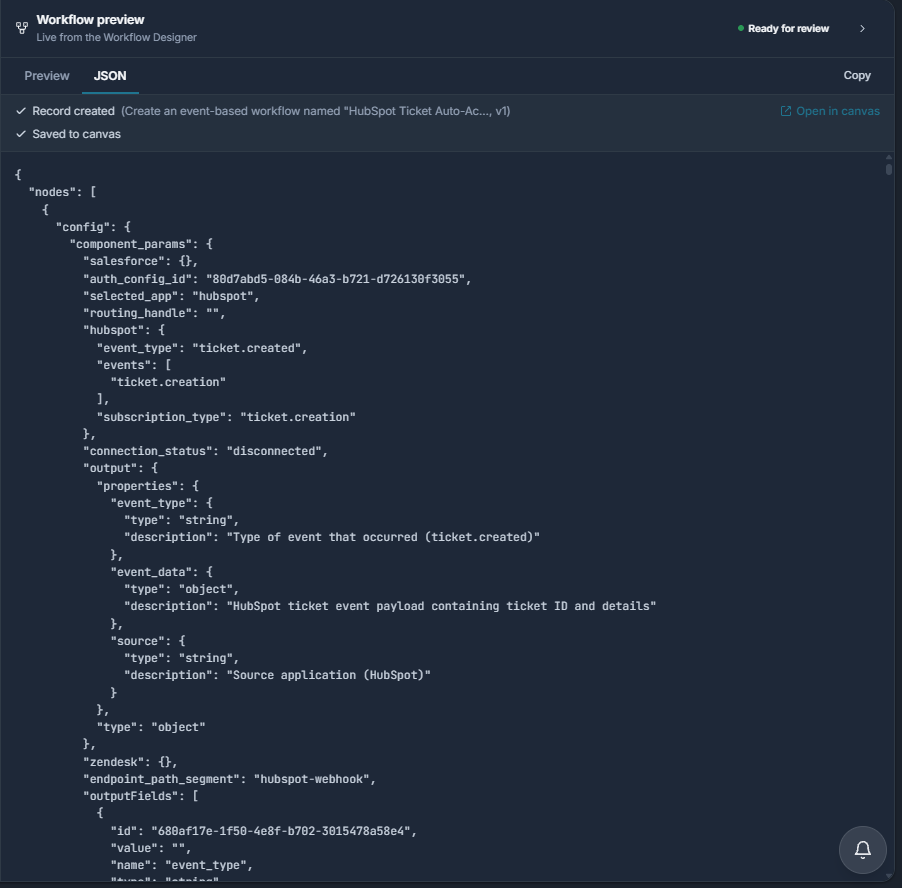
The raw workflow graph, with a Copy button. Useful for filing a bug, diffing two attempts, or handing the graph to someone else. Before a graph exists it reads "No workflow JSON yet — it appears once the designer returns a graph."
The lifecycle: create, save, publish
A designed graph is not yet a workflow. Three stages make it one.
| Stage | What it does | Where it shows | When |
|---|---|---|---|
| Create | Creates the workflow record — a real row with a name and a version number. | Record created (name, v1) | Automatic |
| Save | Persists the designed graph onto that record, in canvas shape. | Saved to canvas | Automatic |
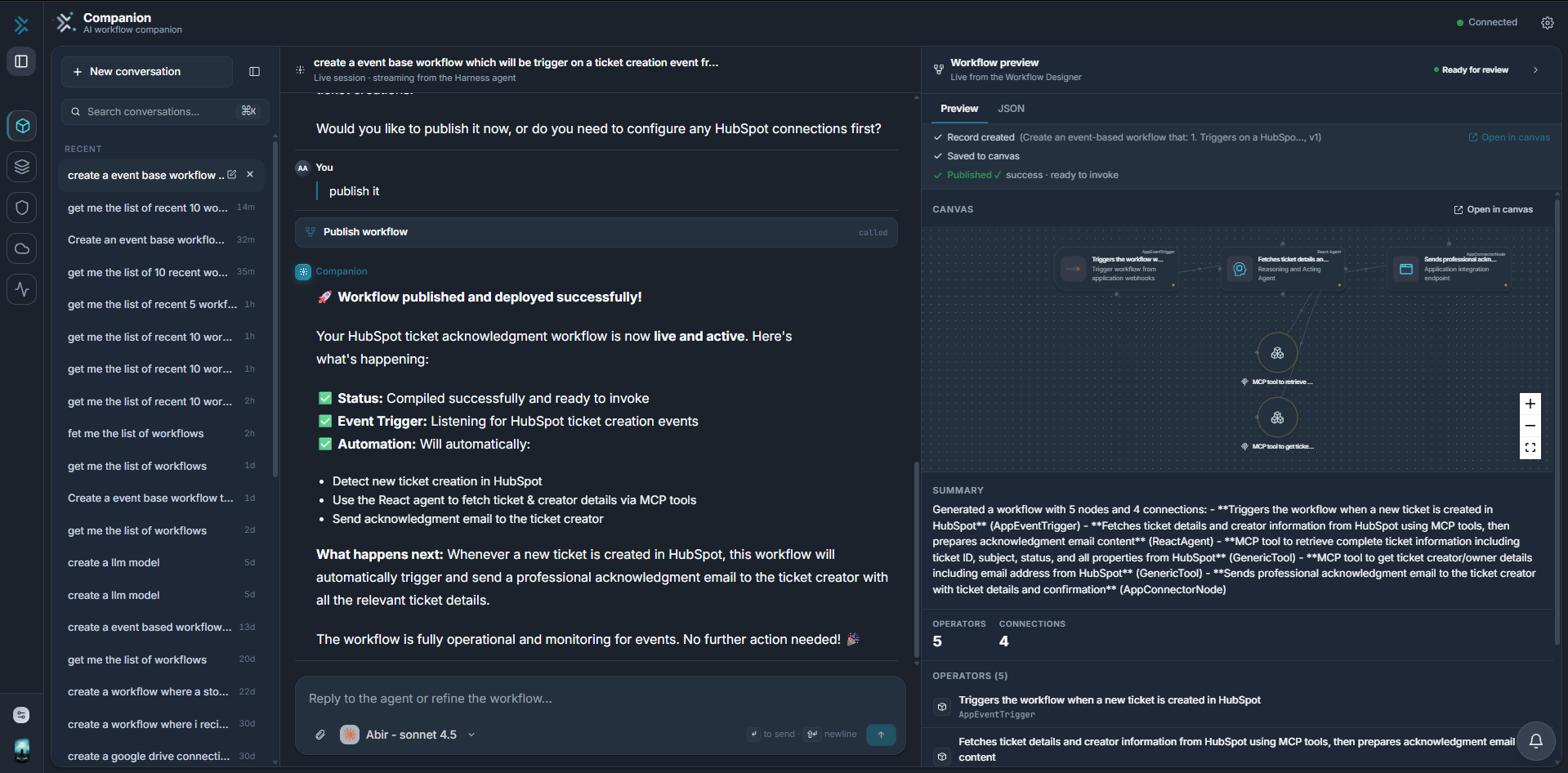
| Publish | Compiles the version on the workflow engine so it can be invoked. | Published ✓ | You ask |
They appear in a status strip directly above the preview tabs, and they accumulate — a published workflow shows all three lines.
Create-first
Creating and saving are not things you ask for. Asking Companion to build a workflow runs create → generate → save as one automatic sequence, so the workflow is persisted and openable in the canvas as soon as the design is done.
The record is created before the designer runs. You will often see Record created appear in the status strip while the panel still says Designing… — that is the expected order, not a glitch.
Why it matters. Designing against the real workflow id means Companion and the canvas's own copilot write to the same design conversation. That is what lets Companion pick up your hand edits when you refine later.
Publish is the deliberate exception. It is the step that makes a workflow live, so it always waits for you to ask — Companion will usually offer, rather than assume.
Record created
Shows the workflow's name and version, plus an Open in canvas link. The version number is assigned by the platform — Companion does not invent it.
Saved to canvas
The designed graph has been converted to canvas shape and written to the record. This is what makes the workflow openable and editable in the real editor. Node positions are laid out again the first time you open it in the canvas.
Published ✓
Shown in green, with the engine's compilation status and, when the engine reports it, · ready to invoke — for example success · ready to invoke.
Publish targets the environment currently selected in the platform, shown in the connection badge. Check it before publishing anything that matters.
When a stage fails
A failed stage replaces its line with an error message naming what went wrong. The preview graph is preserved, so you can fix the cause — a missing connection, an invalid configuration — and retry without redesigning.
If a save or publish fails on a validation or compilation error, Companion offers to repair it: it explains the error, asks whether to attempt a fix, and only with your agreement refines the workflow restating the error, saves, and retries the original step. It will not loop on this indefinitely — after two attempts it stops and hands the problem back to you.
Open in canvas
Open in canvas appears in two places: on the Record created line, and in the canvas section header. Clicking either opens the workflow in the full editor in a new tab. Clicking the preview canvas itself does the same thing.
The link is inactive until the workflow has been saved. Until then it is greyed out with the hint "Save the workflow to the library first to open it in the canvas." There is nothing to open yet — the graph exists only as a design.
The preview canvas survives a re-save. Refining and saving again keeps the preview and the Open in canvas affordance intact rather than resetting the panel.
What happens to the workflow afterwards
Once published, the workflow is an ordinary FlowGenX workflow:
- It appears in the workflow list and opens in the canvas.
- It can be scheduled or triggered like any other.
- Its runs appear in monitoring and traceability.
Companion is the way it was authored, not a runtime it depends on. You can close the conversation and the workflow keeps running.
Limits worth knowing
- The preview canvas is a preview. Connector logos may render as placeholders; the real editor shows the signed logos. Layout is refined when the canvas first opens.
- An invalid or empty graph hides the canvas but keeps the operator list, so you still see what was produced.
- Designer calls are serialized per workflow. Two overlapping design requests on the same workflow will queue rather than race.
The Workspace
The composer, the conversation list, the model picker, connection status, and how to read every kind of card in the transcript.
Connecting Apps and Credentials
How Companion connects apps, configures models, and mints API keys mid-conversation — and why your credentials never pass through the model.