

The Workspace
The composer, the conversation list, the model picker, connection status, and how to read every kind of card in the transcript.
Companion is one page with a header and three panels. This page covers the chat surface itself — the workflow preview panel has its own.
The header
| Control | What it does |
|---|---|
| Companion brand (left) | Identifies the surface. No action. |
| Connection badge (right) | Live socket status, plus the active tenant and environment. |
| Settings (far right) | Opens the settings modal — MCP, Tools, Models, General. |
Connection status
The badge shows one of three states:
| State | Dot | Meaning |
|---|---|---|
| Connected | Green | The socket is live. You can send messages. |
| Connecting | Amber, pulsing | Establishing or re-establishing the connection. |
| Disconnected | Grey | No live connection. The composer is disabled. |
Click the badge to open a popover showing the active tenant · environment. When the connection has dropped, the popover offers a Reconnect button.
This badge is the only place connection state appears. The transcript never fills with connect/disconnect banners, so a flaky network does not pollute the conversation you are reading.
The composer stays disabled until both a tenant and an environment are resolved. If the popover reads "Selecting tenant / environment…", choose them in the platform first.
The composer
| Element | Behaviour |
|---|---|
| Text area | Grows as you type, up to five lines, then scrolls. In an active conversation the placeholder reads "Reply to the agent or refine the workflow…". |
| Enter | Sends the message. |
| Shift+Enter | Inserts a newline. |
| Attach | Paperclip button for attachments. |
| Model picker | Chooses the LLM that answers this turn. |
| Send / Stop | Sends the message; becomes Stop while a turn is running. |
One turn at a time
While Companion is working, the primary button turns into Stop. Sending is blocked until the turn settles — this keeps tool calls, approvals, and the workflow pipeline from interleaving in ways you cannot follow.
Pressing Stop aborts the in-flight turn and inserts a quiet centred marker in the transcript reading "Stopped by you". It is a notice, not an error; the conversation continues normally from there.
Choosing a model
The model picker lists the chat models configured for your tenant, with their provider. Your choice applies to the turns you send from then on — you can switch models mid-conversation.
If the picker is empty, no LLM model is configured. Ask Companion to set one up, or add one in the LLM catalog.
The model changes who answers. It does not change which tools exist — that is fixed when the conversation connects. See Settings → Tools.
Conversations
The left rail holds your conversation history.
| Control | Behaviour |
|---|---|
| New conversation | Starts a fresh session. Appears in the list immediately as New chat. |
| Search | Filters the list by title as you type. |
| RECENT | Your conversations, newest first, with a relative timestamp (now, 14m, 3h, 2d). |
| Rename (pencil) | Edits the title inline. Enter commits, Esc cancels. |
| Delete (×) | Removes the conversation. Deleting the active one starts a new session. |
Rename and delete appear on hover, and always on the active row.
Auto-naming
A new conversation is titled from your first message, so the list stays readable without you naming anything. The name appears as soon as the title is staged — you do not wait for a round trip. Rename it whenever you like.
Auto-collapse
The rail collapses to a 60-pixel icon strip the moment you click or focus the chat or preview, giving the transcript the width it needs. Re-expanding is manual — use the sidebar toggle at the top of the rail. Companion will not collapse it out from under you a second time.
Switching back
Selecting a past conversation reloads its transcript. A skeleton shows while history loads; the empty hero does not flash in between.
Reading the transcript
Messages are labelled You and Companion. Above the transcript, a sub-header carries the conversation title and the line "Live session · streaming from the Harness agent".
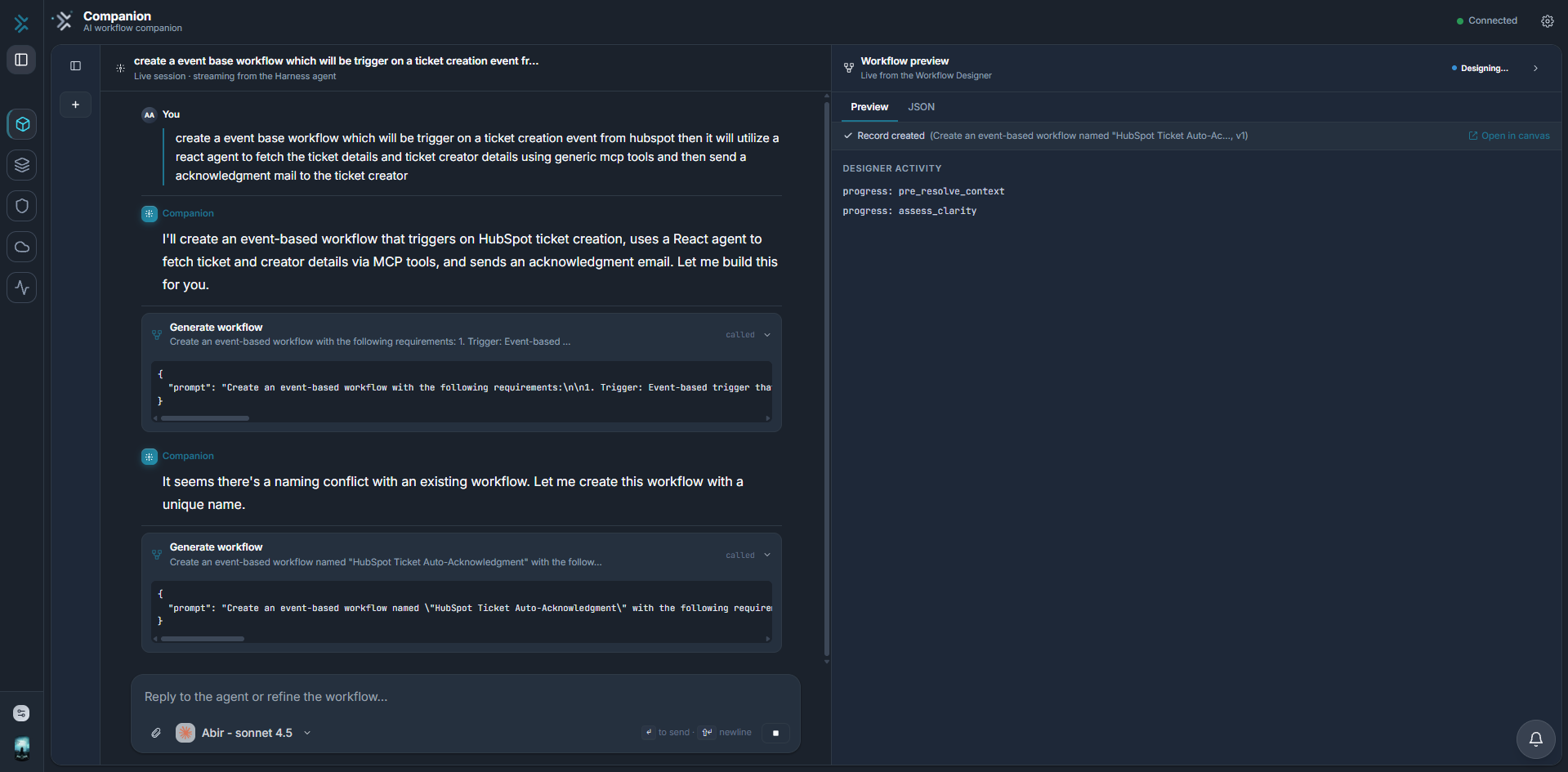
Between the messages, Companion's activity is rendered as inline cards rather than hidden behind prose.
Tool calls
Every tool the agent calls appears as one card that transitions in place. You do not get a call card and a separate result card — it is a single row with a lifecycle.
Each card shows:
- A readable label — Generate workflow, Publish workflow — not the raw tool name.
- A one-line summary of what it was asked to do.
- An expandable arguments block with the exact JSON payload.
- A status chip on the right: a spinner while it runs,
calledonce it settles, or an error.
This is the fastest way to answer "what did it actually do?" when an answer looks wrong. The label tells you the intent; the arguments block tells you the truth.
Approval requests
Consequential and destructive actions pause and render an approval card with a tier badge, the arguments, and Approve / Deny. Destructive actions require a written justification before Approve is enabled. Once decided, the card flips to a read-only Approved or Denied record.
Forms
When Companion needs values the model should not see — passwords, API keys, connection strings — it renders a form card. What you type is routed straight to the next tool call and never enters the assistant's context. After you submit or cancel, the card becomes a read-only Submitted or Cancelled record.
Links
Some flows need you to open a URL — an OAuth consent screen, for example. Companion renders a link card with a label, a description, and a button. Some link cards collect a field or two first, such as a name for the connection you are about to create. Link cards can carry an expiry, after which the URL stops working and you ask Companion to generate a fresh one.
Tables
When you ask what exists — connected apps, configured models, gateway consumers, endpoints — the answer comes back as a sortable table rather than a JSON dump. Rows can carry actions:
- Prompt actions send a pre-written message on your behalf, as if you had typed it.
- Drawer actions open the relevant editor directly on the row you clicked.
Destructive row actions ask for confirmation first.
Connection cards
When Companion provisions an app it renders a provisioning card and opens the real drawer. On completion the card records the outcome — the connection's name on success, or unavailable when the app has no connector at all. See Connecting apps and credentials.
Keyboard reference
| Key | Action |
|---|---|
| Enter | Send |
| Shift+Enter | Newline |
| Enter / Esc | Commit / cancel a conversation rename |
| Esc | Close the connection popover |
Build Your First Workflow
From an empty conversation to a published, invocable workflow — the full create, save, and publish path driven entirely from chat.
Building Workflows
How Companion designs a graph, what the live preview panel shows you, and the create → save → publish lifecycle that turns a draft into a running workflow.