

Approvals and Tool Tiers
Every tool Companion can call carries a governance tier. Reads run immediately, consequential actions pause for your approval, and destructive ones require a written justification.
Companion acts on your tenant. That is the point, and it is also the risk. The control model is deliberately simple: every tool the agent can call is classified, and the classification decides whether it runs, pauses, or demands an explanation.
The four tiers
| Tier | Class | Behaviour |
|---|---|---|
| T0 | Read | Runs immediately. Nothing is changed. |
| T1 | Safe write | Runs immediately, and is logged. |
| T2 | Consequential | Pauses for your approval before it runs. |
| T3 | Destructive | Pauses for your approval and requires a written justification. |
T0 and T1 pass straight through — listing connected apps, searching for a tool, drafting a workflow design. T2 and T3 stop at the confirmation gate and page you.
Examples
| Action | Tier |
|---|---|
| List the tenant's connected apps | T0 |
| Search connected apps for a capability | T0 |
| Render a table of platform resources | T0 |
| Open a provisioning, model, or API-key drawer | T0 |
| Generate or refine a workflow design | T1 |
| Create a workflow record | T2 |
| Save a graph onto a workflow | T2 |
| Publish a workflow to the engine | T2 |
| Delete a resource | T3 |
Tools that reach your systems through connectors, native platform services, or external MCP servers carry their own tiers, assigned by the governance rules for that service.
The approval card
When a T2 or T3 tool is about to run, the turn pauses and an approval card appears in the transcript:
- The tool name and a tier badge (T2 or T3).
- The arguments the agent intends to pass.
- A justification field.
- Approve and Deny.
Read the arguments. They are the actual call — the workflow id being published, the resource being deleted, the endpoint being hit.
Approving
Click Approve. The tool runs and the card flips to a read-only Approved record that stays in the transcript.
For a T3 action the justification field is required. Approve stays disabled until you write something, and an approval submitted without one is rejected. This is deliberate: a destructive action should carry a reason a colleague can read six months later.
Denying
Click Deny. The tool does not run, the card records Denied, and Companion continues the turn without it — usually by explaining what it could not do and offering an alternative.
You can add a reason when denying too. It is optional, but it tells Companion why, which usually produces a better next suggestion than a bare refusal.
Letting it lapse
If you neither approve nor deny, the request eventually expires and the call is blocked. Expiry fails closed — an unattended approval never becomes an approval.
When Companion does not ask
If a consequential action was your explicit instruction, Companion does not ask you to approve it a second time. Telling it "publish the workflow" and then being asked "may I publish the workflow?" is friction without safety.
This applies narrowly, to the workflow lifecycle actions you asked for by name — create, save, publish. It does not extend to anything the agent decided to do on its own initiative, and it never applies to T3.
The approval is still recorded. Auto-approved actions are written to the audit trail with the reason "auto-approved (explicit user command)". What is skipped is the interruption, not the record.
Controlling what exists at all
Approvals govern individual calls. To govern the whole surface, use Settings → Tools.
Every tool the agent can call is listed there with a live status:
| Status | Meaning |
|---|---|
| Active | In the agent's tool set. It can call this. |
| Inactive | Available, but you turned it off. Filtered out — the model never sees it. |
| Unavailable | Not in the set, with a reason: the service is off, unreachable, or not authorized. |
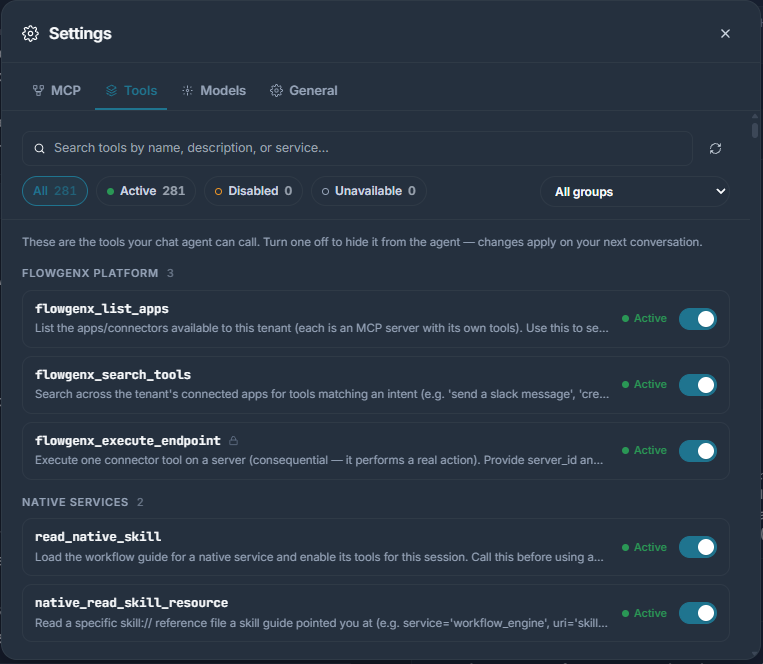
Consequential tools are marked with a lock glyph in that list, so you can see which capabilities will pause for approval before you ever trigger one.
Disabling a tool removes it from the agent's set entirely. The model is not told "you may not call this" — the tool simply is not there.
Changes take effect on your next conversation. The tool set is assembled once when a conversation connects and stays fixed for its lifetime, so a mid-conversation change cannot alter what the agent already believes it has.
See Settings → Tools for the panel itself.
What is recorded
Every approval decision — approved, denied, expired, or auto-approved — is written as a durable record with the tool name, tier, arguments, decision, reason, and who decided. Records are scoped to your tenant and environment.
Alongside that, the transcript itself is a review surface: every tool call appears as a card with its arguments and its result. When an outcome is surprising, the answer is usually visible in the conversation without needing to open anything else.
Practical guidance
- Read the arguments, not the summary. The summary is the agent's description of its intent; the arguments are what will actually run.
- Check the environment before approving a publish. The connection badge shows the active tenant and environment. Publishing targets that scope.
- Deny freely. A denial is cheap and Companion recovers from it gracefully. An unwanted T3 action is not cheap.
- Turn off what you will never want. If Companion should not be deleting anything in this tenant, disable those tools rather than relying on catching each request.
- Write justifications for the reader. The person reading a T3 justification later is probably not you, and definitely does not have the conversation in front of them.
Connecting Apps and Credentials
How Companion connects apps, configures models, and mints API keys mid-conversation — and why your credentials never pass through the model.
Settings
The four settings tabs — MCP servers and platform services, the per-tool catalog with an off switch, model assignments, and general preferences.