

AI Employee Recurring Tasks
Give your AI Teammate recurring tasks: ask in any channel for a scheduled routine, start from a template, or set a watcher. Results arrive in that thread.
Some work should not wait to be asked. The Monday pipeline summary, the morning stand-up brief, the Wednesday sweep of overdue invoices: someone has to remember them, and that someone is usually busy.
A routine is a job a Teammate runs on a schedule or when something happens, and reports back without being prompted.
Ask for one in the channel
You do not need to open the Studio to create a routine. Say so where you are:
@Ethan Carter I want a routine: every weekday morning, a ClickUp digest of open tasks with blockers, dependencies and CTAs, posted to Discord #general.
 Slack#ops0 of 5
 11
Asking for a routine in Slack: the questions, the setup, and the confirmation.
The Teammate asks what it still needs to know:
| It asks | For example |
|---|---|
| What should it do? | Summarize open tasks, flag anything blocked |
| When? | Every weekday at 09:00 |
| Where does the data come from? | Our ClickUp workspace |
| What shape should the result take? | A short summary, a detailed report, a table, or an email draft |
If your first message already answers a question, it does not ask it again. Once it has all four, it sets the routine up, tells you when the first run is, and offers a dry run so you can see the output before it goes out for real.
This works in Slack, Microsoft Teams, Google Chat, Discord and FlowGenX Chat.
It reports back where it was asked
The thread, channel or direct message where you created the routine is remembered, and every run delivers there. The Monday summary you asked for in #sales arrives in #sales.
You can also name a different destination when you create it: ask in Slack, deliver to Discord. One Teammate covers both.
Run one now
@Ethan Carter run the sales summary now
It runs the routine straight away and posts the result with ✅. Use this after you change a routine, or when you need this week's numbers on a Thursday.
Start from a template: briefs and summaries
The Routines page under Tools has templates for the jobs teams ask for most.
| Template | What it does |
|---|---|
| Overnight email digest | What arrived while you were away, and what needs you |
| Weekly sales summary | Pipeline movement, deals won and lost, what is at risk |
| Daily stand-up prep | What moved in the tracker since yesterday |
| Invoice follow-ups | Overdue invoices and a reminder for each |
| Brand-mentions monitor | Where your company was mentioned, with suggested replies |
| Inbox housekeeping | Routine mail sorted and pre-drafted |
Pick one and adjust it, or describe a routine in a sentence and the builder on that page drafts the schedule, the delivery and the instructions for you.
A ready-made Teammate also arrives with three starter routines for its role. They are switched off until you turn them on.
Scheduled AI tasks and other triggers
| Trigger | In plain words |
|---|---|
| A schedule | Every weekday at 9, the first of the month, every two hours |
| You | "Run it now", in a channel or from the Routines page |
| An event | Something happened in a connected app, or another system called the routine |
| A watcher | A condition it checks quietly in the background. When it becomes true, the Teammate starts a conversation about it |
A watcher suits "tell me when" requests: tell me when the deal moves to Closed Won, tell me when stock drops below 20. It checks cheaply and only speaks up when there is something to say.
Routines and approvals
A routine that only reads and reports never asks for anything.
A routine that writes follows the same rule as any other work: the step waits for a yes in the thread. If you want a routine to send reminders without asking every Wednesday, set that tool to Auto on the Capabilities page. See Approvals in the thread.
A routine also runs only with the tools it was given when it was created. A digest routine cannot start sending email because a message in the data told it to.
When a routine fails
Apps change, tokens expire, a list gets renamed.
- The tools a routine depends on are checked when you save it, so a routine that cannot work tells you straight away, not at 9 the next morning.
- After repeated failures, the Teammate proposes a fix and explains what changed.
- If it still cannot run, it pauses itself and says so. It does not keep failing in your channel every morning.
Every run is kept. The Routines page shows the history for each routine: when it ran, how long it took, what it produced, and what went wrong if it failed.
Managing routines
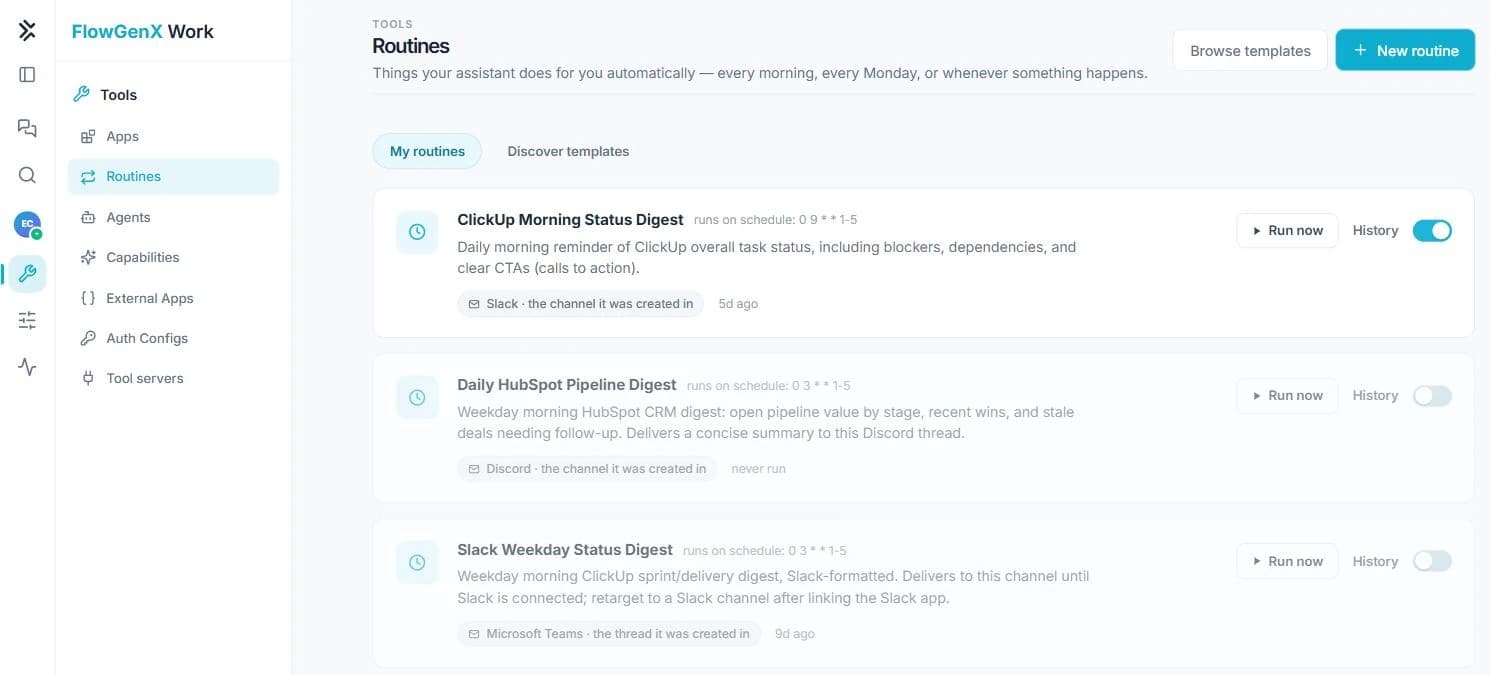
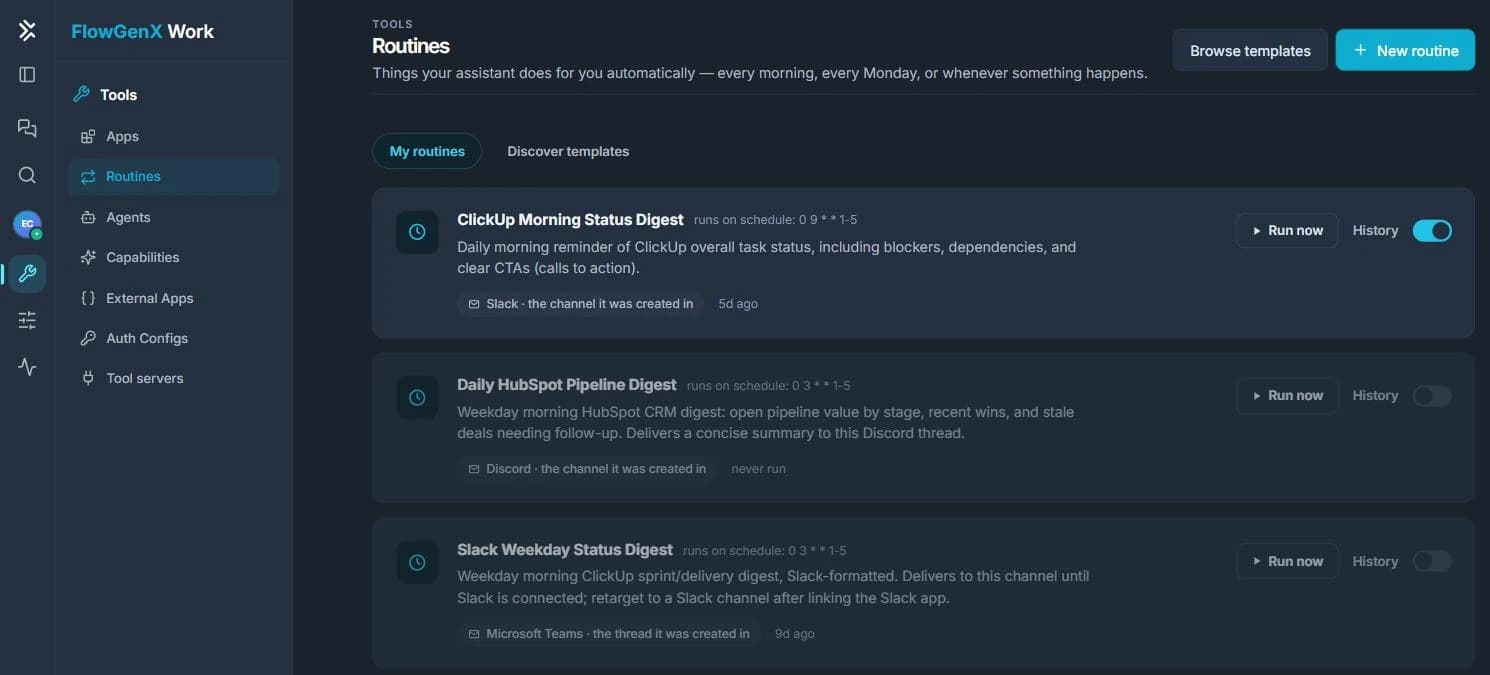
Open Routines under Tools to see, edit, pause and delete them. The editor, schedule builder and run history are covered in the FlowGenX Chat guide to Routines.
Approvals in the Thread
How a Teammate's AI approval workflow runs in the thread: what needs a yes, the three answers, each platform's card, and what happens on no reply.
Memory & Knowledge
AI employee memory: what a Teammate remembers on its own, what it looks up in company knowledge, and how a job done once becomes one it can repeat.