

How to Create a Slack Bot
How to create a Slack bot for your AI Teammate in about 3 minutes, with no code or manifest, then add Microsoft Teams, Google Chat and Discord.
A Teammate is only useful where the team already talks. The Channels page connects it to Slack, Microsoft Teams, Google Chat and Discord. You do not build a workflow, write a bot or host anything.
It is the same Teammate in all four. One identity, one memory, one set of skills. A fact it learned in Google Chat is known when someone asks in Slack.
The Channels page
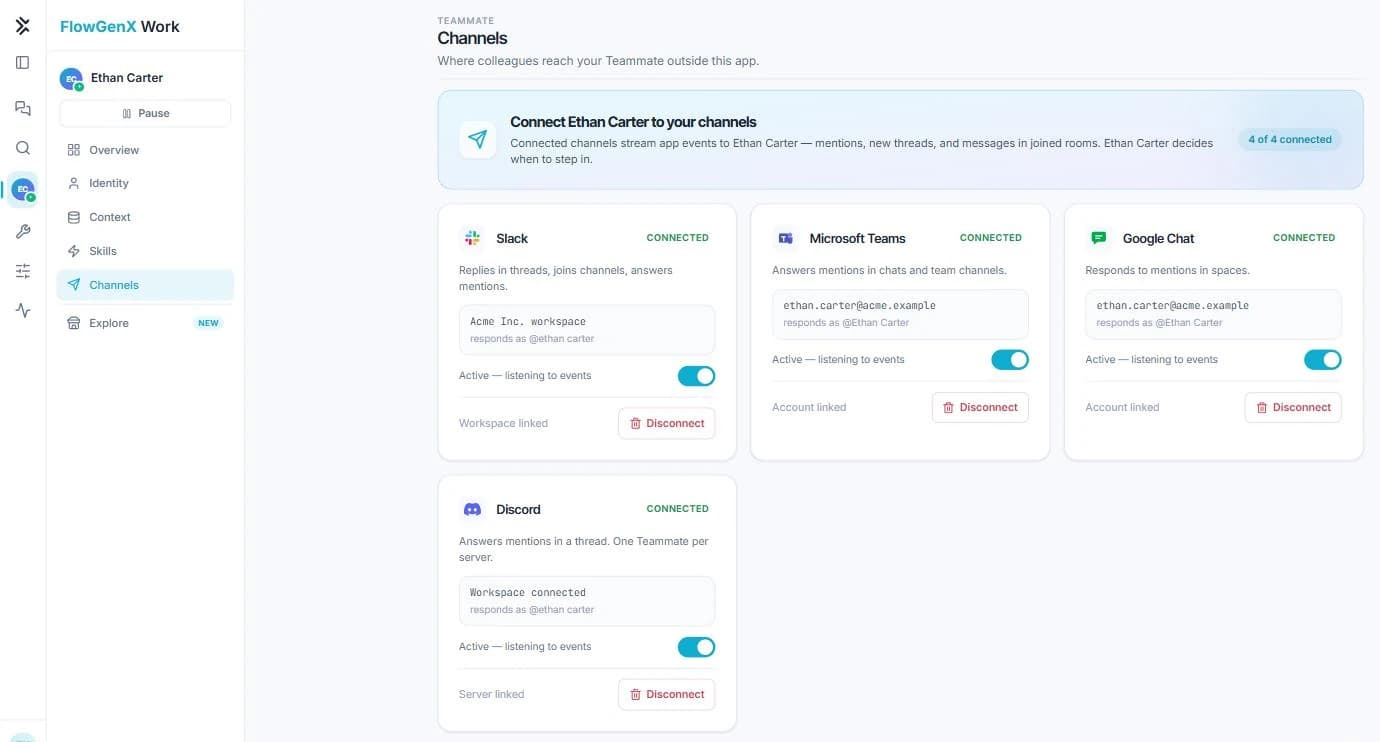
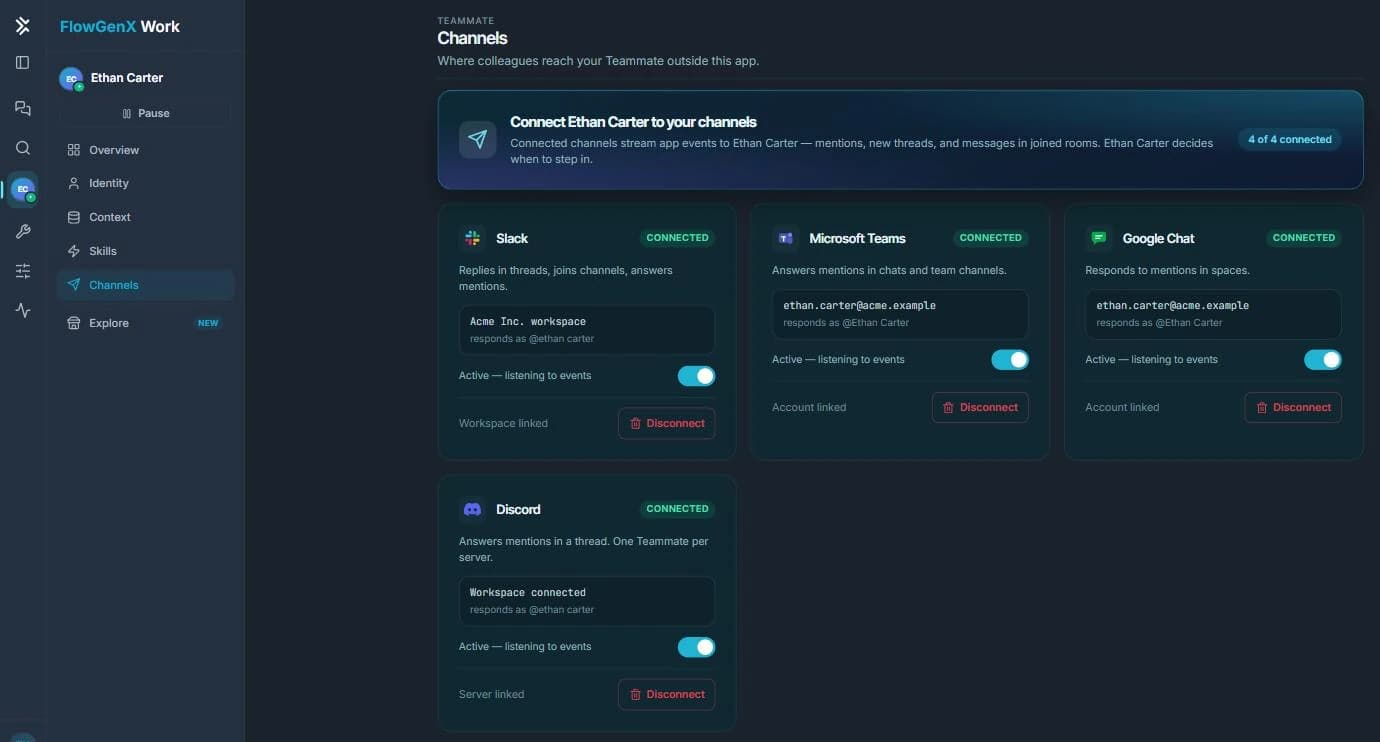
Each platform is a card with the same four controls.
| Control | What it does |
|---|---|
| Connect | Starts the guided setup for that platform |
| Status | Shows whether the channel is active and listening |
| Pause toggle | Quiets the Teammate on this platform only, without disconnecting it |
| Disconnect | Removes the Teammate from that workspace or server |
Connect the platform your team uses most first. You can add the others at any time.
Create a Slack bot
About 3 minutes. You need permission to create apps in the workspace.
- Select Connect on the Slack card.
- Follow the link to the Slack token page, find Your App Configuration Tokens, pick your workspace and select Generate Token.
- Copy the Refresh Token and paste it into the setup. You do this once per workspace.
- Give the app a name. This is the name colleagues will @mention.
- Select Allow on Slack's permission screen.
The Slack app, its permissions and its event settings are created for you. There is no manifest to edit and no URL to copy. If your workspace requires admin approval for new apps, the install waits until the approval is granted, and then you retry.
In Slack, the Teammate appears as an app with the name you chose. Invite it to a channel the way you invite anyone, then @mention it.
Microsoft Teams
About 2 minutes. You need a Microsoft 365 account for the Teammate, separate from your own.
In Teams, the Teammate is a real member of your organization. It has its own account, with that account's name and photo, and it shows up in the directory like any colleague.
- Select Connect on the Teams card.
- Enter your company's Microsoft 365 domain. A full email address works too.
- Sign in as the Teammate's account in the Microsoft window that opens.
- Add that account to a team, the way you add any member.
Direct chats and group chats work as soon as the sign-in completes.
@mentions in team channels need a one-time admin approval. Most Microsoft 365 organizations require an administrator to approve an app before it can read channel messages. If you see "Need admin approval", that is expected. The setup gives you a link to send to your admin. If your admin has already approved FlowGenX, tick that box on the first screen and channels are switched on straight away.
Google Chat
About 2 minutes. You need a Google Workspace account for the Teammate, separate from your own.
- Select Connect on the Google Chat card.
- Sign in as the Teammate's account in the Google window that opens.
- Invite that account to a space.
- @mention it by its account name.
As in Teams, colleagues see a person in the member list, with the account's name and photo. There is nothing to paste.
Discord
About 1 minute. You need permission to add apps to the server.
- Select Connect on the Discord card.
- Choose the server and select Authorize.
- @mention it in any channel.
One Teammate per Discord server. It appears as the FlowGenX app, and answers under the name you gave it.
How it behaves in a channel
Behaviour is the same on every platform, so your team learns it once.
 Slack#revops0 of 4
 11
The same Teammate in each app. Switch tabs to compare. Names and figures are demo data.
| What happens | What people see |
|---|---|
| Someone @mentions it | It replies in a thread under that message |
| Someone replies in that thread | It keeps the conversation going. No second @mention is needed for the next 24 hours |
| Someone sends it a direct message | It answers in the DM |
| It picks up a job | ✨ appears on the message |
| It is working | A progress line in the thread updates as steps complete |
| It finishes | The answer lands in the thread, and ✨ becomes ✅ |
| Something goes wrong | ❌ and the reason, in the thread |
| The next step would write something | An approval card in the thread, and the run waits |
It reads files people attach, including documents, spreadsheets, images and screenshots. It sends files back into the thread when the job produces one.
It ignores its own posts and posts from other bots, so two automated accounts cannot set each other off. It does not answer people it cannot identify as members of your workspace.
Busy channels
When several messages arrive at once, they are queued in the order they came in and answered together. None is dropped. A follow-up sent while it is still working joins the run in progress instead of starting a second one.
What works where
| Slack | Microsoft Teams | Google Chat | Discord | |
|---|---|---|---|---|
| @mention starts a thread | ✓ | ✓ | ✓ | ✓ |
| Follow-ups without a second @mention | ✓ | ✓ | ✓ | In threads |
| Direct messages | ✓ | ✓ | ✓ | ✓ |
| ✨ ✅ ❌ status | ✓ | ✓ | ✓ | ✓ |
| Live progress line | ✓ | ✓ | ✓ | ✓ |
| Files in | ✓ | ✓ | ✓ | ✓ |
| Charts out | Native chart | Native chart card | Image | Image |
| Approvals | Buttons | Card, answered in words | Reaction chips | Buttons and menus |
| Create a routine from the thread | ✓ | ✓ | ✓ | ✓ |
| Routine results delivered back | ✓ | ✓ | ✓ | ✓ |
| Appears as | A workspace app | A member account | A member account | The FlowGenX app |
You can also talk to the same Teammate inside FlowGenX Chat, with the same memory and skills.
Pausing a channel
The toggle on each card quiets that platform only. Use it when one workspace needs a break and the others do not. To quiet every channel at once, use Pause at the top of the Teammate section. See Governance and control.
Ready-Made Teammates
Nine ready-made AI employee templates, each with a role, skills, starter routines and apps to connect. Bring one onboard in a click or write your own.
Approvals in the Thread
How a Teammate's AI approval workflow runs in the thread: what needs a yes, the three answers, each platform's card, and what happens on no reply.