

CRM Enrichment and Lead Scoring
Enrich incoming lead data, score and tier it (Hot / Warm / Cold), then create a contact, deal, note, and task in HubSpot and notify the owner by email.
Turn a raw lead (name, company, designation, message) into an enriched, scored HubSpot record. A webhook feeds the lead into three Deep Agents — enrich → score → integrate — that research the company, rank the lead, and create the contact, deal, note, and task in HubSpot before emailing the owner.
To start, create a new Event workflow (e.g. CRM_Enrichment_Lead_Scoring) in the DEV environment from Design → Flow Designer → Workflow Canvas, then follow the steps below.
What you'll build
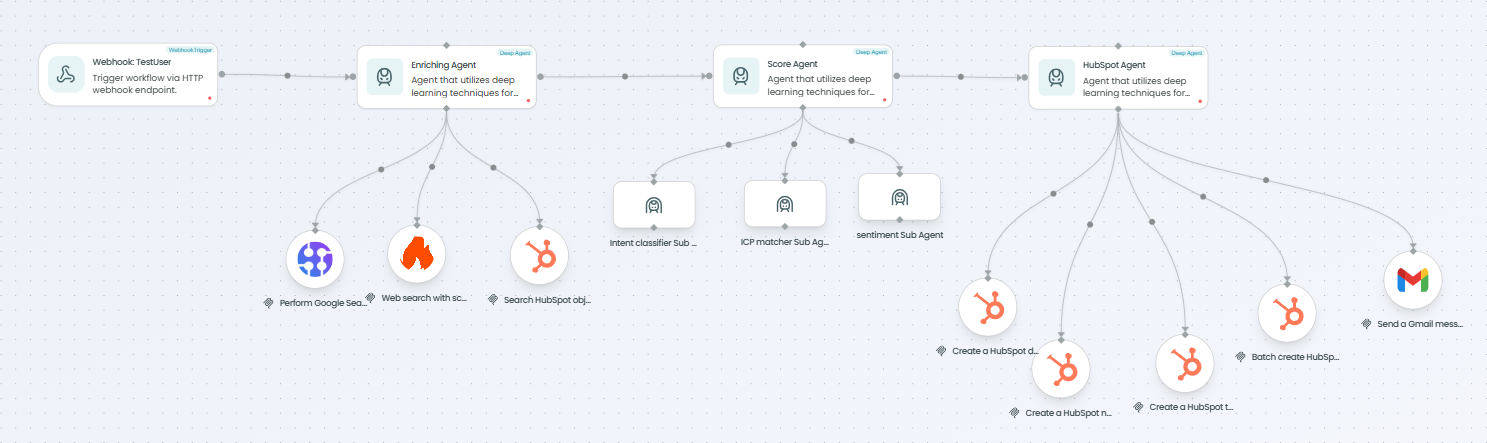
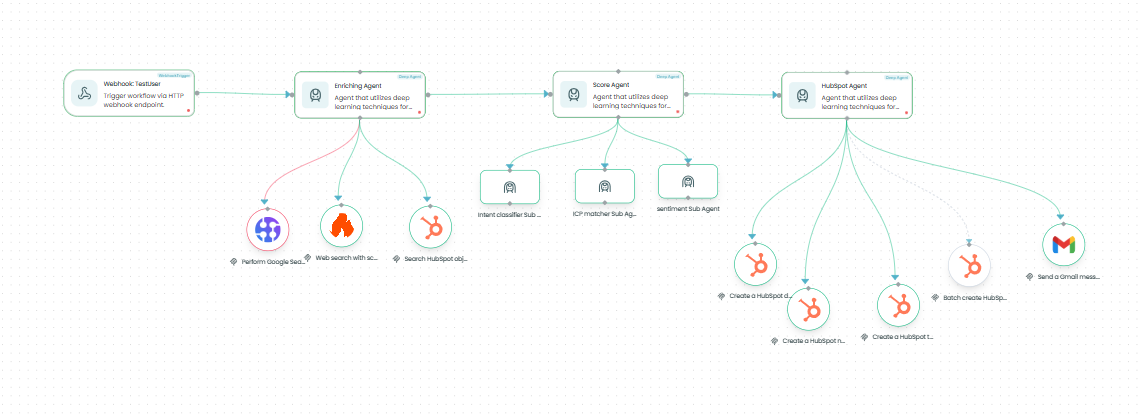
Architecture at a glance
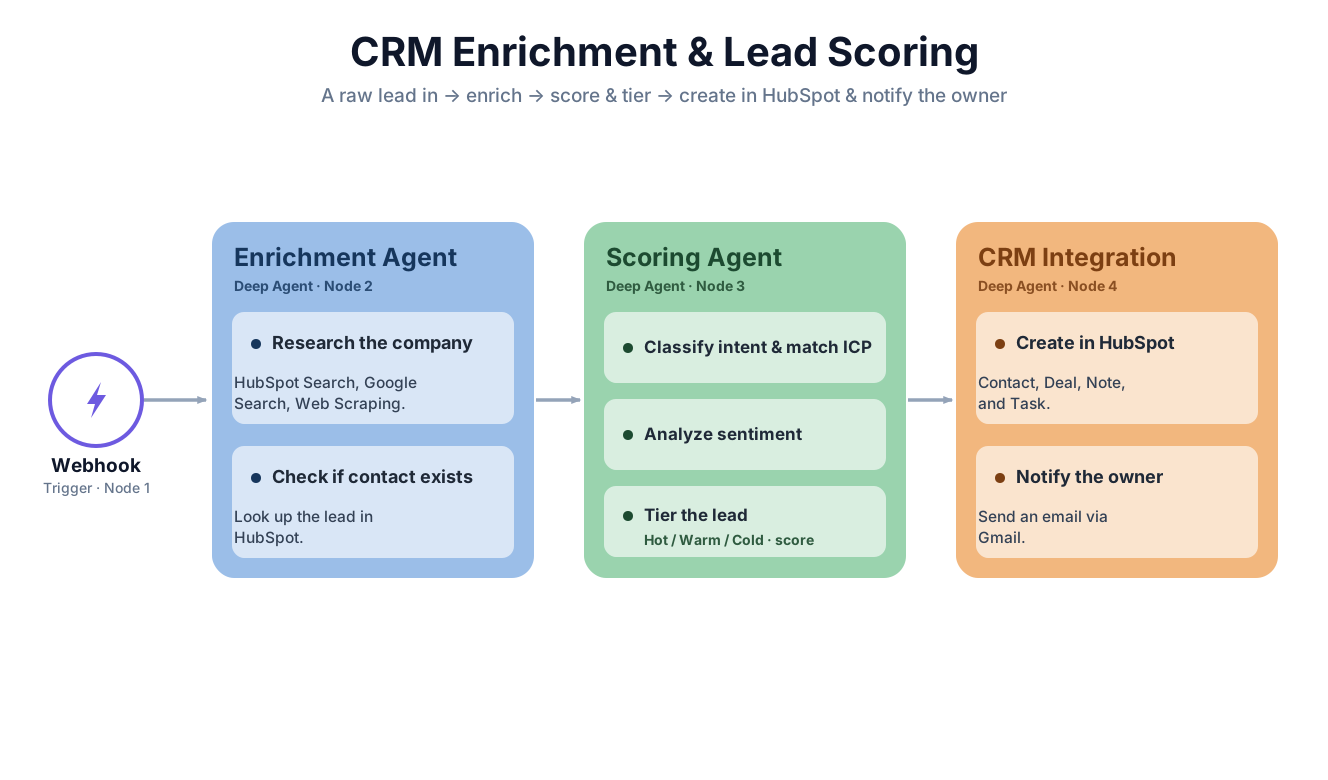
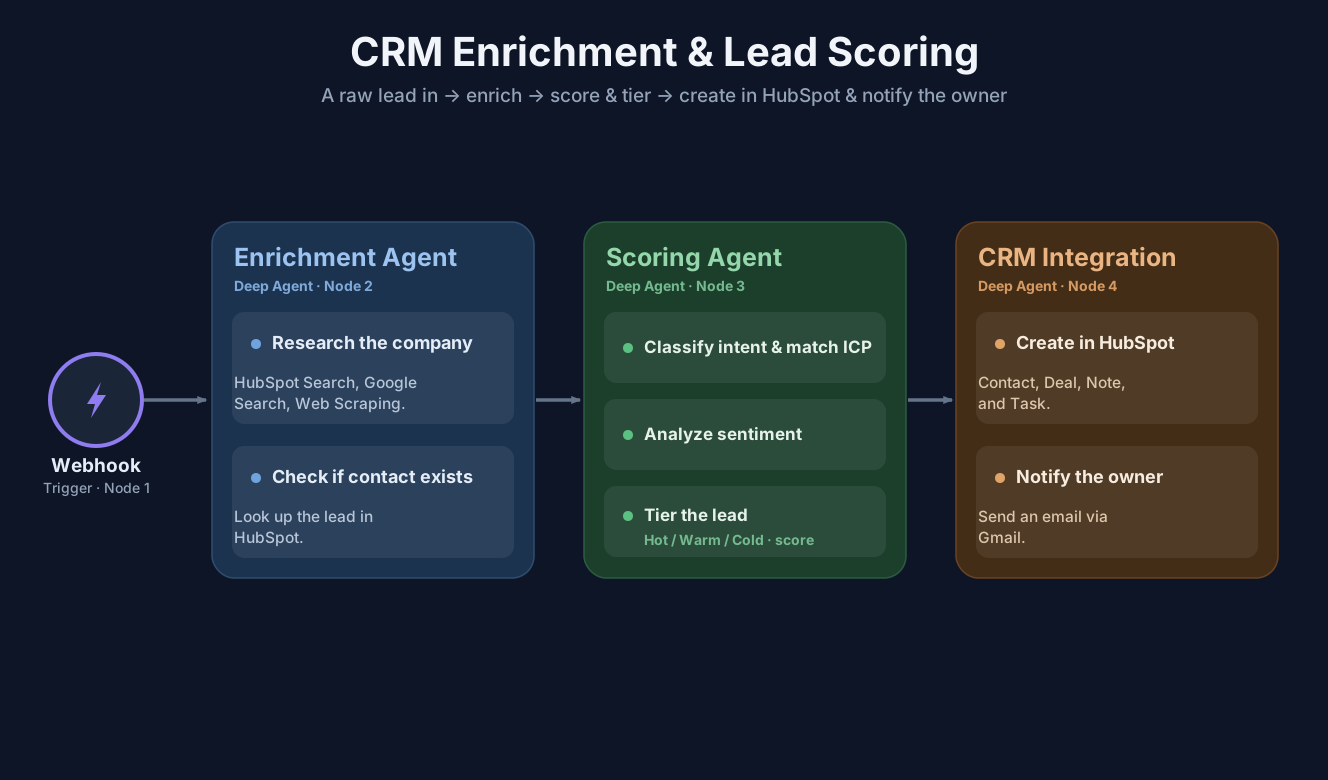
What you'll learn
- Configure a Webhook Trigger to ingest lead data (Name, Designation, Company, Message).
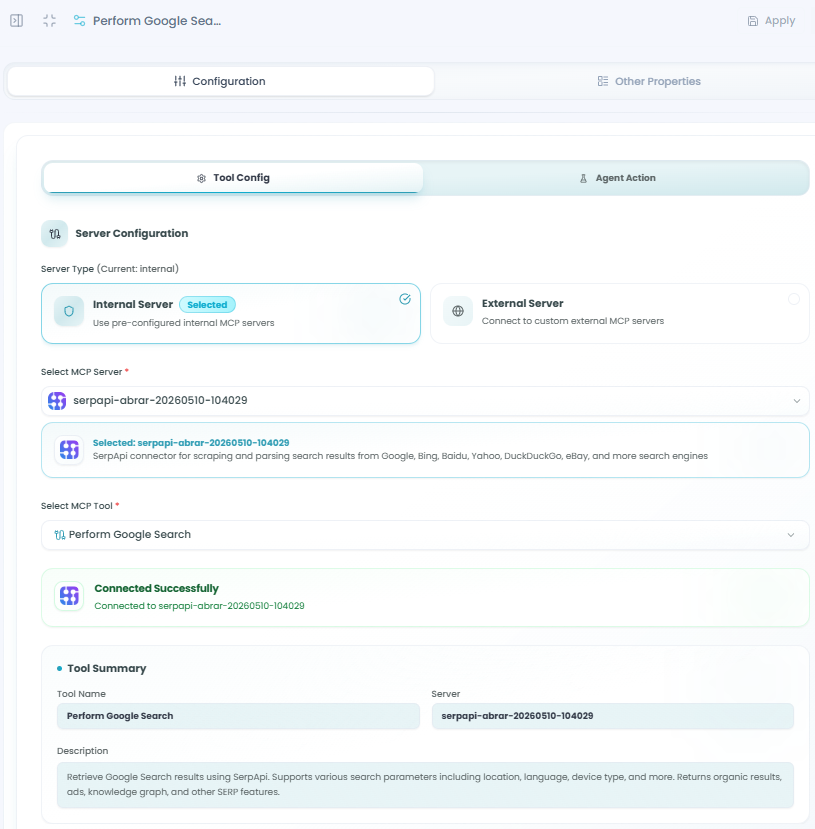
- Build the Enrichment Agent with HubSpot Search, Google Search, and Web Scraping tools.
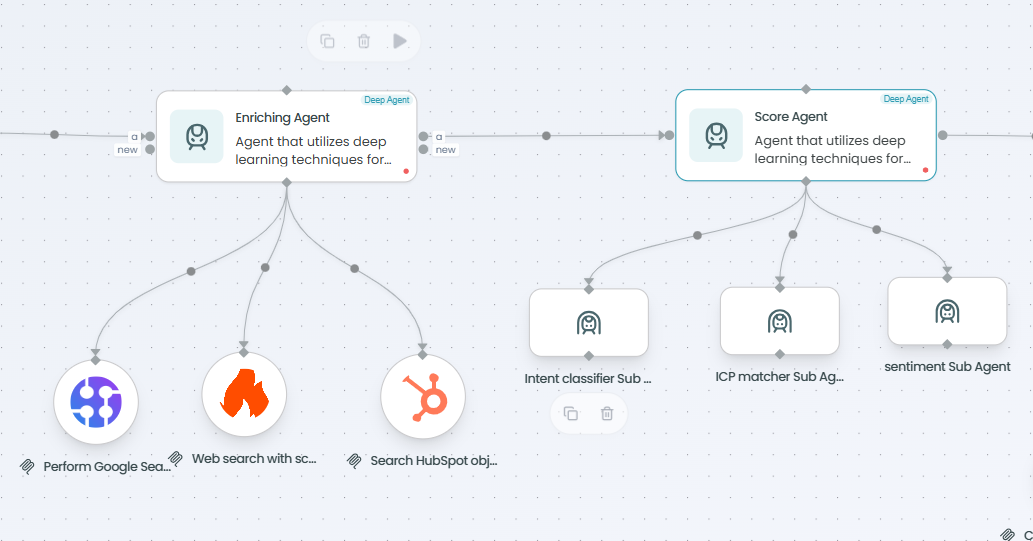
- Build the Scoring Agent with Intent Classifier, ICP Matcher, and Sentiment sub-agents to tier and score leads.
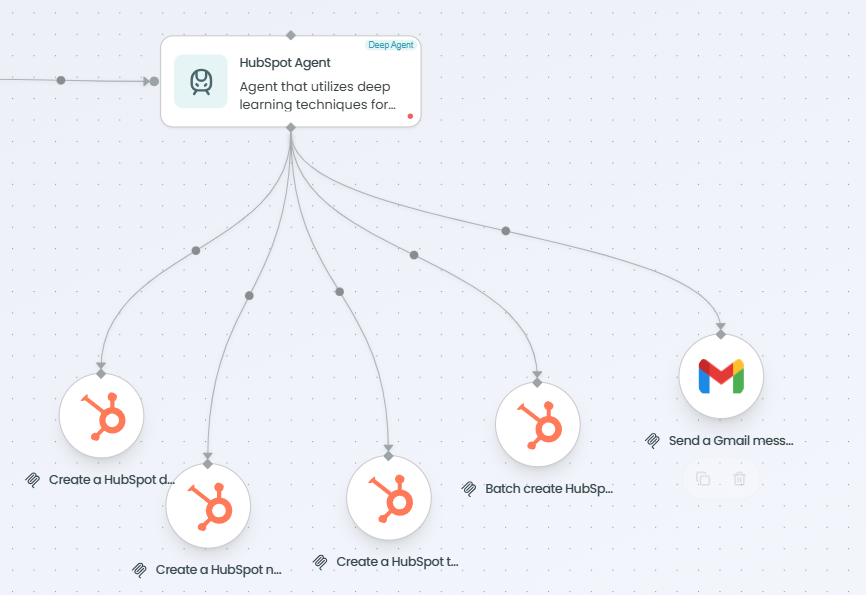
- Build the CRM Integration Agent to create a HubSpot Contact, Deal, Note, and Task, and send a notification via Gmail.
Before you begin
- A FlowGenX account with access to Design → Flow Designer → Workflow Canvas.
- An LLM provider API key (OpenAI, Anthropic, Gemini).
- A HubSpot connector authorized (Contacts, Deals, Notes, Tasks).
- A Gmail connector authorized (for the owner notification).
- Google Search / Web Scraping tools available for enrichment.
⚠ Pick the right environment. DEV is for building and testing. Don't publish quickstart exercises to PROD — published PROD workflows trigger live integrations.
Step 1 — Add a Webhook Trigger
Goal: add the entry-point node that receives Lead Name, Designation, Company Name, and Message. (~2 min)
- Drag a Webhook Trigger onto the canvas and open its config panel.
- Define the Request Body schema with:
Lead Name,Designation,Company Name,Message. - Click Apply.
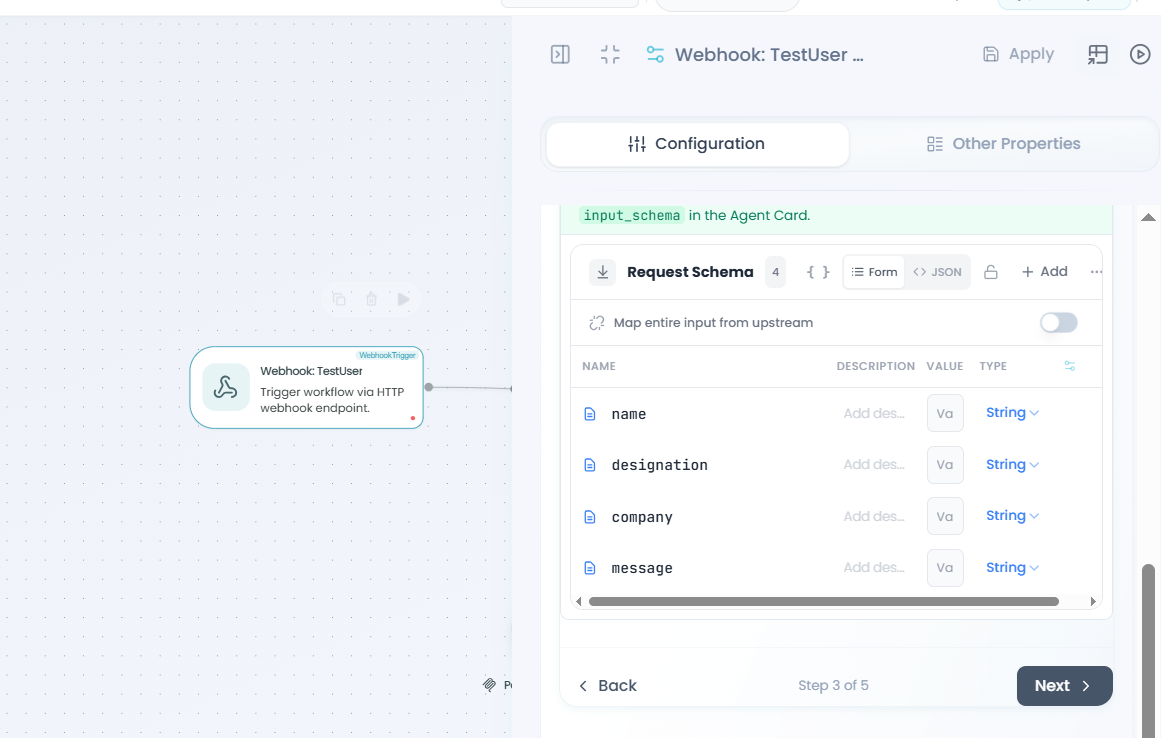
✅ Verify: the node shows "Webhook Trigger — Trigger workflow via HTTP webhook endpoint."
Step 2 — Add the CRM Enrichment Agent
Goal: research the lead's company and role, and check whether the contact already exists in HubSpot. (~5 min)
- Drag a Deep Agent (the Enrichment Agent) below the Webhook Trigger and connect the edges.
- Under Tools, add: HubSpot Search, Google Search / Web Search, and Web Scraping.
- Under Models → LLM Model, click + New Model (or Switch Model to reuse one), select provider (e.g.
openai) and model (e.g.gpt-4o), paste your API key, and save. - Under Prompts, paste the enrichment prompt (below).
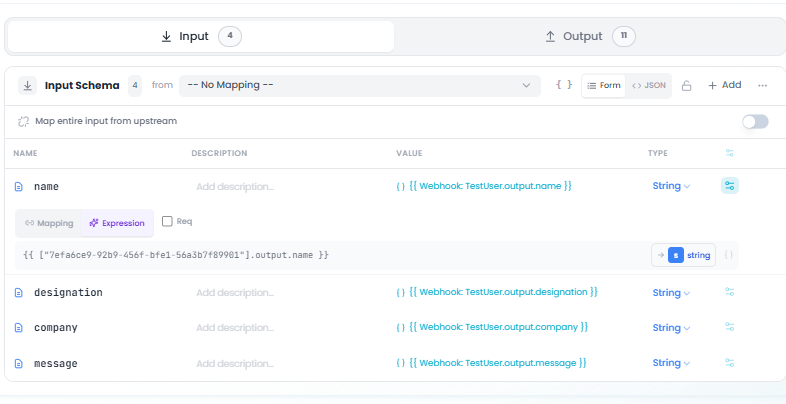
- Under Schema → Input, map
name,designation,company,messagefrom the Webhook Trigger. Under Output, define the enriched-lead object. - Click Apply.
You are a lead enrichment agent. You receive a lead with name, designation,
company, and message. Use your tools in this order:
  1. Google Search — find the company's industry, size, funding stage, and
     recent news.
  2. Web Search with scraping — scrape the company website or LinkedIn for
     additional company and role details.
  3. Search HubSpot contacts — check if a contact with this name or company
     already exists. Return the existing contact ID if found, or null if not.
You MUST use all three tools. Do not repeat searches for the same data.
Combine all results into one enriched lead object and return only the enriched JSON.
Tip — reuse models across workflows. Models you create here appear under Reusable Assets and can be shared across workflows — you won't need to re-enter the API key.
✅ Verify: the agent shows a green "configured" dot and the line from Webhook Trigger → Enrichment Agent is solid.
Step 3 — Add the Scoring Agent
Goal: analyze the enriched data with three sub-agents, then compute a final score and tier. (~4 min)
- Drag a second Deep Agent (the Scoring Agent) below the Enrichment Agent and connect the edges.
- Configure its LLM model.
- Under Sub-Agents, add Intent Classifier, ICP Matcher, and Sentiment Analysis, each with its own prompt (below).
- Click Apply.
Orchestrator prompt:
You are a lead scoring orchestrator. You receive an enriched lead object.
Run all 3 sub-agents and collect their scores:
  - Intent Classifier — intent and urgency from the message
  - ICP Matcher — fit against the ideal customer profile
  - Sentiment — tone and buying signals in the message
Compute the final score:
  final_score = intent_score×0.35 + icp_score×0.40 + sentiment_score×0.25
Assign tier: Hot if ≥70, Warm if 40–69, Cold if below 40.
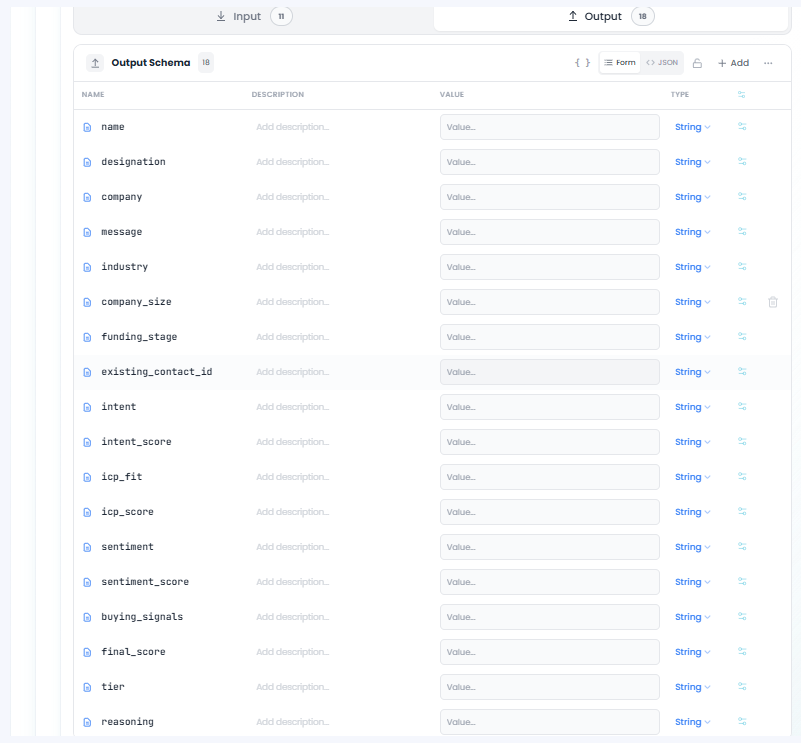
Write a 2-sentence reasoning summary and return the complete scoring object.
Sub-agent prompts (with example outputs):
Intent Classifier — classify the lead's intent as high/medium/low, score 0–100,
and give a one-line reason.
  { "intent": "high", "intent_score": 85,
    "reason": "Explicit solution request with operational urgency" }

ICP Matcher — compare against the ICP (Industry: tech/logistics; Size: 50–500;
Designation: decision-maker; Funding: Seed+). Score 0–100, label strong/moderate/weak,
and list matched criteria.
  { "icp_fit": "strong", "icp_score": 78,
    "matched_criteria": ["industry","company_size","designation","funding_stage"] }

Sentiment — classify positive/neutral/negative, score 0–100, list up to 3 buying signals.
  { "sentiment": "positive", "sentiment_score": 72,
    "buying_signals": ["AI solution request","supply chain urgency","CTO-level contact"] }
✅ Verify: the canvas shows Webhook Trigger → Enrichment Agent → Scoring Agent, all with green (configured) status.
Step 4 — Add the CRM Integration & Notification Agent
Goal: write the enriched, scored lead into HubSpot and email the owner. (~2 min)
- Drag a third Deep Agent (the HubSpot Agent) below the Scoring Agent and connect the edges.
- Configure its LLM model.
- Under Tools, add and configure the HubSpot actions: Create Contact, Create Deal, Create Note, Create Task.
- Also add the Gmail tool to email the lead's owner with the tier and final score.
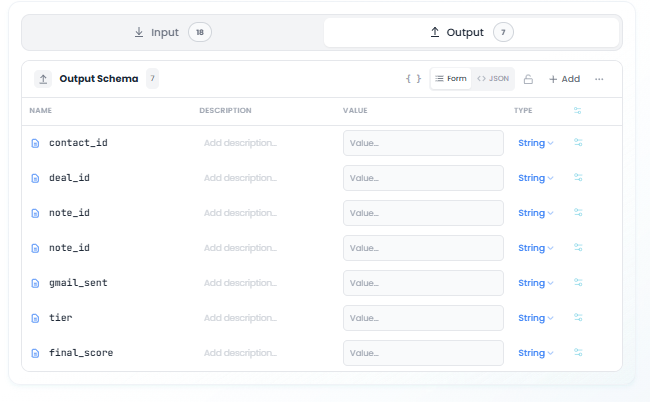
- Under Prompts, give it an integration prompt (below), then click Apply.
You are a CRM integration agent. You receive an enriched, scored lead object.
Create a HubSpot Contact from the lead + enrichment data; create a Deal linked
to it; add a Note summarizing the score, tier, and reasoning; and create a
follow-up Task for the owner. Then send an email via Gmail to the responsible
owner including the tier (Hot/Warm/Cold) and final score. Return a summary of
every record created.
✅ Verify: all three agents (Enrichment → Scoring → HubSpot) are wired and show green (configured) status.
Step 5 — Save, publish, and test
Goal: persist your work, promote it, and run a sample lead. (~5 min)
- Click Save (bottom-left), then Publish / Republish, and confirm the target (DEV).
- Open Design → Flow Designer → Playground (or Playground in the right sidebar).
- Select your
CRM_Enrichment_Lead_Scoringworkflow. - Paste a sample payload (Lead Name, Designation, Company Name, Message) and click Run.
- Watch the trace — each node lights up as it executes.
⚠ Always re-publish after edits. Saved-but-unpublished changes won't run when the webhook fires.
Tip — use the trace to debug. Click any node in the trace to see its exact input, output, and model reasoning — the fastest way to debug an agent.
✅ Verify: the trace shows green checkmarks on all nodes, and the HubSpot records + email were created.
You're done — what's next
You've built an end-to-end CRM enrichment and lead-scoring workflow. Keep going:
- Introduction to Agents — Deep, React, Supervisor, and Swarm patterns.
- Omnichannel Support Ticket Triage — multi-agent routing across CRMs.
- Traceability — full run observability.
Troubleshooting
| Symptom | Likely cause | Resolution |
|---|---|---|
| Agent node shows a red dot | Model not configured or invalid API key | Open the node → Models → verify the key and test the connection |
| Enrichment returns empty data | Search / scraping tools not attached or blocked | Confirm all three enrichment tools are attached and authorized |
| HubSpot records not created | HubSpot connector not authorized, or wrong scopes | Re-authorize the connector with Contacts/Deals/Notes/Tasks scopes |
| Webhook returns 404 | Workflow not published, or wrong environment | Click Republish; confirm the URL matches the environment you're calling |
| Run hangs at an agent step | LLM provider rate-limit or timeout | Check Monitor → Logs; lower max tokens or switch to a faster model |
Glossary
- Deep Agent — a planning agent that decides which sub-agents and tools to call based on the input.
- Trigger — the entry point that starts a workflow (Webhook, Schedule, Event).
- Integration node / tool — a connector to an external system (HubSpot, Gmail) the agent can call.
- Playground — the built-in test environment for running workflows with sample inputs and inspecting traces.
Slack Help Desk — AI Query Resolution with Smart Escalation
Answer employee questions from your documentation with a Deep Agent and semantic search — and escalate to a developer meeting (Slack + Gmail + Google Meet) only when the docs fall short.
Agentic Invoice Extraction
A 16-node pipeline that watches a Drive folder, OCRs each invoice with Google Vision, extracts JSON with a self-scoring ReAct agent, routes on confidence, pauses low-confidence invoices for Human-in-the-Loop review, and ships the result to Airtable.