

Agentic Invoice Extraction
A 16-node pipeline that watches a Drive folder, OCRs each invoice with Google Vision, extracts JSON with a self-scoring ReAct agent, routes on confidence, pauses low-confidence invoices for Human-in-the-Loop review, and ships the result to Airtable.
Drop an invoice into a Google Drive folder and let an agent do the rest: OCR the page, extract every field into clean JSON, self-score its own confidence, auto-ship the high-confidence ones to Airtable, and pause the doubtful ones for a human reviewer. This guide builds the full 16-node pipeline — trigger, OCR, extraction agent, two confidence gates, a Human-in-the-Loop review loop, and dual exit paths into Airtable and Drive.
To start, create a new Event workflow (e.g. Agentic_Invoice_Extraction) in the DEV environment from Design → Flow Designer → Workflow Canvas, then follow the steps below.
What you'll build
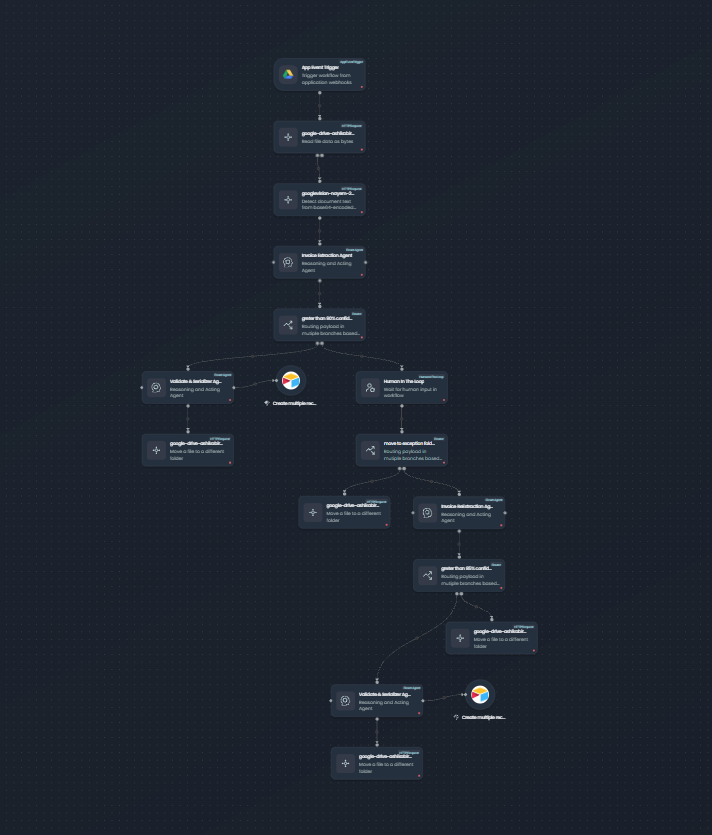
Architecture at a glance
The pipeline has two halves that meet at a confidence gate:
- Ingest & extract — a Google Drive App Event Trigger fires on
drive:file:created, an HTTP Request reads the file bytes, a second HTTP Request sends them to Google Vision forDOCUMENT_TEXT_DETECTION, and the Invoice Extraction Agent (a ReAct agent on GPT-4o) parses the OCR text into a JSON invoice with a self-scoredconfidence_score(0–100). - Route & ship — a Router branches on
confidence_score >= 90:- Branch A (≥ 90%) — a Validate & Serializer Agent reformats the JSON and writes it to Airtable, then an HTTP Request archives the file in the Success Drive folder.
- Branch B (< 90%) — a Human In The Loop node pauses for a reviewer, who either submits feedback (feeding a second ReExtraction Agent → a second Router at
>= 85) or flips amove_into_exceptionflag to drop the file straight into the Exception folder.
What you'll learn
- Wire a Google Drive App Event Trigger and chain two HTTP Request nodes (Drive read → Vision OCR).
- Build a ReAct agent that extracts invoice JSON and scores its own confidence in one pass.
- Use a Router to branch on that confidence, and a second Router to gate the re-extracted result.
- Insert a Human In The Loop review step with feedback and an exception-override flag.
- Ship structured records to Airtable and archive source files to Drive folders.
Before you begin
- A FlowGenX account with access to Design → Flow Designer → Workflow Canvas.
- A Google Drive connector authorized (with the
drive/drive.filescope) — you'll need three folders: a watched inbox, a Success folder, and an Exception folder. - A Google Vision connector authorized (API key credential).
- An Airtable connector authorized, plus a base and table to receive invoice records.
- An LLM provider API key (this guide uses OpenAI
gpt-4ofor its JSON mode + 128k context).
⚠ The IDs in this guide are examples — replace them with your own. Airtable base_id (app0qDnPxBXkYq2Pl) and table_id (tbly4dLxpgdsDb91G), and the Drive folder IDs, come from the reference recipe. Swap in your own base, table, and folder IDs everywhere they appear.
One screenshot per node type. This pipeline reuses the same five node types (App Event Trigger, HTTP Request, ReAct Agent, Router, Human In The Loop) many times. Each figure below is shown once at its first use; later steps point back to the earlier figure instead of repeating it.
Step 1 — App Event Trigger (Google Drive)
Goal: fire the workflow whenever a new file lands in your watched Drive folder. (~3 min)
- Drag an App Event Trigger (node type:
AppEventTrigger) onto the canvas. - Connect the Google Drive app and select the
drive:file:createdevent. - Set the folder filter to your watched inbox folder.
- Confirm the connection shows
connection_status: connected, then click Apply.
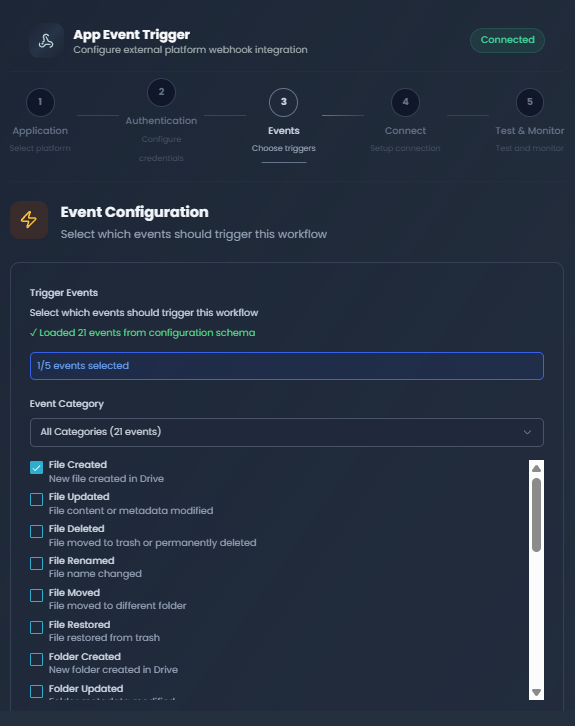
✅ Verify: the trigger shows Google Drive connected and drive:file:created selected. Uploading a file to the watched folder will produce an event with event_data.file_id.
Step 2 — HTTP Request: read file bytes
Goal: pull the raw file bytes so Vision can OCR them. (~3 min)
- Drag an HTTP Request node (node type:
HTTPRequest) after the trigger and connect the edge. - Switch to the App Connector tab and pick Google Drive → "Read file data as bytes."
- Map the
file_idpath variable to the trigger event:{{ ["<App Event Trigger node id>"].output.event_data.file_id }}. - Click Apply.
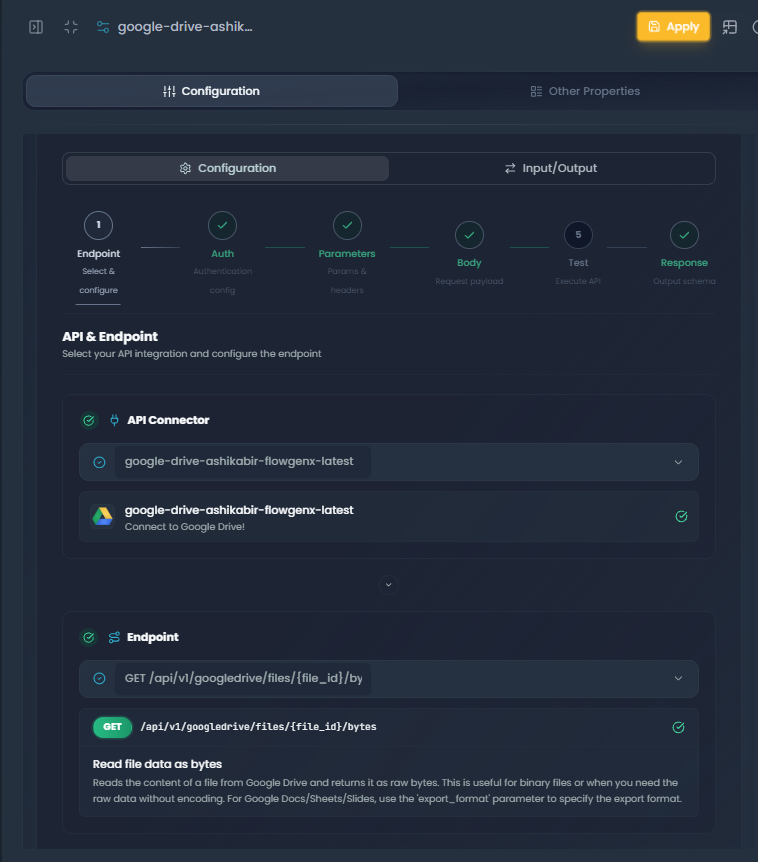
✅ Verify: the node output contains the file bytes (not a Drive share link). If you see a URL instead of binary content, you picked the wrong Drive operation.
Step 3 — HTTP Request: Google Vision OCR
Goal: convert the bytes into machine-readable text. (~3 min)
- Drag a second HTTP Request node after Step 02 and connect the edge.
- In the App Connector tab, pick Google Vision → "Detect document text from base64-encoded files" (
POST /api/v1/google-vision/detect-document-text-raw), which runsDOCUMENT_TEXT_DETECTION. - Feed it the bytes from Step 02 and pick your GoogleVision
api_keycredential. - Click Apply.
💡 Tip — DOCUMENT_TEXT_DETECTION beats TEXT_DETECTION. The document detector preserves block structure across multi-column invoices, where the generic text detector flattens everything into a single stream that's much harder for the agent to interpret.
✅ Verify: the node output shows text (string) populated with recognizable invoice fragments — vendor name, line items, totals — plus a pages array.
Step 4 — ReAct Agent: Invoice Extraction Agent
Goal: extract the invoice into JSON and self-score confidence. (~8 min)
- Drag a ReAct Reasoning & Acting Agent (node type:
ReactAgent) after Step 03 and connect the edge. Rename it Invoice Extraction Agent. - In the model picker, choose Open Ai 4o (
gpt-4o) — it supports JSON mode and a 128k context, both needed for full-page invoices. - Paste the system prompt below into the Prompt field.
- Add a single input field
invoice_text(string) with expression{{ ["<Vision OCR node id>"].output.text }}. - Declare the output schema:
invoice(object),confidence_score(number 0–100),validation_summary(object). - Click Apply.
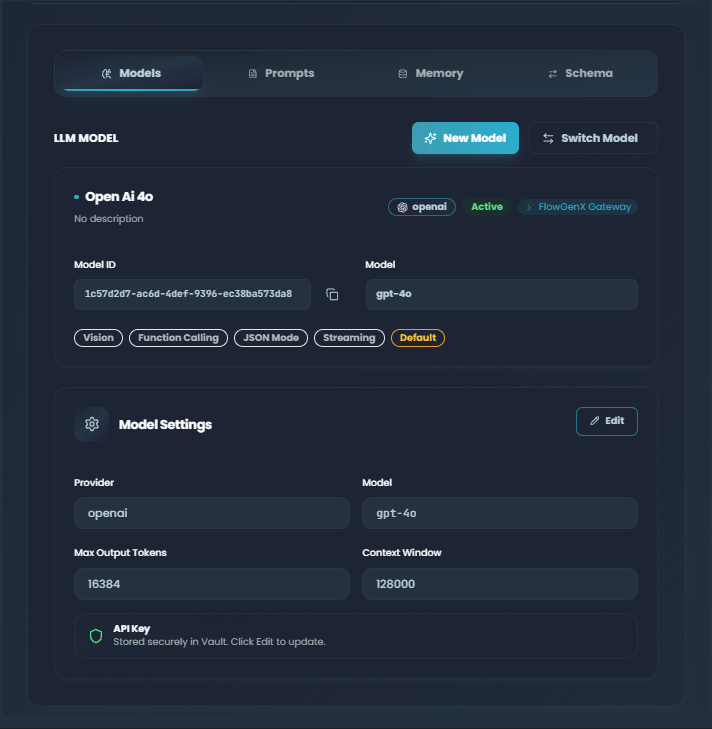
This ReAct-agent panel is reused for the Invoice ReExtraction Agent (Step 10) and both Validate & Serializer Agents (Steps 6 and 12). Only the prompt and output schema differ.
# Invoice Extraction & Validation Agent — System Prompt
ROLE: You are an Invoice Extraction & Validation Agent. Receive raw invoice
text (OCR output, copy-pasted text, or structured input) and return only a
single valid JSON object. No markdown, code fences, or commentary.

PIPELINE:
1. EXTRACT — parse the raw text into the invoice schema. Normalize whitespace;
   strip currency symbols; parse dates to YYYY-MM-DD; join multi-line addresses
   into one comma-separated string; compute line_total = quantity * unit_price
   if missing; use null for any field you cannot find. Ignore PDF watermarks
   and generator footers.
2. VALIDATE — run 10 checks (V1..V10). CRITICAL: invoice_number, invoice_date,
   total > 0. HIGH: sum(line_total) == total ±0.01, each line item has
   description / quantity > 0 / unit_price >= 0, line_total == quantity *
   unit_price ±0.01. MEDIUM: billing_name or billing_company present.
   LOW: billing_email pattern, shipping_address present, no duplicate line items.
3. SCORE — start at 100. Subtract per missing field (invoice_number -12,
   invoice_date -10, total -12, line_items -18, billing_name -7,
   billing_company -6, billing_address -6, billing_email -5, shipping_name -5,
   shipping_address -5, subtotal -5, notes -3, issuer -3, contact_info -3).
   Subtract per issue (CRITICAL -10, HIGH -5, MEDIUM -2, LOW -1). Floor at 0.
4. STATUS — PASS if score >= 85 AND zero CRITICAL/HIGH issues. WARN if
   score >= 50 OR only MEDIUM/LOW issues. FAIL otherwise.
5. OUTPUT — one JSON object: { confidence_score, validation_summary, invoice }.
   Nothing else.

RULES: JSON only. Never fabricate. Run all checks before scoring. Be
conservative — when in doubt, lower the score and add an issue. If input is not
parseable as an invoice, return { confidence_score: 0, status: "FAIL",
issue: "Input does not appear to contain invoice data" }.
💡 Tip — make the agent score itself, not the router. Letting the agent emit confidence_score in the same JSON keeps reasoning and score tied together. The router only sees the number; the agent saw the document and the validation issues. This is also why the second pass has a lower threshold (85 vs 90) — the human already added value.
✅ Verify: run a sample invoice through. The output is parseable JSON with confidence_score (number 0–100), validation_summary.issues (array), and invoice (object) with the canonical fields.
Step 5 — Router: Confidence ≥ 90%?
Goal: branch the workflow on the agent's self-scored confidence. (~3 min)
- Drag a Router (node type:
Router) after Step 04 and connect the edge. Rename it greater than 90% confidence score?. - Set Routing Strategy =
expression_based, Matching Strategy =first_matching,drop_unmatched=false,fallback_route=fallback. - Add one expression:
routing_path=greter,expr_type=JEXL,expr=confidence_score >= 90. - Map the input field
confidence_scorefrom the Invoice Extraction Agent output. - Click Apply.
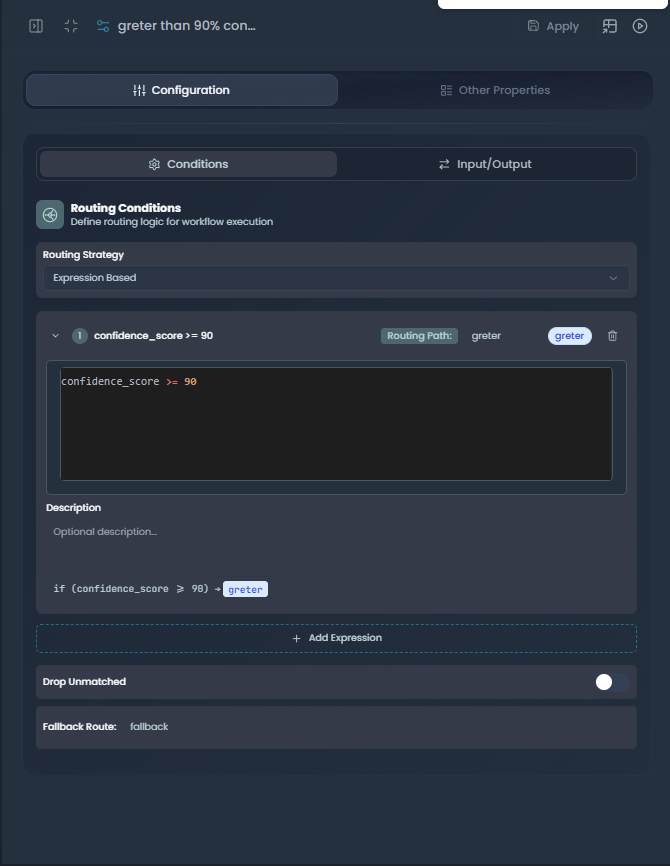
This Router panel is reused at the second confidence gate (Step 11) and the move-to-exception decision (Step 8). Only the expression and routing-path names change.
JEXL expression   : confidence_score >= 90
Routing path      : greter        (true branch, ≥ 90%)
Fallback route    : fallback      (false branch, < 90%)
drop_unmatched    : false
matching_strategy : first_matching
⚠ Tune the threshold to your tolerance. Too low and bad records auto-ship; too high and reviewers get paged for invoices the agent already nailed. The recipe ships with 90 / 85 because the agent's scoring formula bottoms out at hard-to-recover errors — change those numbers only after running a sample through.
✅ Verify: the Router shows two branches — greter and fallback — and the condition references confidence_score from the upstream agent.
Branch A — High confidence (≥ 90%): auto-ship
The happy path: the agent was confident enough, so a serializer agent reformats the JSON for Airtable, the Create multiple records tool ships it, and the source file is archived in the Success folder.
Step 6 — Validate & Serializer Agent + Airtable tool
Goal: reformat the invoice JSON and insert it into Airtable. (~6 min)
- From the Router's greter branch, drag a ReAct Reasoning & Acting Agent and connect the edge. Rename it Validate & Serializer Agent. The config panel is identical to Step 4 (see the figure there).
- Use the same Open Ai 4o model as Step 04.
- Paste the serializer prompt below.
- Map the input field
invoice(object) from the Invoice Extraction Agent. - Declare the output schema:
records(object),airtable_success(boolean),airtable_record_id(string),details(string). - Open the agent's Tools panel and add the Airtable tool "Create multiple records" — this connects the agent → tool via a child handle (diamond-bottom on the agent, diamond-top on the tool).
- In the tool config, fill
base_id,table_id, andtypecast = true. Replace the recipe's defaults (base_idapp0qDnPxBXkYq2Pl,table_idtbly4dLxpgdsDb91G) with your own. - Click Apply.
As a specialized REACT Agent, your task is to convert incoming invoice data
into the Airtable batch-create format and synchronize it, even if some fields
fail validation.

1. THOUGHT — Analyze the invoice (input field: invoice). Extract the canonical
   fields (tax, notes, total, issuer, currency, discount, subtotal, line_items,
   billing_name, invoice_date, billing_email, contact_email, contact_phone,
   shipping_name, invoice_number, billing_address, billing_company,
   shipping_address). Mark any missing/invalid field but continue.
2. ACTION — Reformat into: { "records": [ { "fields": { ... } } ] }
   Invoke the "Create multiple records" tool with:
     base_id  : <your base id>
     table_id : <your table id>
     typecast : true
     batch    : max 10 records per request
3. OBSERVATION — Read the tool's response.
4. FINAL RESPONSE — A single JSON object:
   {
     "airtable_success": true | false,
     "airtable_record_id": "rec...",
     "details": "Successfully created N records.  <validation notes>"
   }
💡 Tip — typecast = true is the difference between "works" and "type errors". Airtable rejects strings that should be numbers/dates unless typecast is on. Always turn it on for serialized invoice payloads — the agent's JSON is already validated against the schema.
✅ Verify: a new row appears in your Airtable table with the canonical fields populated. The agent's final output has airtable_success: true and a valid airtable_record_id.
Step 7 — HTTP Request: move file to Success
Goal: archive the processed file in the Success Drive folder. (~3 min)
- After the Validate & Serializer Agent, drag an HTTP Request node and connect the edge.
- In the App Connector tab, pick Google Drive → "Move a file to a different folder" (same picker as Step 2).
- The connector auto-fills
method = PATCH,path = /api/v1/googledrive/files/{file_id}/move, headerContent-Type: application/json. - Set the body
destination_folder_idto your SUCCESS folder ID (the recipe ships107rNxawb6uLKiwOarli8FZL8-N44Jdnlas an example). - Map the
file_idpath variable to the trigger event (same expression as Step 2). - Click Apply.
PATCH /api/v1/googledrive/files/{file_id}/move
Content-Type: application/json
Body: { "destination_folder_id": "<SUCCESS_FOLDER_ID>", "new_name": null }
Path var: file_id = {{ ["<App Event Trigger node id>"].output.event_data.file_id }}
✅ Verify: the HTTP Request returns 200, the file is now in your Success folder, and the watched inbox no longer contains it. Branch A is complete.
Branch B — Low confidence (< 90%): Human In The Loop
This branch pauses the workflow so a reviewer can look at the source invoice and the agent's draft JSON. The reviewer either submits feedback (which feeds a second extraction pass) or flips move_into_exception to drop the file directly into Exception without re-extracting.
Step 8 — Human In The Loop + "Move to exception?" Router
Goal: pause for human input, then route on the reviewer's decision. (~6 min)
- From the Router's fallback branch (Step 05), drag a Human In The Loop node (node type:
HumanInTheLoop) and connect the edge. - Set
assignment_type = emailand pick a notification recipient. - Configure the reviewer form to collect:
feedback(string, multi-line) andmove_into_exception(boolean checkbox). - In the context payload to the reviewer, pass
invoice(the agent's JSON draft),confidence_score, and the source file's Drive preview link. - Set
timeout_hours = 23withreminder_count = 2and an escalation timeout of 48 hours. Click Apply. - Drag a Router after the HITL and connect the edge. Rename it move to exception folder?.
- Map the inputs
feedbackandmove_into_exceptionfrom the HITL output. - Add the JEXL expression
move_into_exception == truewithrouting_path = yes,fallback_route = no. Click Apply.
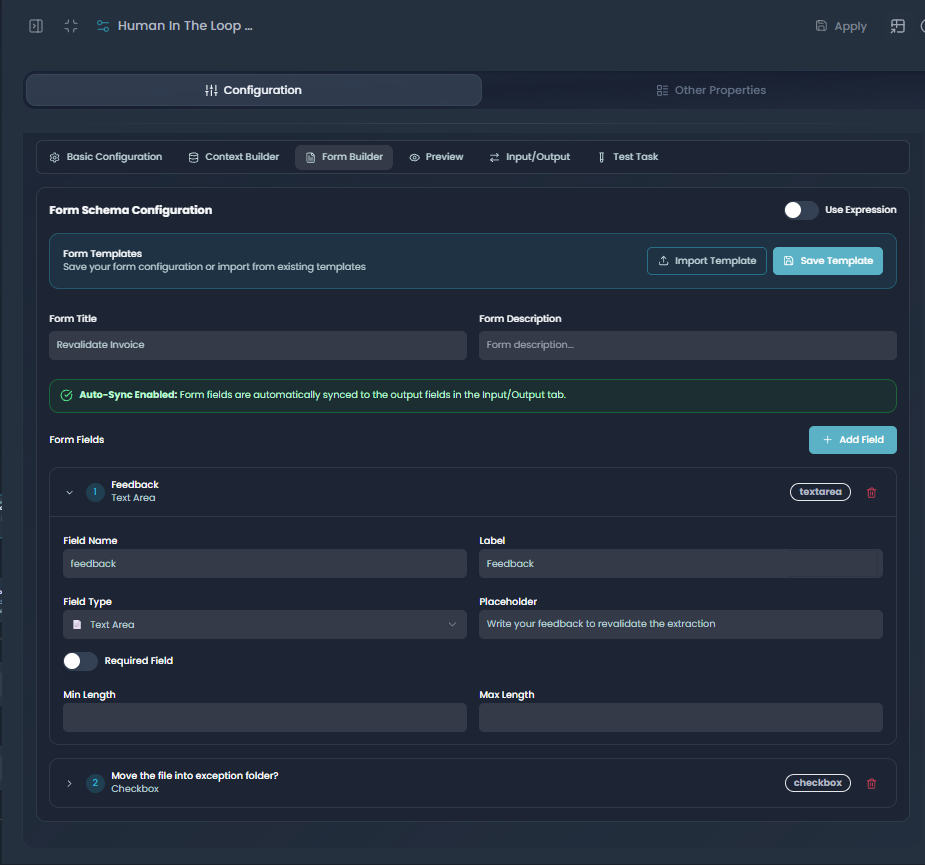
💡 Tip — show the file, not just the JSON. Pass a Drive preview link in the HITL context payload. Reviewers spot extraction errors much faster when they can see the source side-by-side with the draft.
✅ Verify: a low-confidence test invoice pauses the run and surfaces a reviewer task. After the reviewer submits, the Router routes on move_into_exception — the file either jumps straight to Exception (yes) or continues to re-extraction (no).
Step 9 — HTTP Request: move to Exception (yes branch)
Goal: archive untouched files when the reviewer flagged them as exceptions. (~2 min)
- From the yes branch of the "move to exception folder?" Router, drag an HTTP Request node and connect the edge.
- Same Google Drive "Move a file to a different folder" operation as Step 7 (see Step 2).
- Set
destination_folder_idto your EXCEPTION folder ID (the recipe ships18YvI-7eKhQBxGAzCGV7oclDlf2iIj3K3as an example). - Map
file_idthe same way as Step 7. Click Apply.
⚠ Exception ≠ silent failure. Make sure someone owns the Exception folder. A file landing here means a reviewer explicitly opted not to re-extract — it needs manual handling, not a retry.
✅ Verify: the HTTP Request returns 200 and the file is now in your Exception folder.
Step 10 — ReAct Agent: Invoice ReExtraction Agent (no branch)
Goal: re-extract with the reviewer's feedback merged in. (~5 min)
- From the no branch of the "move to exception folder?" Router, drag a ReAct Reasoning & Acting Agent and connect the edge. Rename it Invoice ReExtraction Agent. Same model and panel as Step 4.
- Paste the re-extraction prompt below.
- Add two input fields:
invoice_text(string) bound to{{ ["<Vision OCR node id>"].output.text }}(the original OCR text), andhuman_feedback(string) bound to{{ ["<HITL node id>"].output.feedback }}. - Declare the output schema:
invoice(object),confidence_score(number),validation_summary(object) — same shape as Step 4. - Click Apply.
# Improved Invoice Extraction & Validation Agent — System Prompt
ROLE: Same as the Invoice Extraction Agent (Step 04), but you also receive
human_feedback. Re-extract the invoice JSON and incorporate the feedback
faithfully. Return one JSON object — no markdown, no commentary.

PIPELINE:
1. EXTRACT — same rules as Step 04 (normalize whitespace, parse currency/dates,
   join addresses, compute missing line_total, null for missing, ignore OCR noise).
2. INCORPORATE FEEDBACK — apply the reviewer's corrections to the extracted
   fields. Don't alter fundamental data that the reviewer didn't touch.
3. VALIDATE — same 10 checks (V1..V10) and the same severities.
4. SCORE — same penalty table. Floor at 0.
5. STATUS — PASS / WARN / FAIL same as Step 04.
6. OUTPUT — one JSON object: { confidence_score, validation_summary, invoice }.

RULES: JSON only. Never fabricate. Run all checks before scoring. Be
conservative — a clear correction from the reviewer can raise the score; a
comment like "I'm not sure either" should not.
✅ Verify: the re-extract agent returns a new JSON with an updated confidence_score that reflects the reviewer's input. If the feedback was substantive, the score should rise.
Step 11 — Router: Confidence ≥ 85%? (re-extracted)
Goal: decide whether the re-extracted record can ship. (~2 min)
- Drag a Router after the ReExtraction Agent and connect the edge. Rename it greater than 85% confidence score?. Same panel as Step 5.
- Add the JEXL expression
confidence_score >= 85withrouting_path = greter,fallback_route = fallback. - Map the input field
confidence_scorefrom the ReExtraction Agent. Click Apply.
💡 Tip — lower the second threshold by design. The second pass already has a human in the loop, so a slightly lower bar (85 vs 90) recognizes that the reviewer added value without paging them again.
✅ Verify: the Router shows greter and fallback branches, referencing confidence_score from the ReExtraction Agent.
Step 12 — Path B1: reviewed & shipped (re-extracted ≥ 85%)
Goal: ship the human-reviewed record and archive the file. (~4 min)
- From the greter branch of the second Router, drag a ReAct Reasoning & Acting Agent and connect the edge. Rename it Validate & Serializer Agent 2. Configure it identically to Step 6 — same prompt, same Airtable Create multiple records tool, same
base_id/table_id/typecast. The only difference: it operates on the re-extracted invoice (input from Step 10's agent, not Step 04's). - Drag an HTTP Request node after the agent. Same Google Drive "Move a file to a different folder" operation as Step 7. Use the SUCCESS folder ID.
- Click Apply on both nodes.
✅ Verify: Airtable receives a new row from the re-extracted invoice, and the Drive PATCH returns 200 with the file now in the Success folder.
Step 13 — Path B2: Exception (re-extracted < 85%)
Goal: route untrusted records out of the auto pipeline. (~2 min)
- From the fallback branch of the second Router, drag an HTTP Request node and connect the edge.
- Same Drive "Move a file to a different folder" operation as Step 9 — only the source branch differs. Use the EXCEPTION folder ID. Click Apply.
✅ Verify: the HTTP Request returns 200 and the file is in your Exception folder. Using the same EXCEPTION folder ID as Step 9 keeps all exception files in one place for manual review.
Step 14 — Save, publish, and test
Goal: persist your work, promote it, and run sample invoices through. (~5 min)
- Click Save (bottom-left of the canvas).
- Click Republish (or Publish on first publish) and confirm the publish target.
- Upload a clean test invoice to your watched Drive folder. Watch the trace highlight Branch A: Invoice Extraction Agent → Router (greter, ≥ 90%) → Validate & Serializer Agent → Create multiple records → Drive Move (Success).
- Upload a low-quality scan or handwritten note. Confirm the run pauses at the HITL node and an email reaches the reviewer.
- As the reviewer, submit feedback (without ticking
move_into_exception). Confirm the workflow resumes through the ReExtraction Agent → second Router → Path B1 (or B2 if the re-extracted score is still low). - Repeat with
move_into_exception = true. Confirm the file jumps straight to the Exception folder without re-extracting.
⚠ Always re-publish after edits. Saved-but-unpublished changes don't run when the Drive trigger fires. If the workflow looks correct on the canvas but isn't executing, confirm the published version matches.
✅ Verify: all three test invoices reach a terminal node. Airtable shows the high-confidence and reviewed rows; the Success and Exception folders contain the correct files; the trace shows green checkmarks across the board.
Node reference
Every node in the recipe, with the canvas label and what it wires up.
| Step | Node label | Type | Wires up |
|---|---|---|---|
| 01 | App Event Trigger | AppEventTrigger | Google Drive · drive:file:created |
| 02 | google-drive-… | HTTPRequest | Read file data as bytes → bytes for Vision |
| 03 | googlevision-… | HTTPRequest | POST /…/detect-document-text-raw → text |
| 04 | Invoice Extraction Agent | ReactAgent | Open Ai 4o → invoice, confidence_score, validation_summary |
| 05 | greater than 90% confidence score? | Router | JEXL: confidence_score >= 90 |
| 06a | Validate & Serializer Agent | ReactAgent | Open Ai 4o → Create multiple records → Airtable |
| 06b | Create multiple records | GenericTool (Airtable) | base_id / table_id / typecast = true |
| 07 | google-drive-… (Move A) | HTTPRequest | PATCH /…/move → Success |
| 08a | Human In The Loop | HumanInTheLoop | email · outputs feedback + move_into_exception |
| 08b | move to exception folder? | Router | JEXL: move_into_exception == true |
| 09 | google-drive-… (Move B-yes) | HTTPRequest | PATCH /…/move → Exception |
| 10 | Invoice ReExtraction Agent | ReactAgent | invoice_text + human_feedback → same schema as Step 04 |
| 11 | greater than 85% confidence score? | Router | JEXL: confidence_score >= 85 |
| 12a | Validate & Serializer Agent 2 | ReactAgent | Same as 06a · runs on re-extracted invoice |
| 12b | Create multiple records | GenericTool (Airtable) | Same base_id / table_id |
| 12c | google-drive-… (Move B1) | HTTPRequest | PATCH /…/move → Success |
| 13 | google-drive-… (Move B2) | HTTPRequest | PATCH /…/move → Exception |
You're done — what's next
You've built, configured, published, and tested a 16-node agentic invoice extraction pipeline with OCR, self-scored confidence, Human-in-the-Loop validation, and dual exit paths into Airtable and Drive. Keep going:
- Introduction to Agents — Deep, React, Supervisor, and Swarm patterns.
- CRM Enrichment and Lead Scoring — another multi-agent pipeline with tool-calling.
- Traceability — full run observability for pipelines like this one.
Troubleshooting
| Symptom | Likely cause | Resolution |
|---|---|---|
| App Event Trigger never fires | Wrong folder filter, OAuth scope missing drive, or polling interval not yet elapsed | Open the trigger → confirm Google Drive is connected (connection_status: connected); verify the folder filter; check drive:file:created is selected |
Vision OCR returns empty text | MIME type unsupported or body not base64-encoded | Confirm the upstream HTTP Request returns bytes (not a Drive share link); verify Content-Type: application/json on the Vision call |
| Agent returns prose instead of JSON | Prompt didn't enforce JSON-only, or the model wrapped JSON in markdown fences | Reinforce "your entire response must be a single valid JSON object — no markdown fences, no commentary"; enable JSON mode if your model supports it |
| Router never takes the "greter" branch | confidence_score is a string not a number, or the JEXL references the wrong field path | Open the agent output, confirm confidence_score is a number 0–100; check the router input expression references the correct upstream node id |
| HITL never resumes | Reviewer never submits, or timeout_hours expired | Verify the HITL notification reached a real inbox; check timeout_hours and reminder_count; confirm move_into_exception is bound to the right output field |
| Drive Move returns 403 / 404 | OAuth scope missing drive.file, or folder IDs swapped (Success vs Exception vs Watched) | Re-authorize the Drive connection with the drive scope; double-check destination_folder_id on each of the four Drive Move HTTP nodes |
| Airtable Create multiple records errors | base_id / table_id wrong, or typecast left false with string-typed numbers | Confirm base_id starts with app and table_id starts with tbl; turn typecast on; if rate-limited, lower the batch size (max 10) |
Glossary
- App Event Trigger — a trigger node that fires from an external app webhook. Here: Google Drive's
drive:file:createdevent. - HTTP Request (with App Connector op) — a generic HTTP node bound to a specific operation on a registered connector (Drive "Read file as bytes", Vision "Detect document text", Drive "Move a file"). The connector contributes auth, schema, and OpenAPI spec — you don't write raw URLs.
- ReAct Reasoning & Acting Agent — an LLM-backed node that reasons in steps and emits structured output. This recipe uses four: Invoice Extraction, Validate & Serializer (×2), and Invoice ReExtraction.
- Router (expression_based) — a node that branches on a JEXL expression over its inputs. Used three times:
confidence_score >= 90,move_into_exception == true,confidence_score >= 85. - Human In The Loop — a pause node that surfaces the workflow state to a reviewer by email and resumes once they submit the configured fields (here:
feedback+move_into_exception). - Generic Tool (Create multiple records) — an Airtable connector tool attached to a ReAct agent via the diamond child handle; batch-inserts up to 10 records per call with optional
typecast. - confidence_score — a 0–100 number emitted by the extraction agents, driven by a deterministic penalty table over missing fields and validation issues (see the Step 4 prompt).
- validation_summary — an object emitted alongside the invoice JSON, containing an
issues[]array (CRITICAL / HIGH / MEDIUM / LOW).
CRM Enrichment and Lead Scoring
Enrich incoming lead data, score and tier it (Hot / Warm / Cold), then create a contact, deal, note, and task in HubSpot and notify the owner by email.
Patient Health Data Processing
Ingest patient records, validate clinical ranges, recompute BMI and metabolic risk with NLP-Tune code generation, then branch into anonymized ML-ready data and risk-based patient segments written to PostgreSQL and S3.