

External MCP Servers
Connect to external MCP servers via URL or stdio commands
External MCP Servers allow you to connect FlowGenX to MCP servers running outside the platform. This enables you to leverage existing MCP integrations, use community-built servers, or connect to your own custom implementations.
Connect External Tools
Two Connection Methods
FlowGenX supports two ways to connect to external MCP servers:
External Hosted
External Stdio
External Hosted Servers
External Hosted servers connect to MCP servers running at a specific URL endpoint.
When to Use
- MCP servers hosted in the cloud (AWS, GCP, Azure)
- Third-party MCP services with public endpoints
- Your own MCP servers running on internal networks
- MCP servers with SSE (Server-Sent Events) transport
Step-by-Step Guide
Step 1: Start the Creation Wizard
1
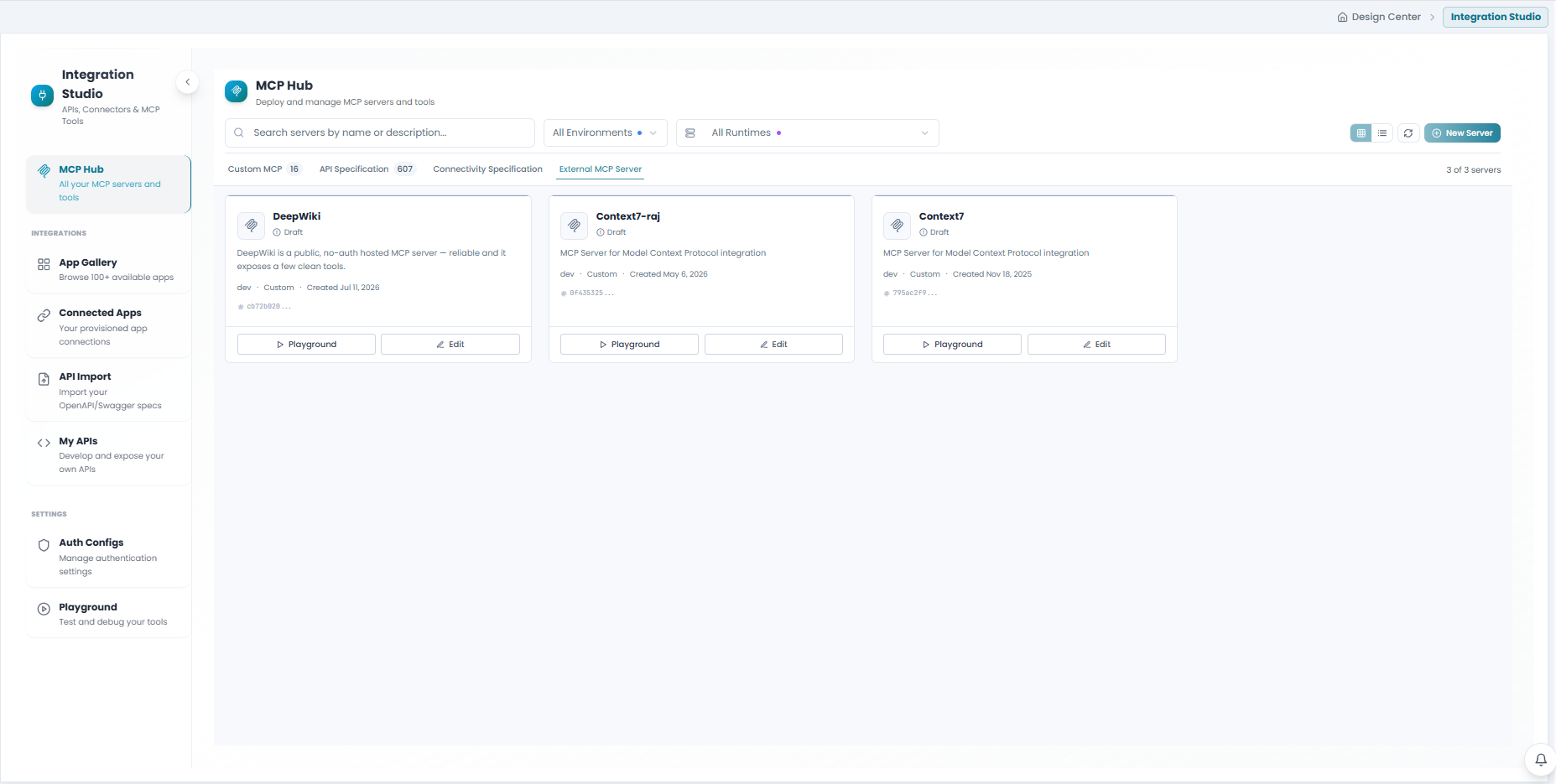
Navigate to the MCP Hub
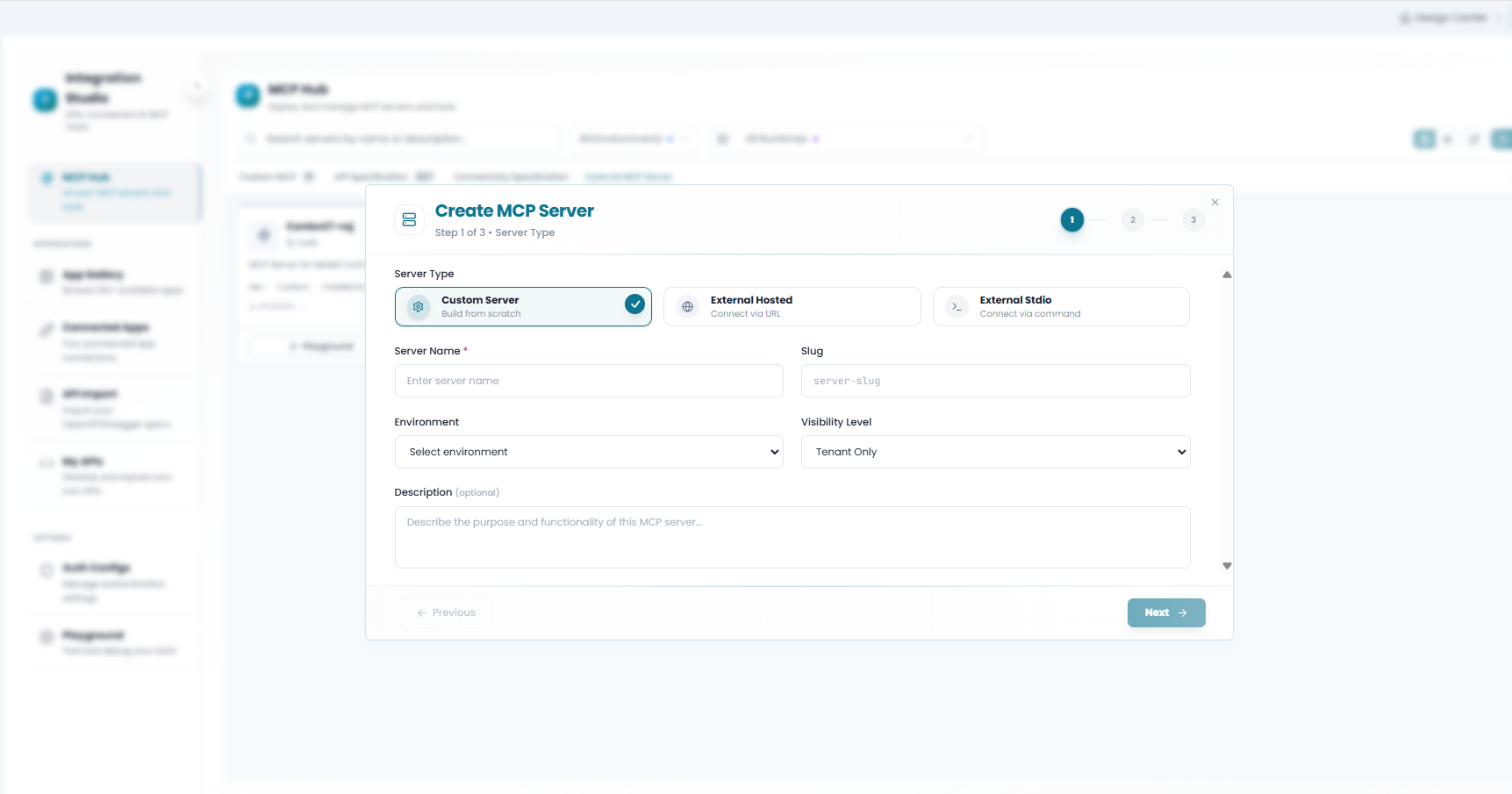
Step 2: Select External Hosted Type
2
Choose "External Hosted"
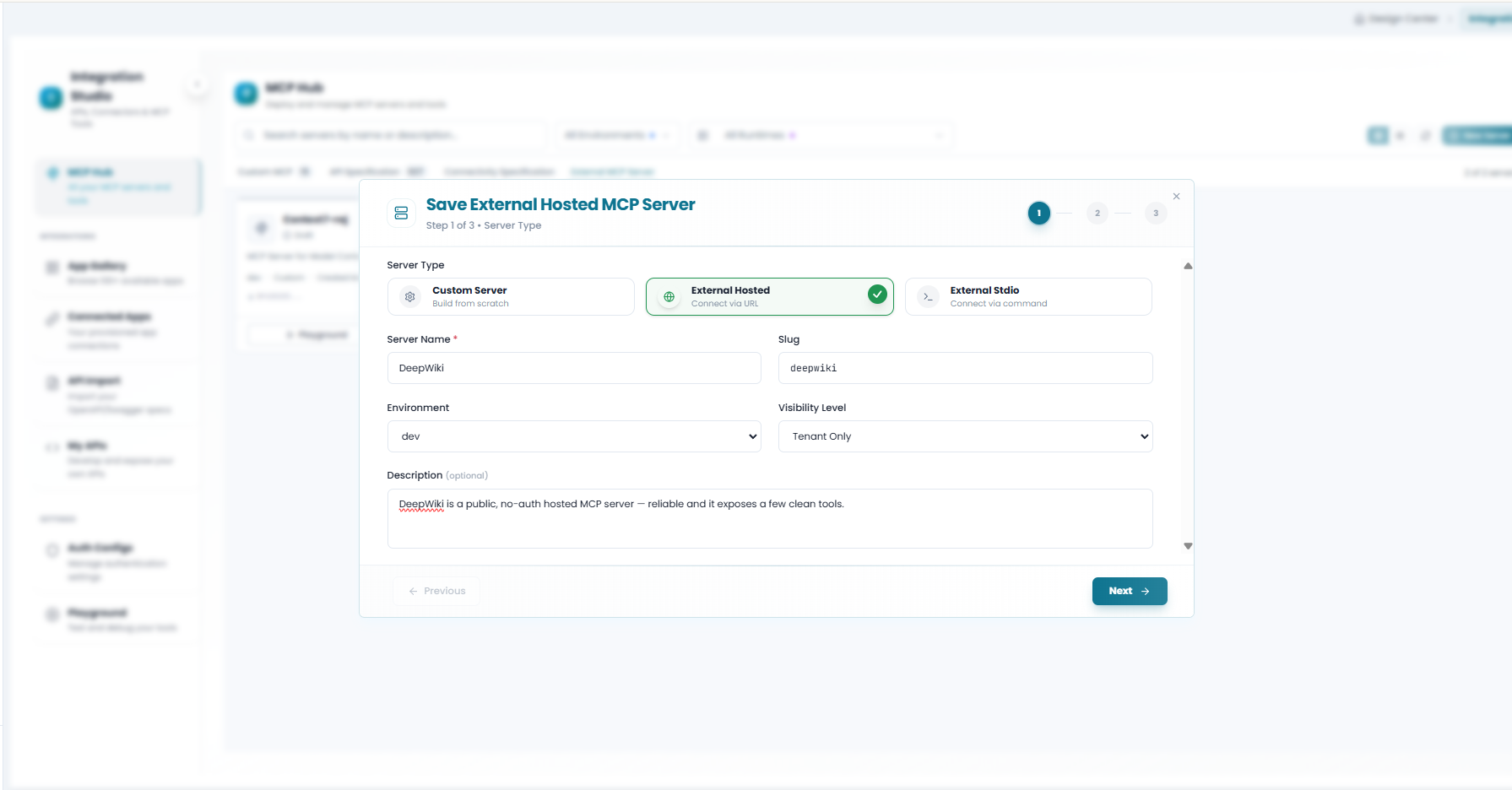
Step 3: Enter Server URL
3
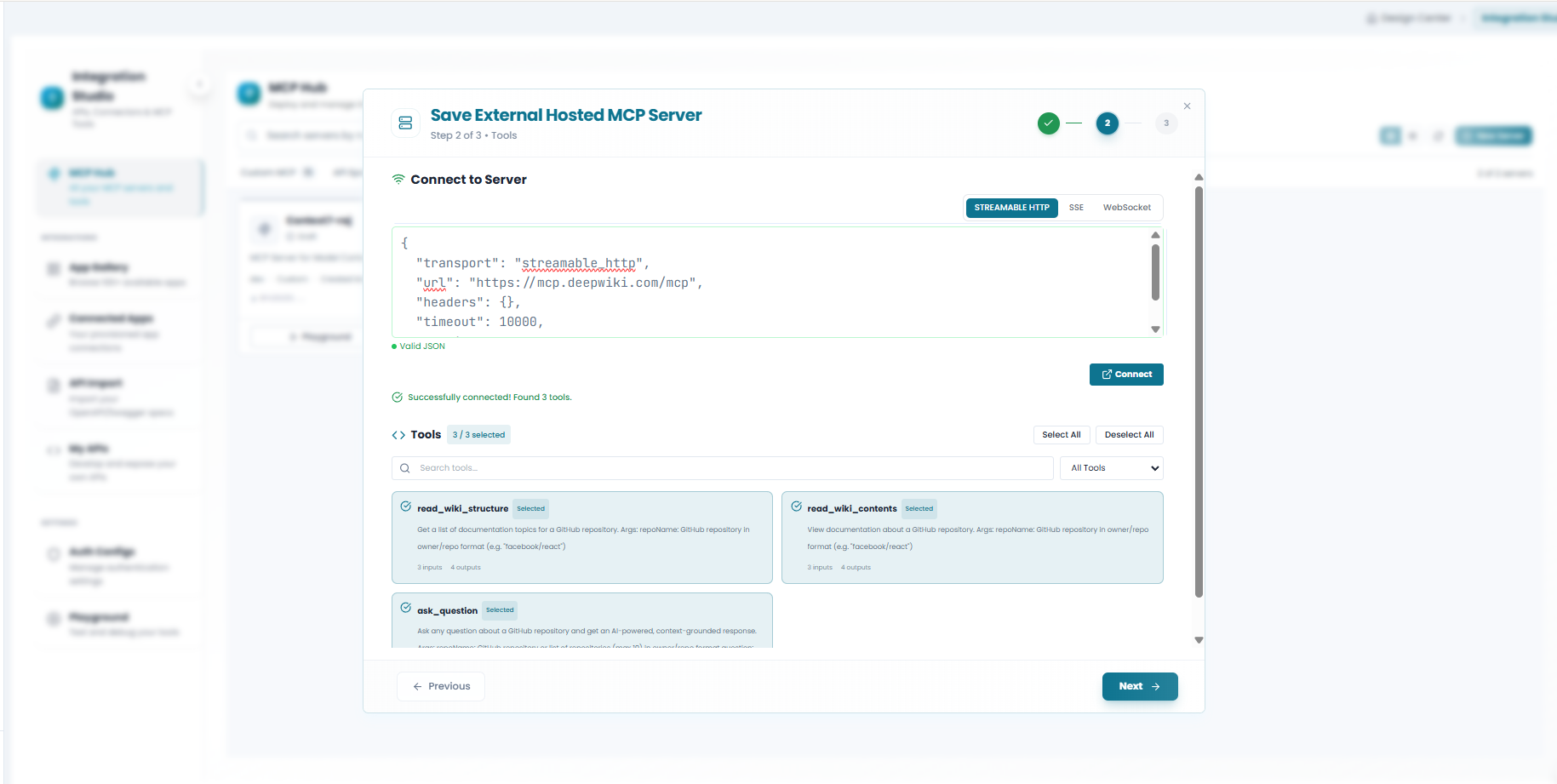
Provide the Server URL
- url - The server endpoint URL
- transport - Usually "sse" for HTTP connections
Step 4: Configure Connection
4
Set Connection Configuration
- headers - Custom HTTP headers for authentication
- timeout - Connection timeout in milliseconds
- retries - Number of retry attempts on failure
The headers, timeout, and retries are edited in the same connection JSON shown in the Connect step above.
Step 5: Discover Tools
5
Connect and Discover Tools
- Connect to the server at the specified URL
- Query the server for available tools
- Display all discovered tools with their descriptions
On a successful connection the Connect step shows "Successfully connected! Found N tools." with the full list of discovered tools (see the Connect screenshot above).
Step 6: Select and Import Tools
6
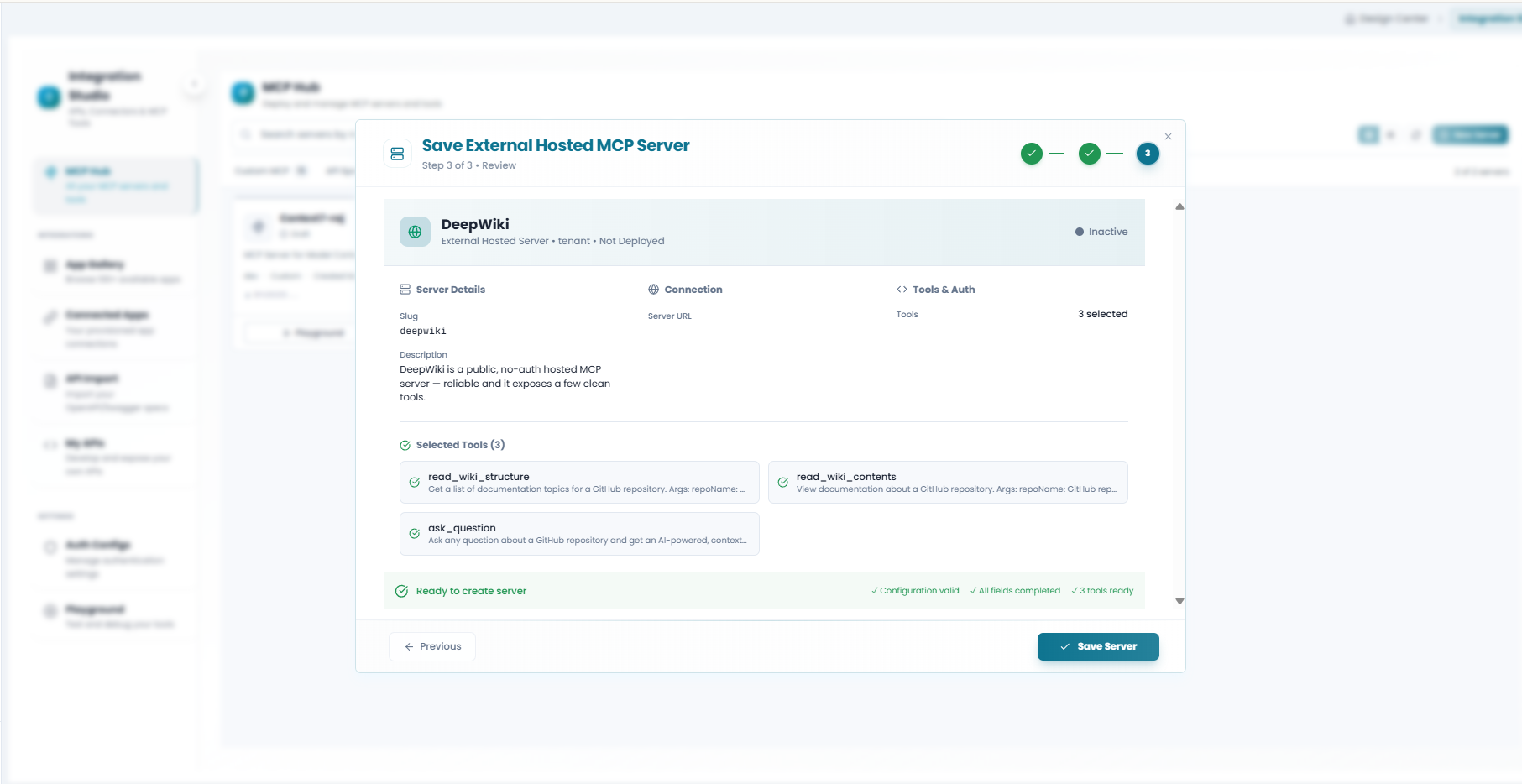
Choose Tools to Import
- Use checkboxes to select individual tools
- Click Select All to import everything
- Review tool names and descriptions
External Stdio Servers
External Stdio servers launch MCP servers via command-line execution and communicate through standard input/output.
When to Use
- Local development and testing
- CLI-based tools (Python scripts, Node.js apps)
- Tools that run as background processes
- File system or local resource access
Step-by-Step Guide
Step 1: Start the Creation Wizard
1
Navigate to the MCP Hub
Step 2: Select External Stdio Type
2
Choose "External Stdio"
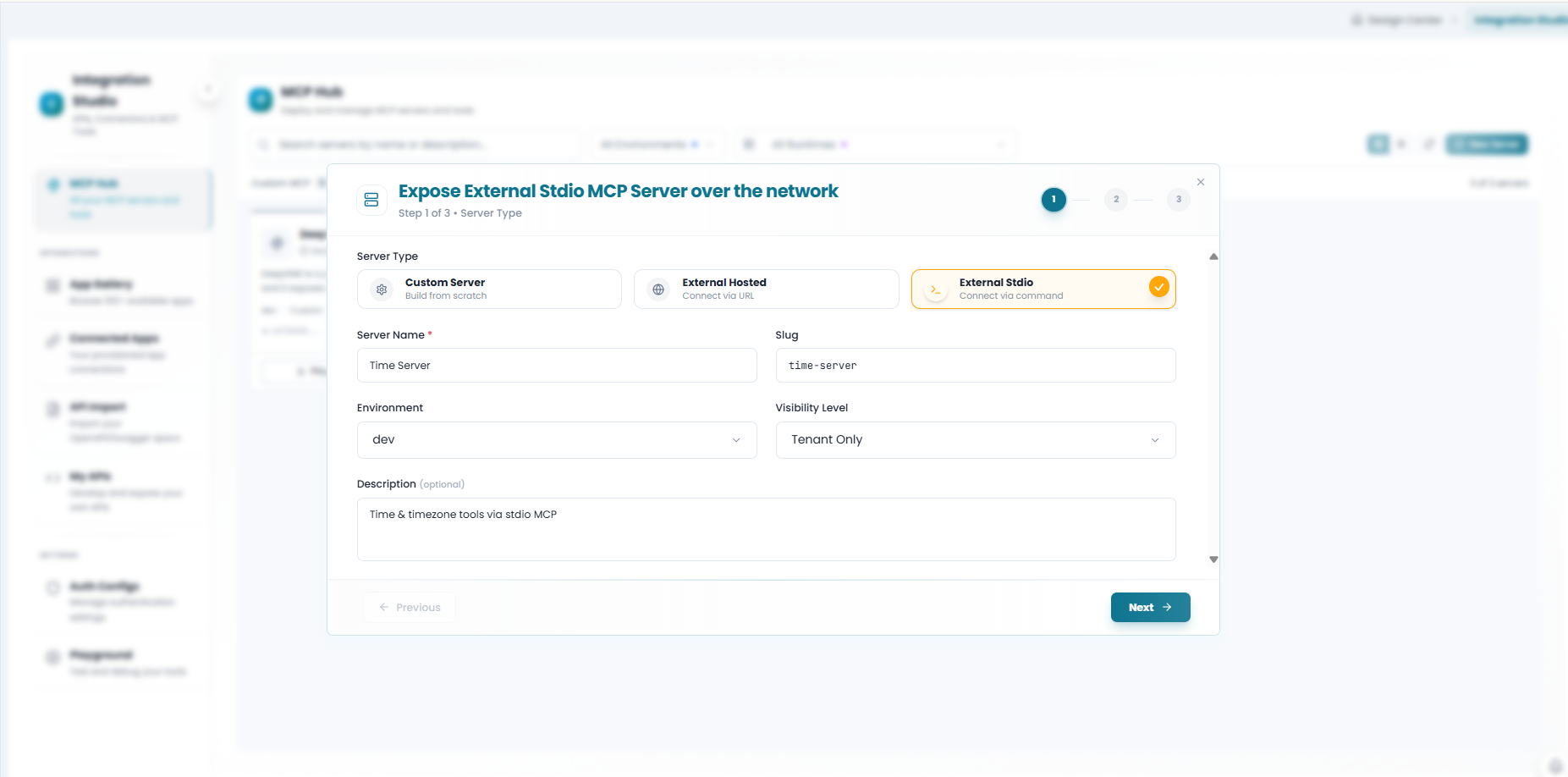
Step 3: Enter Command
3
Specify the Launch Command
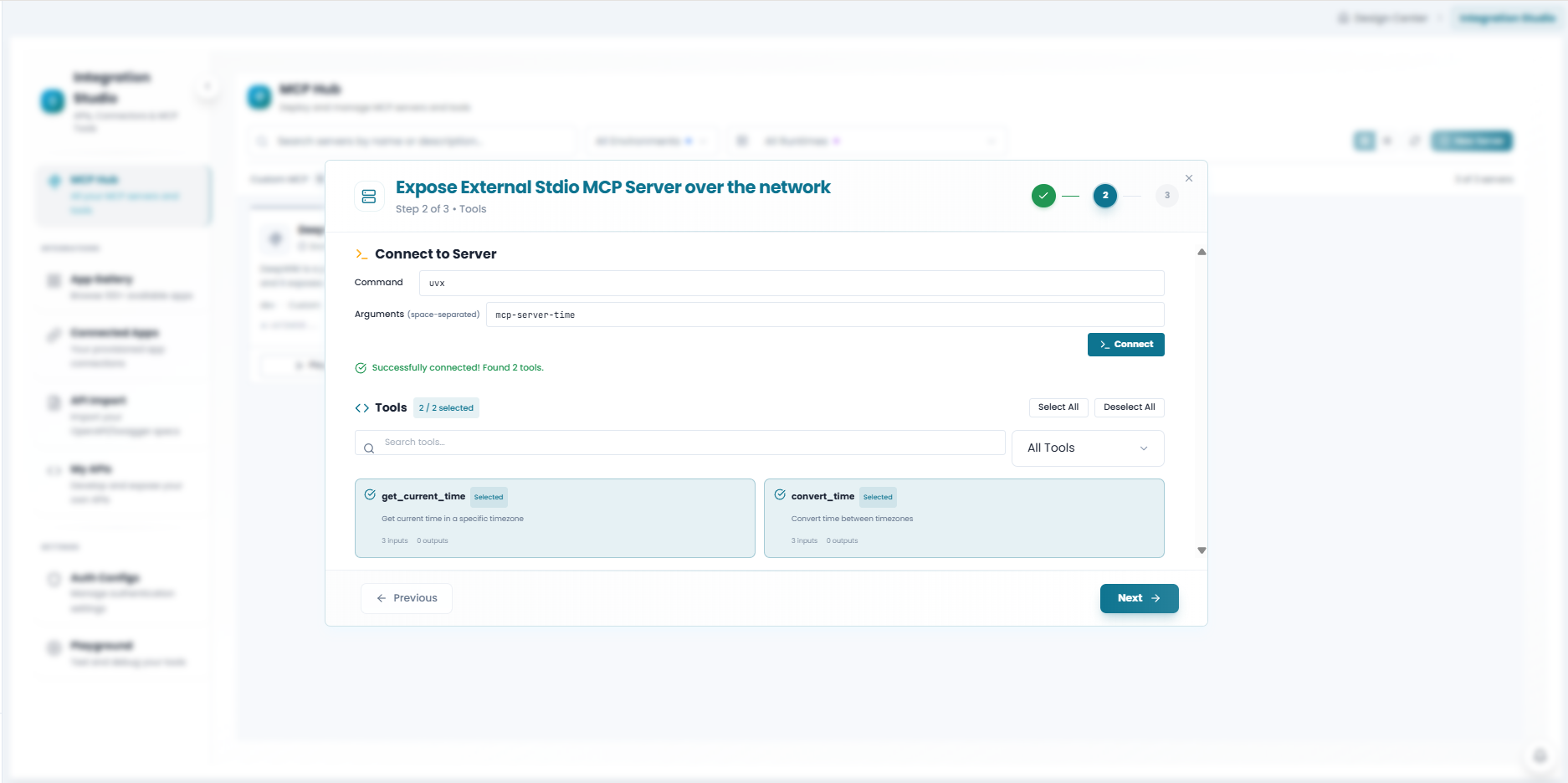
The command, arguments, connection, and discovered tools all live on this one Connect screen — the following steps describe the fields on it.
Step 4: Configure Arguments and Environment
4
Set Arguments and Environment Variables
- Arguments - Command-line arguments passed to the process
- Environment Variables - Set environment variables (API keys, config paths)
- Working Directory - Directory where the process runs
Arguments are entered as a space-separated list in the same Connect screen shown above (for example mcp-server-time). Environment variables and working directory are set alongside them where the server requires them.
Step 5: Discover Tools
5
Launch and Discover Tools
- FlowGenX spawns the process with the specified command
- Establishes stdio communication with the MCP server
- Queries for available tools
- Displays discovered tools for selection
On a successful launch the Connect screen shows "Successfully connected! Found N tools." with the discovered tools listed for selection (see the Connect screenshot above).
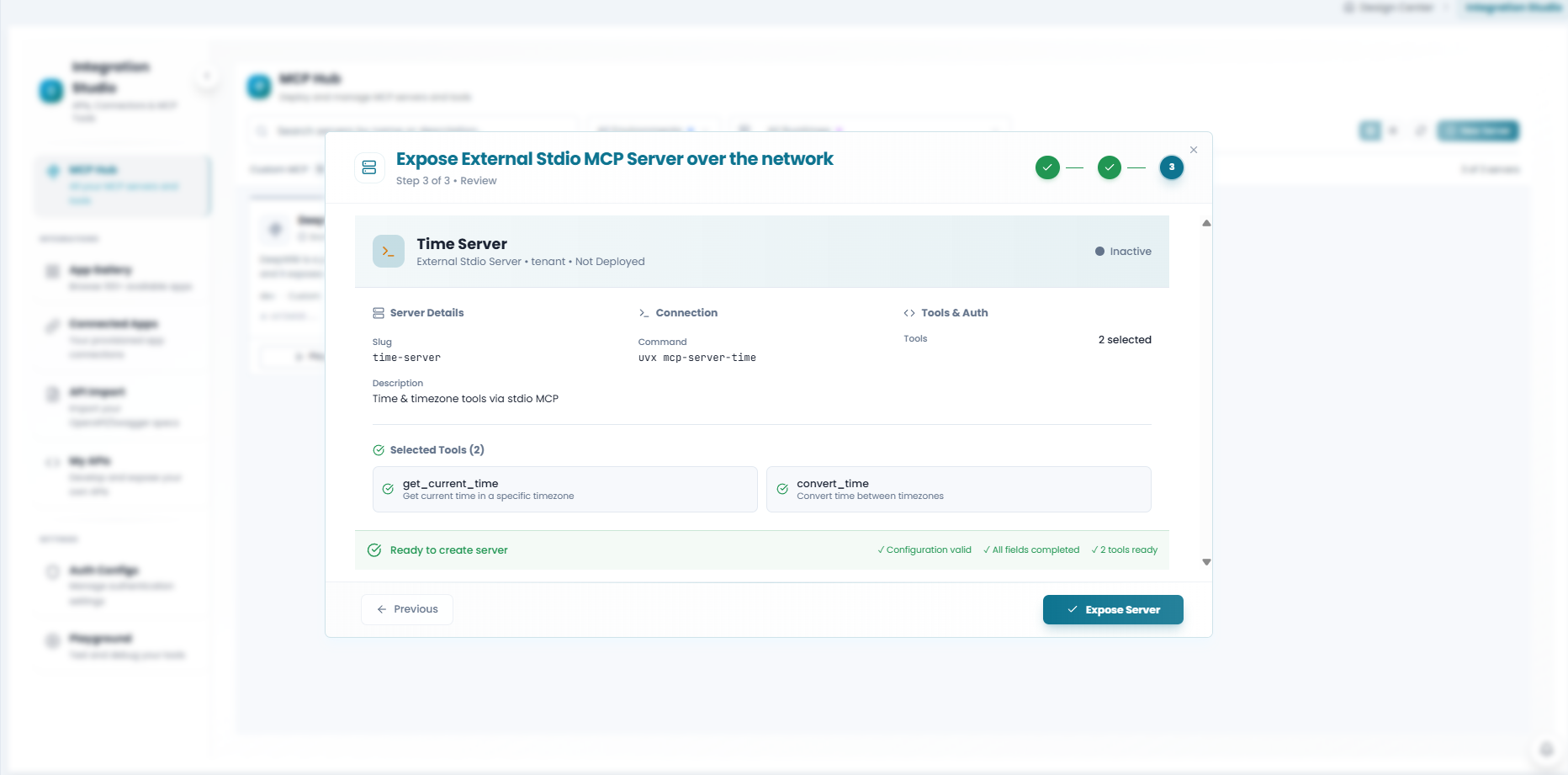
Step 6: Select and Create
6
Select Tools and Create Server
Security Considerations
Important Security Notes
- Verify server sources - Only connect to MCP servers from trusted sources.
- Review tool capabilities - Understand what each imported tool can do before enabling it for agents.
- Protect credentials - Use environment variables for sensitive data, never hardcode secrets.
- Network access - External hosted servers require network connectivity; ensure firewalls allow access.
- Process permissions - Stdio servers run with the permissions of the FlowGenX service; limit as appropriate.
- Monitor usage - Enable logging to track how agents use external tools.
Troubleshooting
Connection Failed
- Verify the URL is correct and the server is running
- Check if the server requires authentication headers
- Ensure network connectivity and firewall rules allow access
- Try the URL directly in a browser or with curl
No Tools Discovered
- Verify the server implements the MCP tools/list method
- Check server logs for errors
- Ensure the server is properly initialized before discovery
Stdio Process Fails
- Verify the command is correct and executable exists
- Check if required dependencies are installed
- Ensure environment variables are set correctly
- Try running the command manually in a terminal
Best Practices
Tips for External MCP Servers
- Test locally first - Verify stdio servers work on the command line before importing.
- Use versioned endpoints - For hosted servers, use versioned URLs to prevent breaking changes.
- Document dependencies - Keep track of what's required for stdio servers to run.
- Handle failures gracefully - External servers may be unavailable; configure appropriate timeouts.
- Regular updates - Use the refresh feature to sync with upstream tool changes.