

App Gallery: Browse and Connect Pre-Built Connectors
Browse pre-built connectors, search and filter by what you need, and start connecting an app to your workspace in a couple of clicks.
The App Gallery is your catalog of ready-to-use connectors. Each one wraps a real service — Slack, Gmail, HubSpot, Shopify, GitHub, and many more — as endpoints your workflows, agents, and MCP tools can call. Browsing here is how you discover what is available; Connect is how you make one your own.
Open it from Integration Studio → App Gallery.
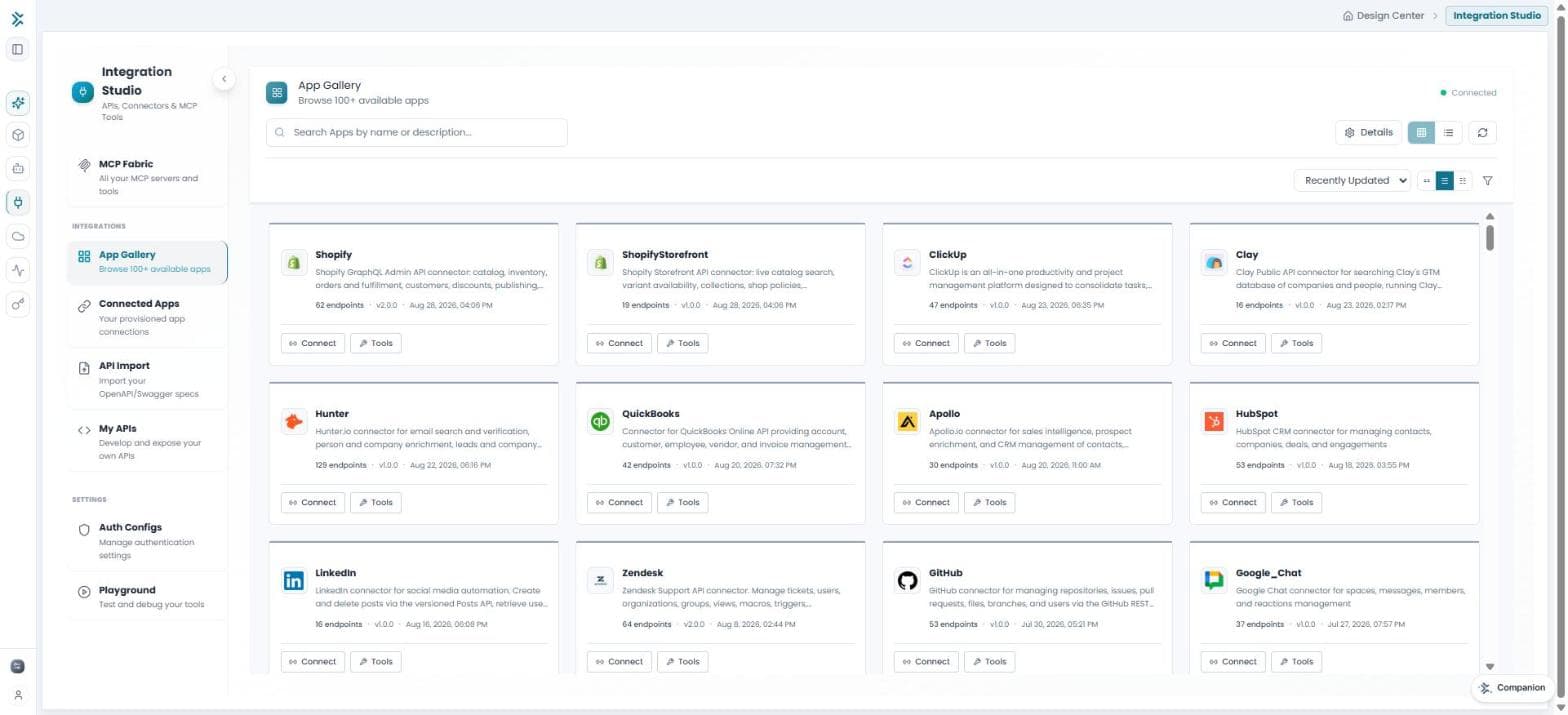
Find the app you need
- Search by name or description using the search box at the top.
- Sort with the Recently Updated control, and switch between grid and list views.
- Filter to narrow the catalog when you are looking for a specific kind of connector.
Each connector card shows the app's name and a short description, its number of endpoints (the operations it exposes), and its version — so you can tell at a glance how much of the service it covers.
Every connector is ready to connect — you do not build the integration. You provide credentials once and its endpoints become available across your workspace.
Connect an app
- Find the app on a card and click Connect.
- Configure the connection and provide credentials (OAuth, API key, or custom auth, depending on the app).
- Test and finish. The app then appears in Connected Apps, ready to use.
The full walkthrough — including each authentication type and how to test the connection — is on the Connected Apps page.
✅ Verify: after connecting, open Connected Apps. Your new app is listed there and is immediately available to any workflow or agent in this environment.
Explore a connector's tools
Prefer to see what an app can do before connecting? Click Tools on a card to inspect its available operations. This is also how those operations surface to agents as MCP tools.
Live gallery
Browse the connectors available right now:
Next steps
Connect an app, step by step
Configure credentials, choose an auth type, and test the connection.
Manage your connections
View, monitor, reconnect, and troubleshoot connected apps.
Bring your own API
Import an OpenAPI/Swagger spec to turn any REST API into a connector.
Use apps as MCP tools
Expose connector operations to agents through the Model Context Protocol.