

API Access Control & Gateway Management
API access control and gateway management in the FlowGenX Agent Gateway: groups, consumers, API keys, catalogs, and time/IP rules for APIs and MCP servers.
Overview
The Agent Gateway is your control plane for who can call what across your APIs and MCP servers. It lets you:
- Define granular access policies through groups
- Control access at both route and service levels
- Manage consumers (users, apps, services) that call your APIs
- Secure access with API keys and (per consumer) OAuth/OIDC
- Browse your API Catalog and MCP Catalog
- Trace who has access to what with API Lineage
- Restrict access by time window and IP/CIDR
- Synchronize all of this to the API Gateway (Kong) for enforcement
Open it from the platform home under Quick Actions → Agent Gateway, or from Access Management → API ACL Management.
Dashboard
The dashboard is your at-a-glance view of the access-control system for the selected environment.
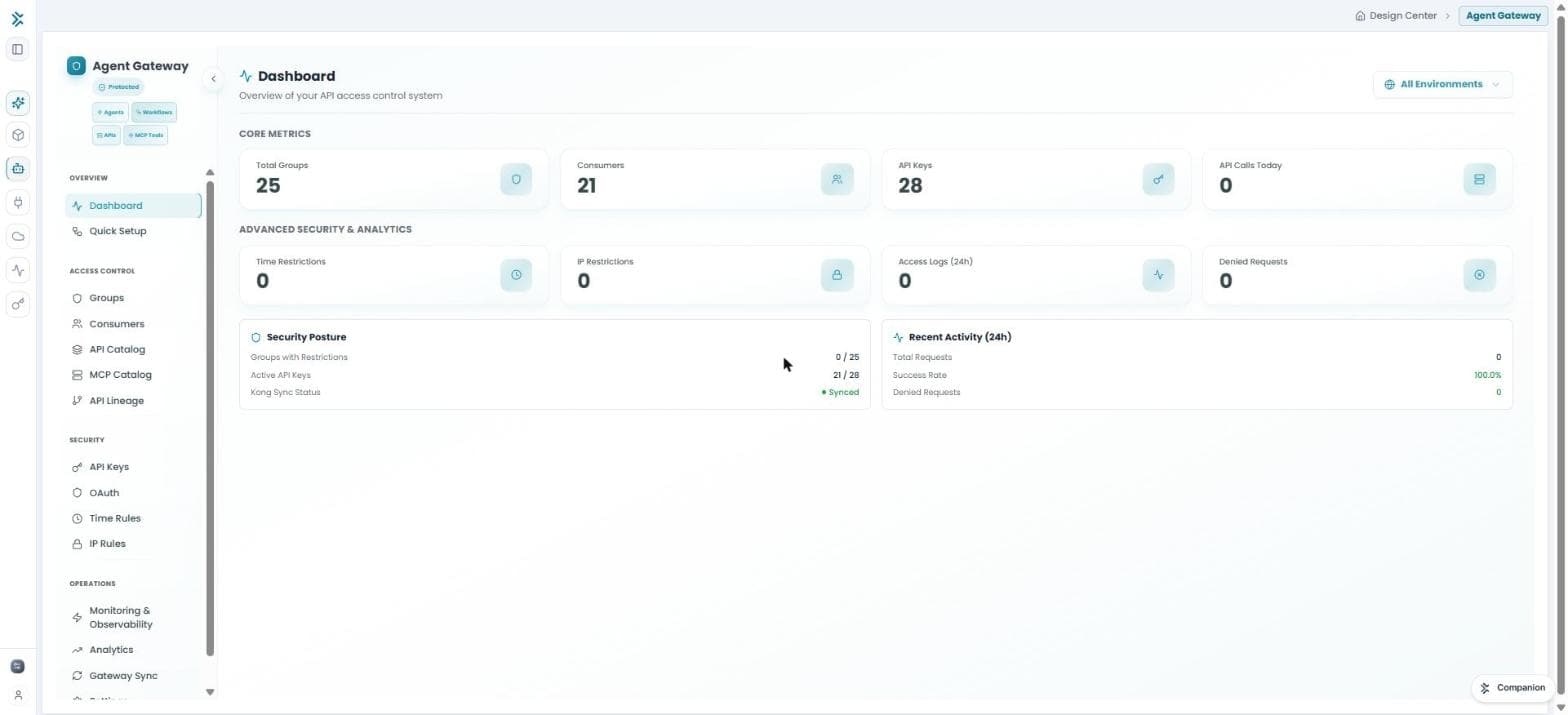
- Core Metrics — Total Groups, Consumers, API Keys, and API Calls Today
- Advanced Security & Analytics — Time Restrictions, IP Restrictions, Access Logs (24h), Denied Requests
- Security Posture — groups with restrictions, active API keys, and Kong sync status
- Recent Activity (24h) — total requests, success rate, and denied requests
Use the All Environments selector (top-right) to scope every screen to a specific environment.
Core Concepts
Groups — the foundation of access control
Groups are the building blocks of your access control system. Each group defines:
Route-Level Permissions
- Allowed Routes: specific API endpoints group members can access (whitelist)
- Denied Routes: specific API endpoints explicitly blocked (blacklist)
Service-Level Permissions
- Allowed Services: entire services available to group members (whitelist)
- Denied Services: entire services explicitly blocked (blacklist)
Groups and consumers are covered in depth in Tenant Management.
Consumers — your API users
Consumers are the entities (users, applications, services) that access your APIs through the gateway.
- Multi-group membership — a consumer can belong to one or more groups and inherits the combined permissions of all of them.
- Credentials — a consumer authenticates with API keys and/or OAuth/OIDC clients.
How access control works
When a consumer makes an API request:
- Authentication — the gateway verifies the API key or OAuth token
- Group Resolution — the system identifies all groups the consumer belongs to
- Permission Calculation — allowed and denied routes/services are combined from all groups
- Access Decision — a request is allowed only if the route/service is in the allowed list and not in the denied list (deny takes precedence)
- Request Forwarding — approved requests are forwarded to the target service
Quick Setup
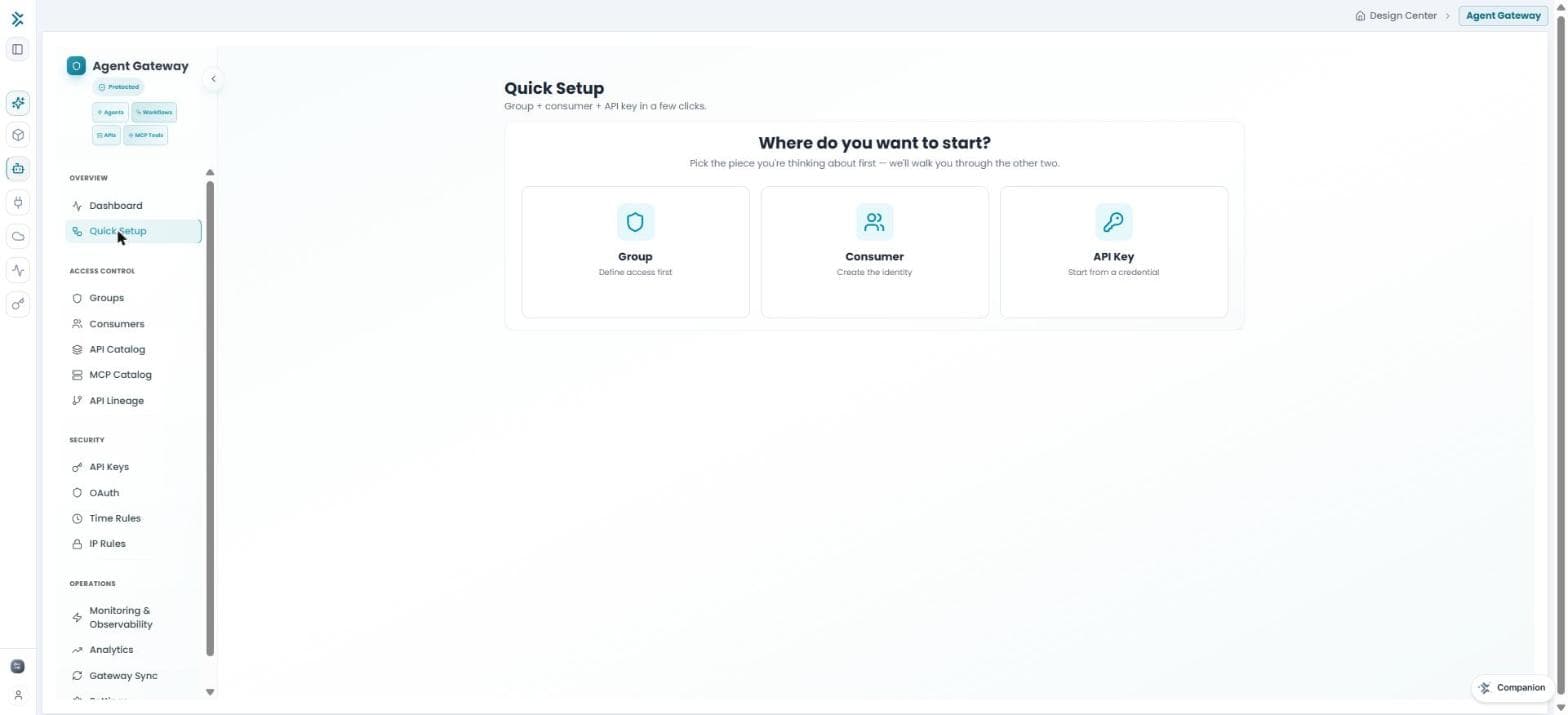
New to the gateway? Quick Setup walks you through the three pieces — a group, a consumer, and an API key — in a few clicks. Pick whichever you are thinking about first and it guides you through the other two.
Getting Started
Step 1: Create a group
Open Access Control → Groups and click Create Group. Creation is a short three-step wizard: Basic Info → Routes → Review.
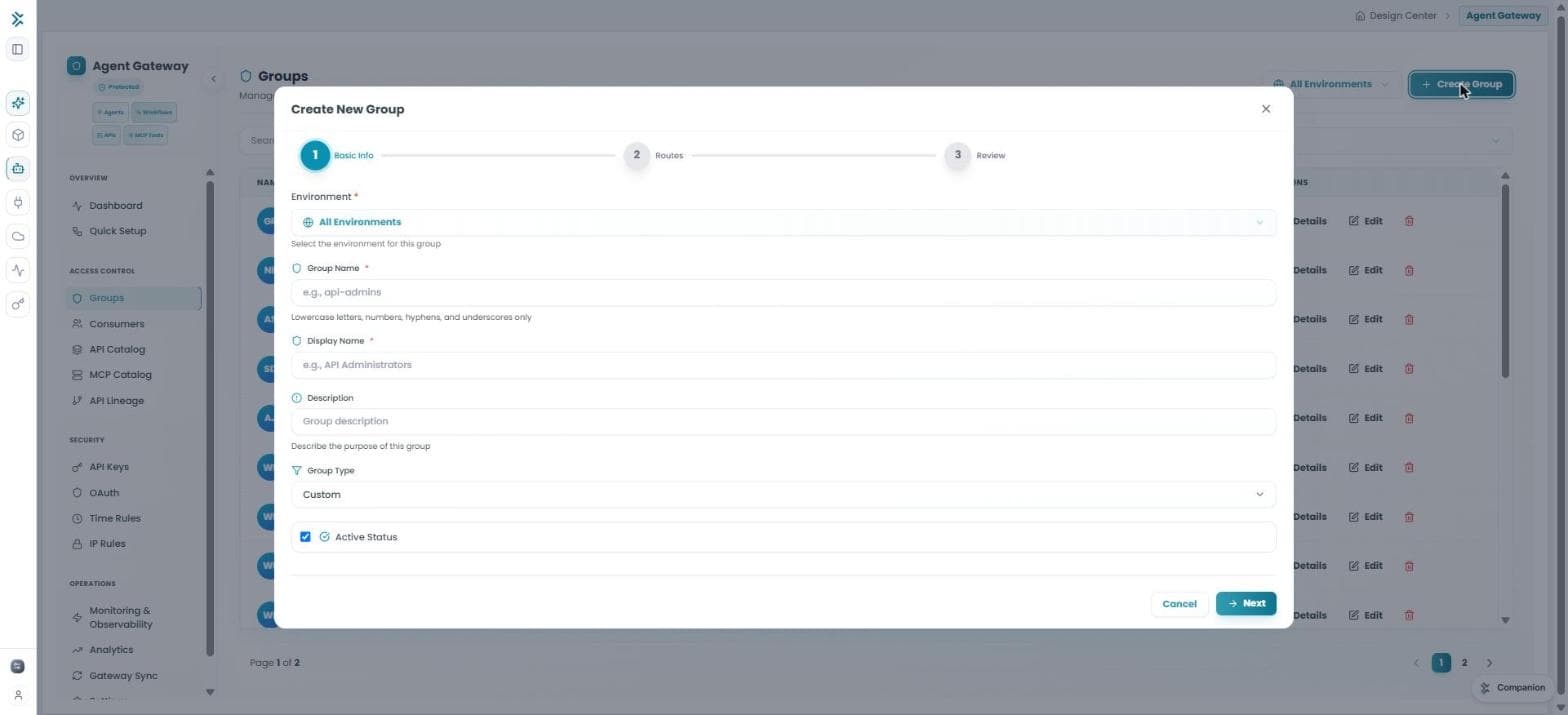
- Basic Info
- Environment: the environment this group applies to
- Group Name: unique identifier (lowercase letters, numbers, hyphens, underscores) — e.g.
api-admins - Display Name: human-readable name — e.g.
API Administrators - Description: purpose and scope of the group
- Group Type: Custom, System, or Global
- Active Status: whether the group is active
- Routes — add allowed and denied routes/services:
- Allowed route example:
/api/v1/users,/api/v1/products - Denied route example:
/api/v1/admin/* - Wildcards:
**matches all sub-paths recursively,*matches a single level
- Allowed route example:
- Review — confirm the configuration and click Create Group.
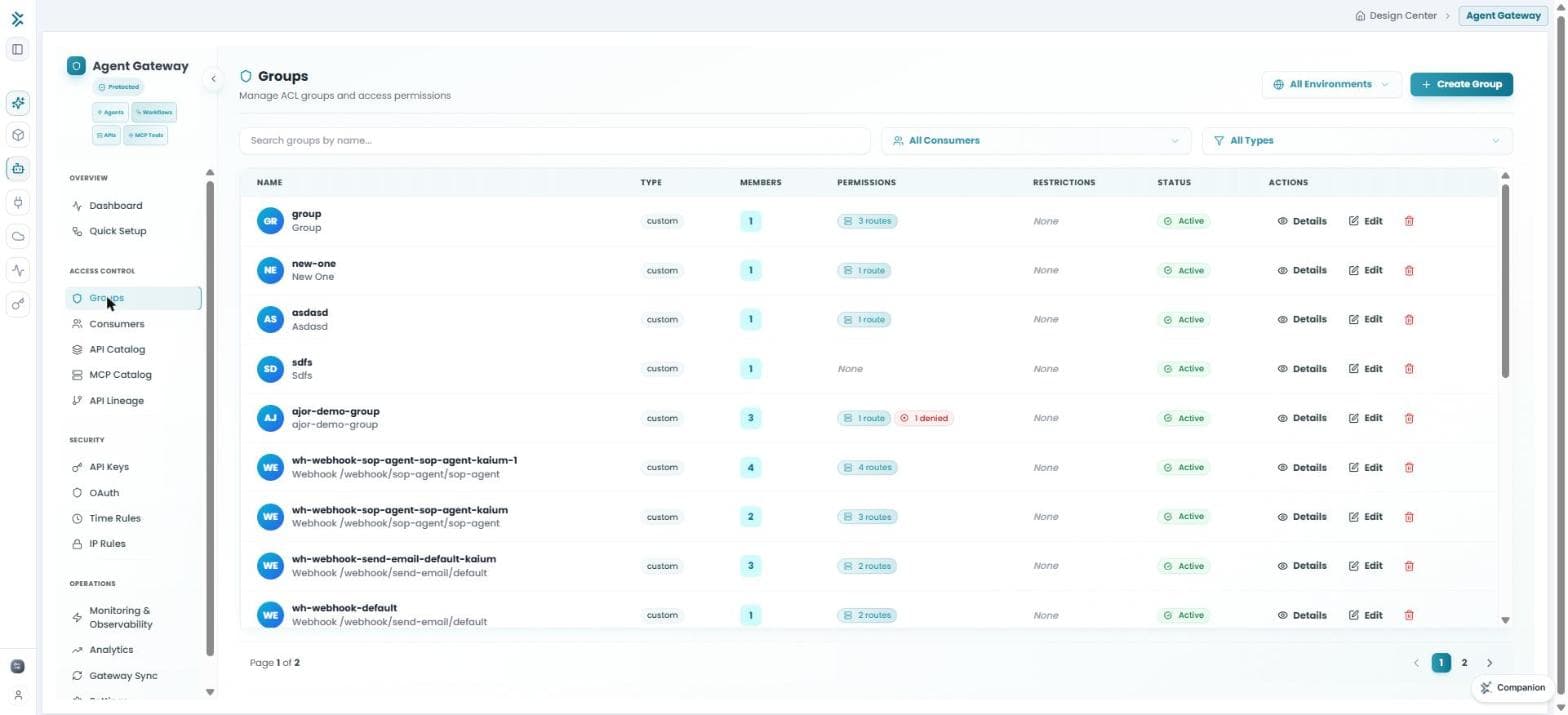
Your groups appear in the Groups list with their type, member count, permissions, restrictions, and status.
Step 2: Create a consumer
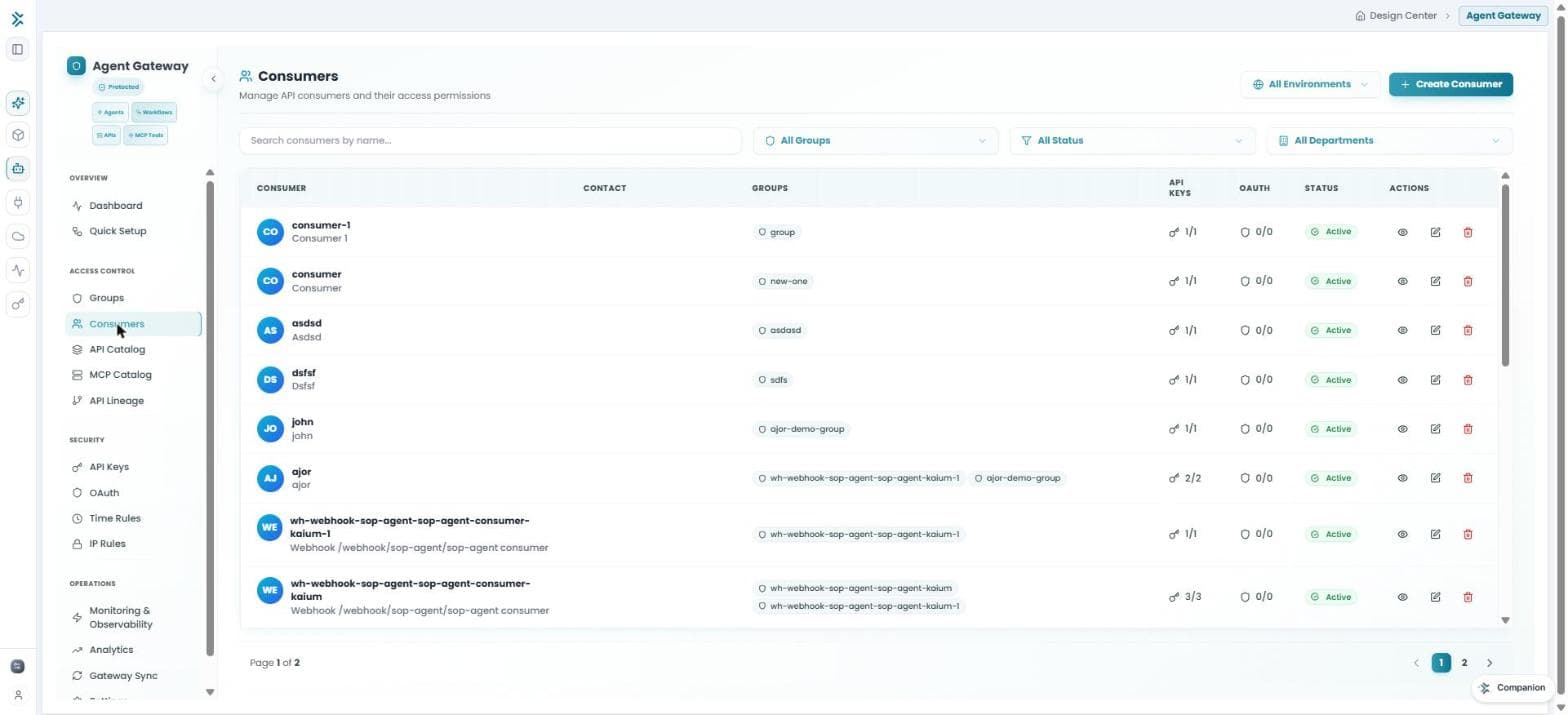
Open Access Control → Consumers and click Create Consumer. This is also a three-step wizard: Basic Info → Groups → Review.
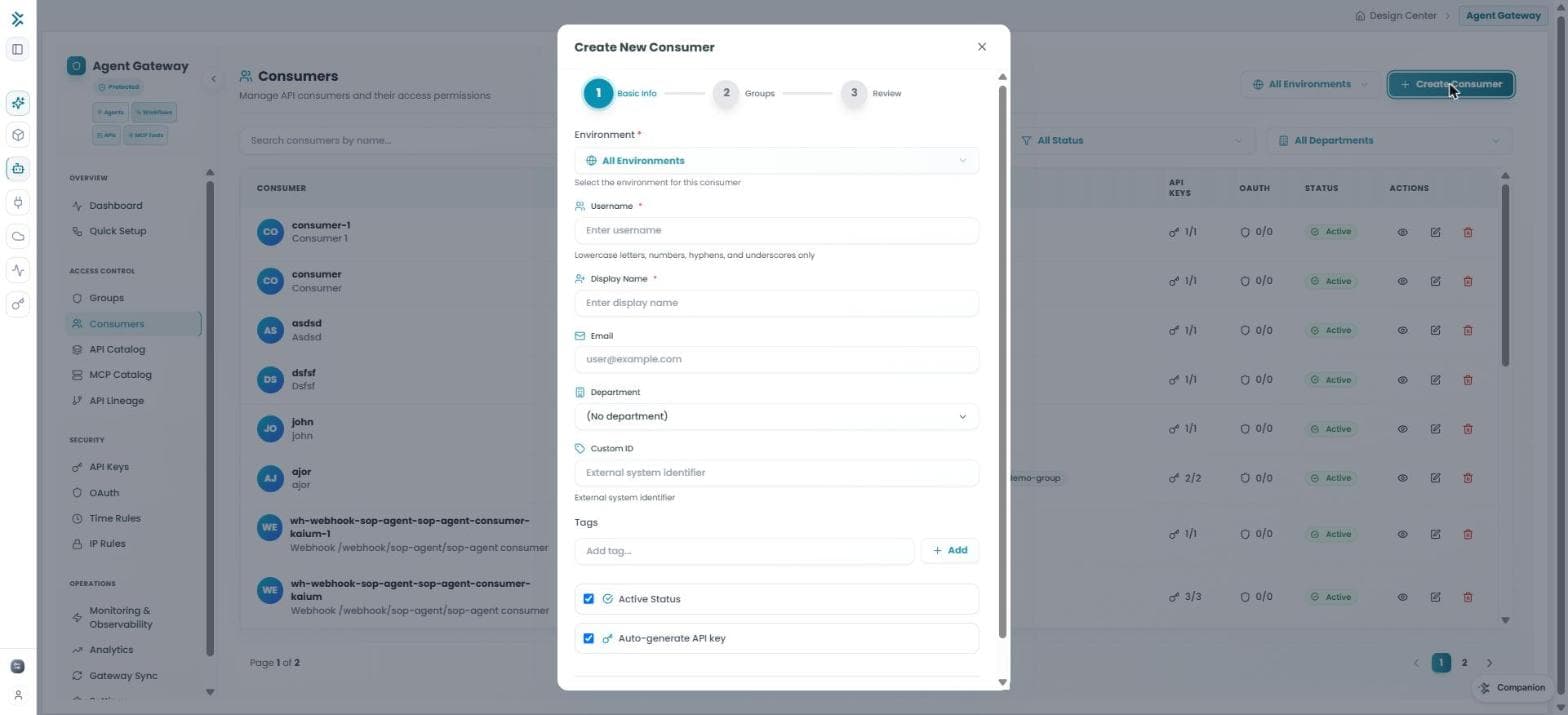
- Basic Info
- Environment, Username (unique), Display Name, Email
- Department, Custom ID (external system identifier), and Tags
- Active Status and Auto-generate API key (creates a key automatically on save)
- Groups — assign one or more groups; the consumer inherits the combined permissions of all of them.
- Review — confirm and click Create Consumer.
Step 3: Create an API key
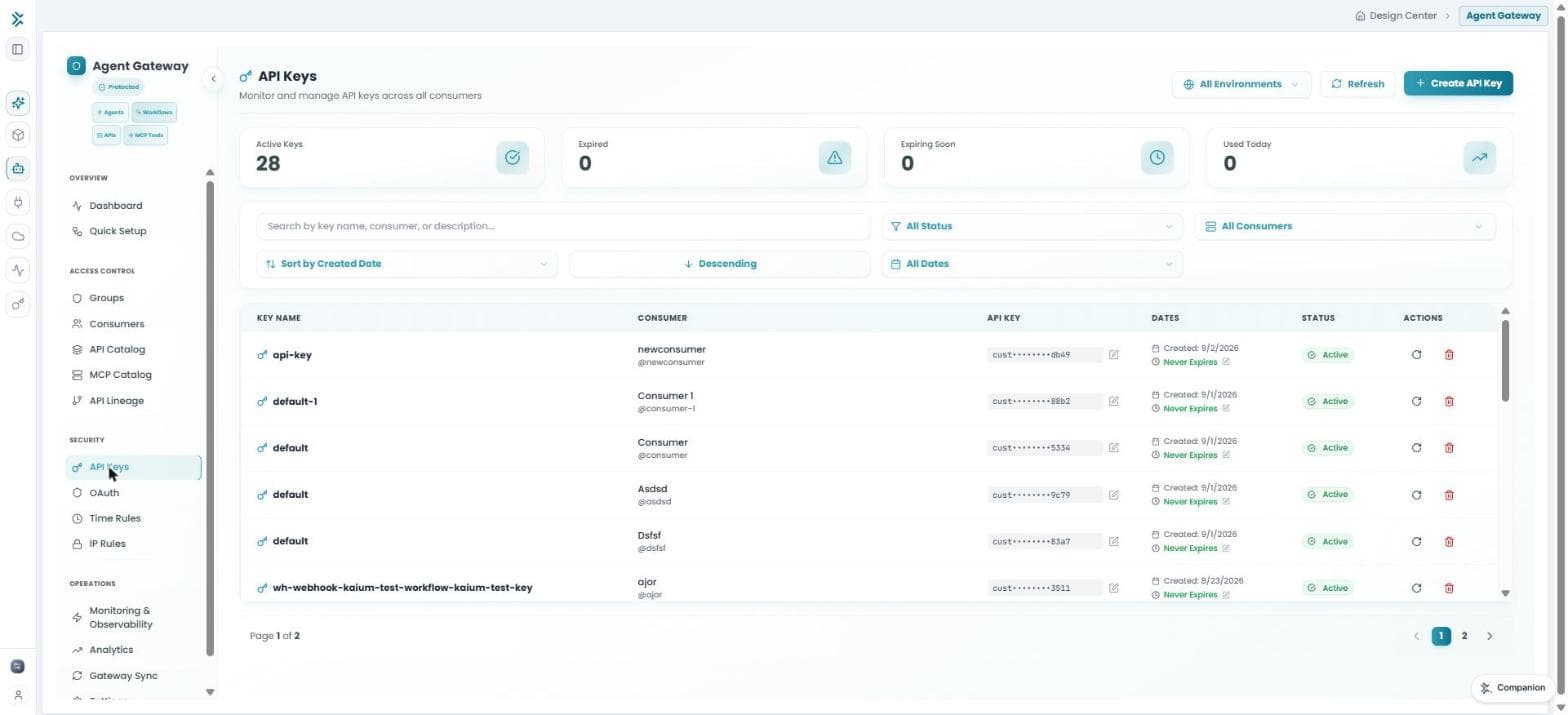
Open Security → API Keys (key rotation and OAuth clients are covered in Authentication). The dashboard shows Active, Expired, Expiring Soon, and Used Today counts, plus every key across all consumers.
Click Create API Key. The guided flow ties the key to a consumer and a group and authorizes the route for you:
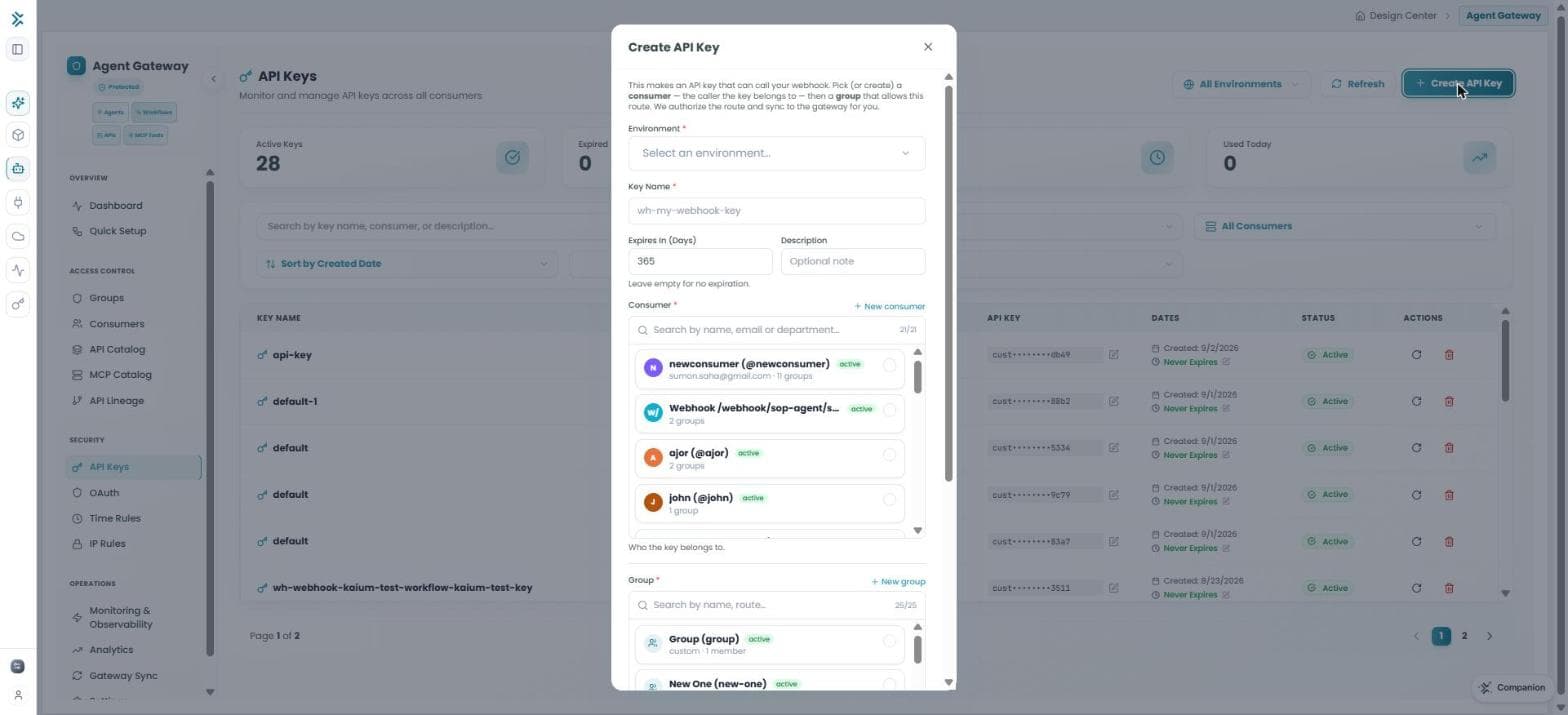
- Environment and Key Name (e.g.
wh-my-webhook-key) - Expires in (Days) — defaults to 365; leave empty for no expiration. Add an optional Description.
- Consumer — pick the consumer the key belongs to (or create a new one inline)
- Group — pick a group that allows the target route (or create one inline)
- Click Create — FlowGenX authorizes the route and syncs it to the gateway for you.
Copy the key immediately after creation — the full value is shown once and cannot be retrieved later.
API Catalog
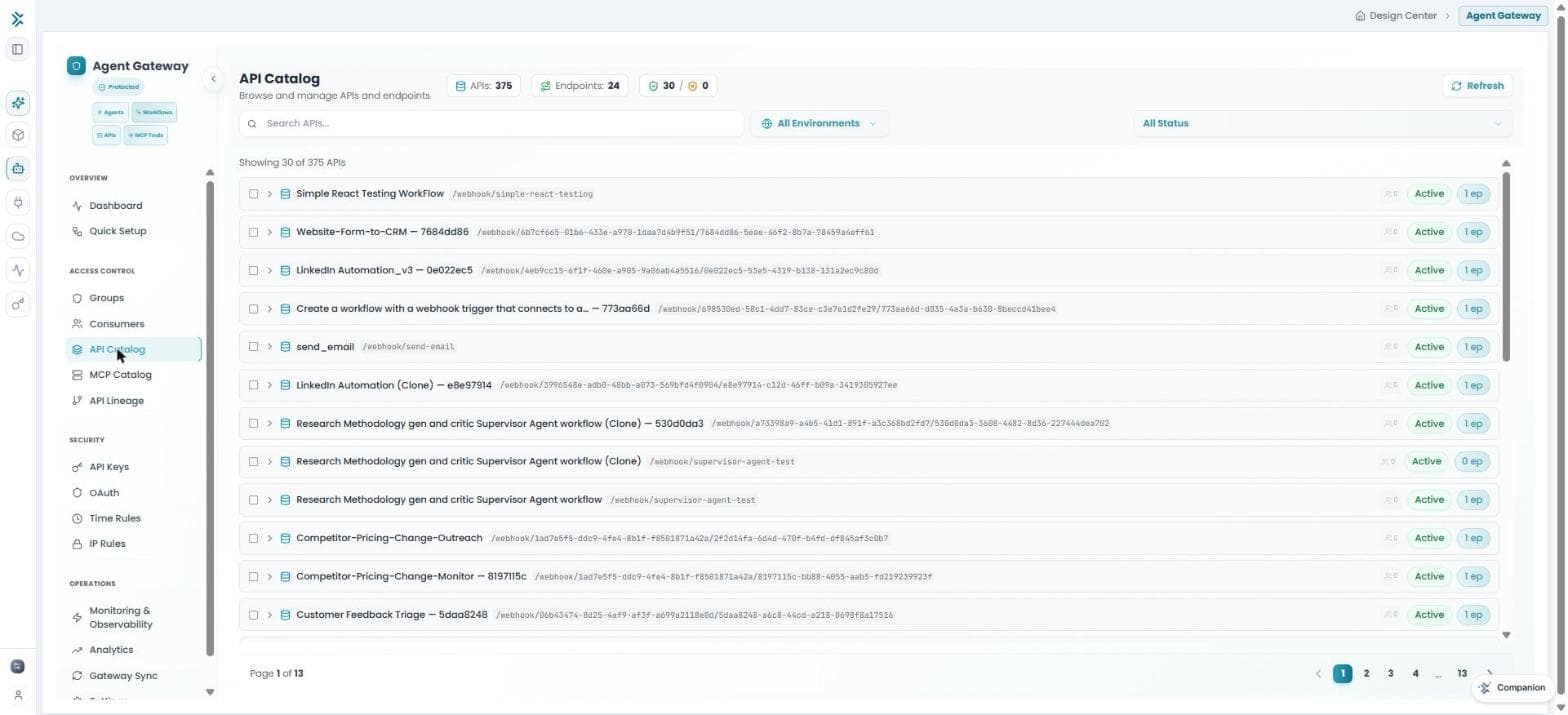
Browse and manage all registered APIs and endpoints. The header shows the total APIs and Endpoints counts, and each row shows the base path, status, and endpoint count.
Adding APIs to a group
- Select APIs or endpoints with their checkboxes
- Click Add to Group
- Choose the target environment and group; a preview shows the selected paths
- Confirm — wildcard notation (
**recursive,*single level) controls the match scope
MCP Catalog
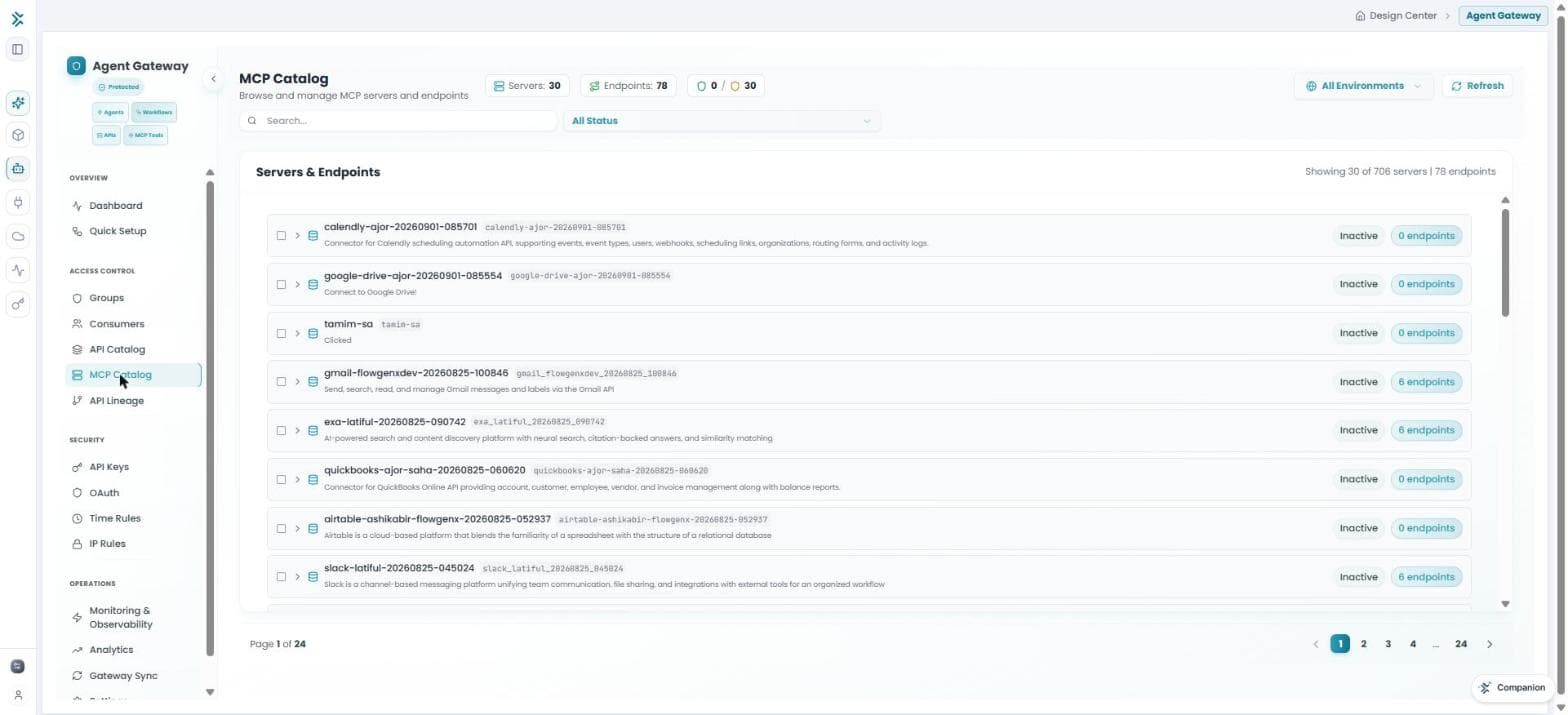
The MCP Catalog lists your registered MCP servers and their endpoints, so you can govern agent/tool access the same way you govern APIs. The header shows total Servers and Endpoints, and each row shows the server name, description, status, and endpoint count.
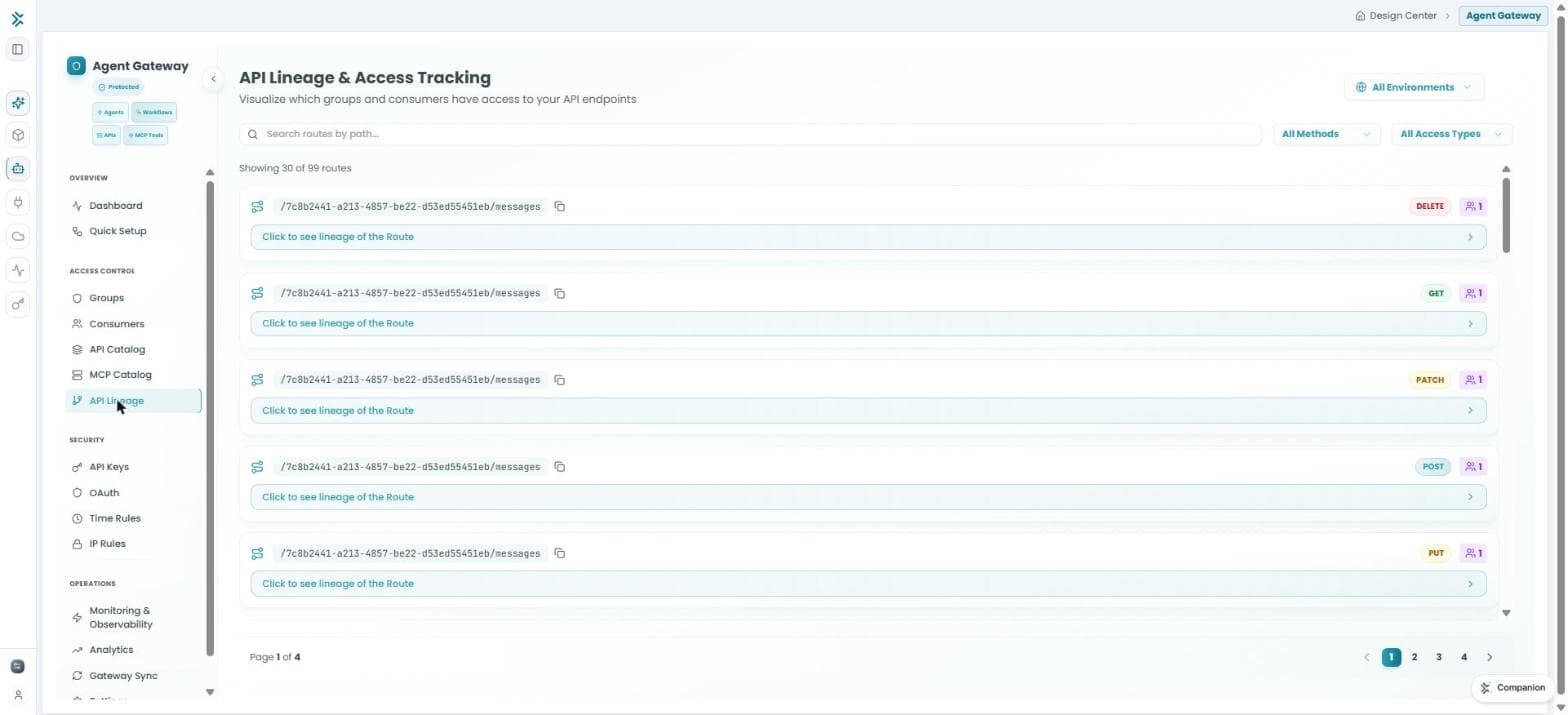
API Lineage & Access Tracking
Visualize the complete access path from an API route to the groups, consumers, and credentials that can reach it. Browse routes by path and HTTP method (GET, POST, PUT, PATCH, DELETE).
Click Click to see lineage of the Route to expand the access chain. Four summary cards show the counts for Groups, Consumers, API Keys, and OAuth Creds, and an expandable tree shows the hierarchy:
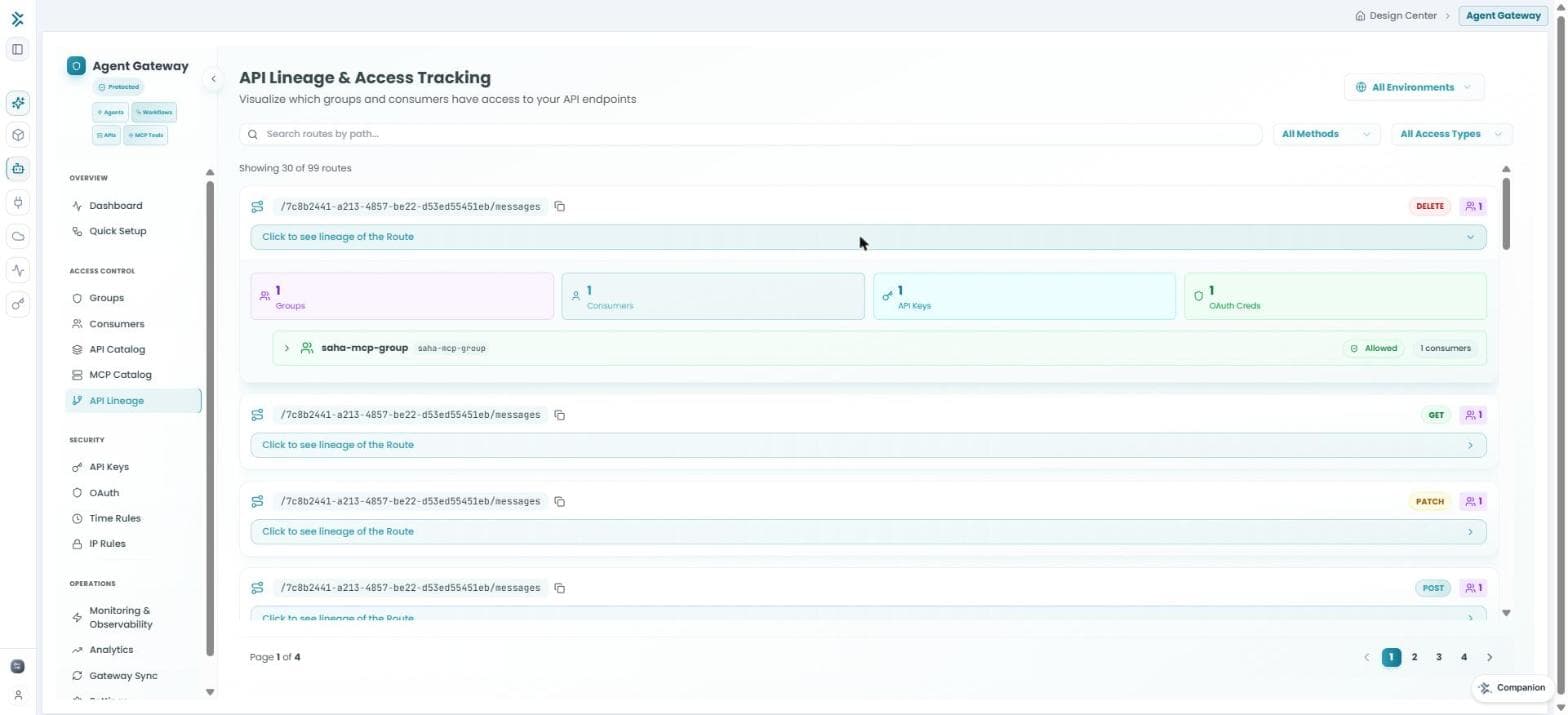
Route (e.g. /app-events/**)
  └── Groups (with allowed/denied status)
      └── Consumers (inheriting group permissions)
          └── Credentials (API keys and OAuth clients)
This makes it easy to see which groups grant access to a route, which consumers inherit that access, and which credentials are configured for authentication.
Time-Based Access Control
Configure time windows and day-of-week restrictions to control when a group can access your APIs. Compliance covers time and IP rules together with compliance reporting. Open Security → Time Rules; every group is listed with its current restriction status.
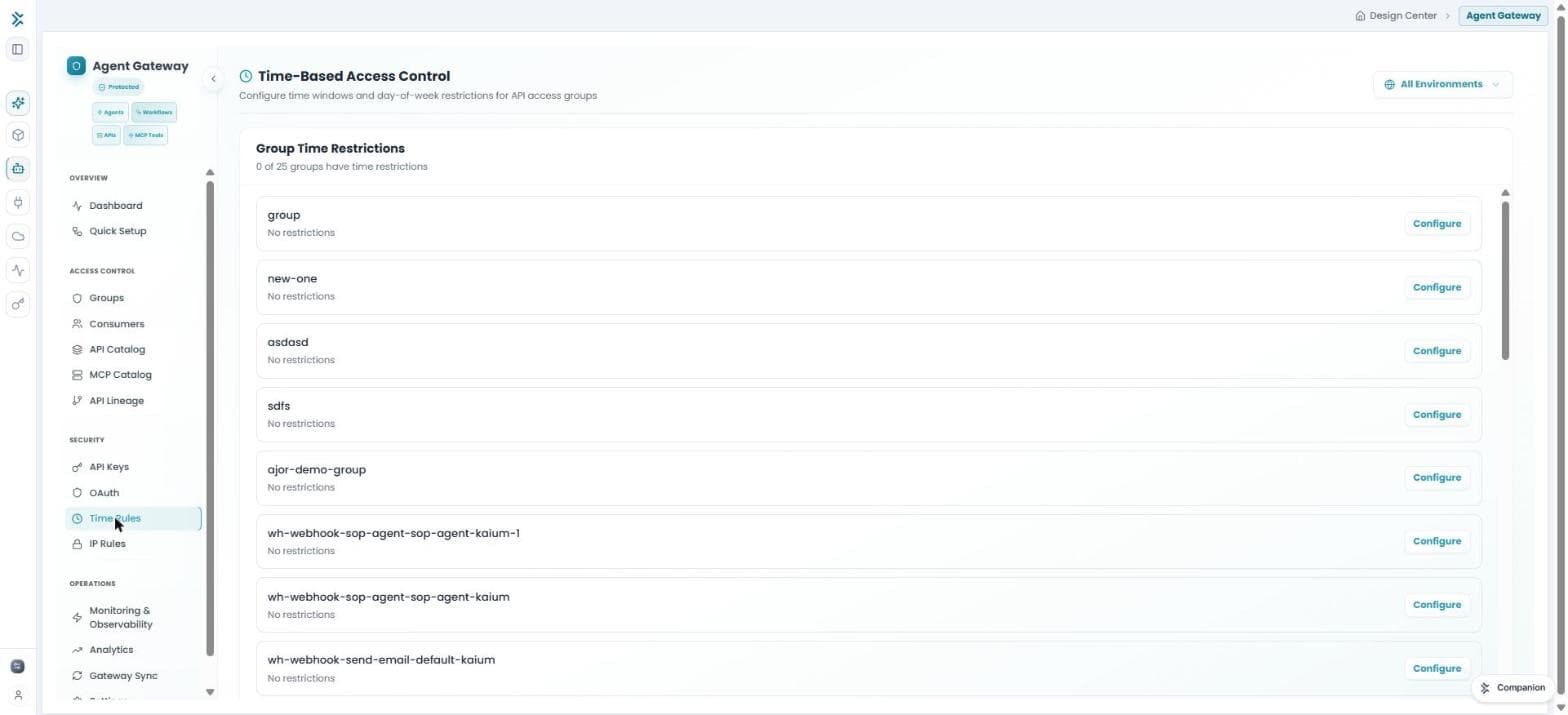
Click Configure for a group, then:
- Toggle Enable Time Restrictions
- Select the days of week the group may access APIs
- Set the start and end time (12-hour, AM/PM)
- Choose the timezone for enforcement (e.g.
America/New_York) - Save
Common uses: business-hours-only access, maintenance windows, temporary contractor access, and weekend lockdowns.
IP-Based Access Control
Configure IP allowlists and blocklists (CIDR supported) for access groups. Open Security → IP Rules; every group is listed with its current IP-restriction status.
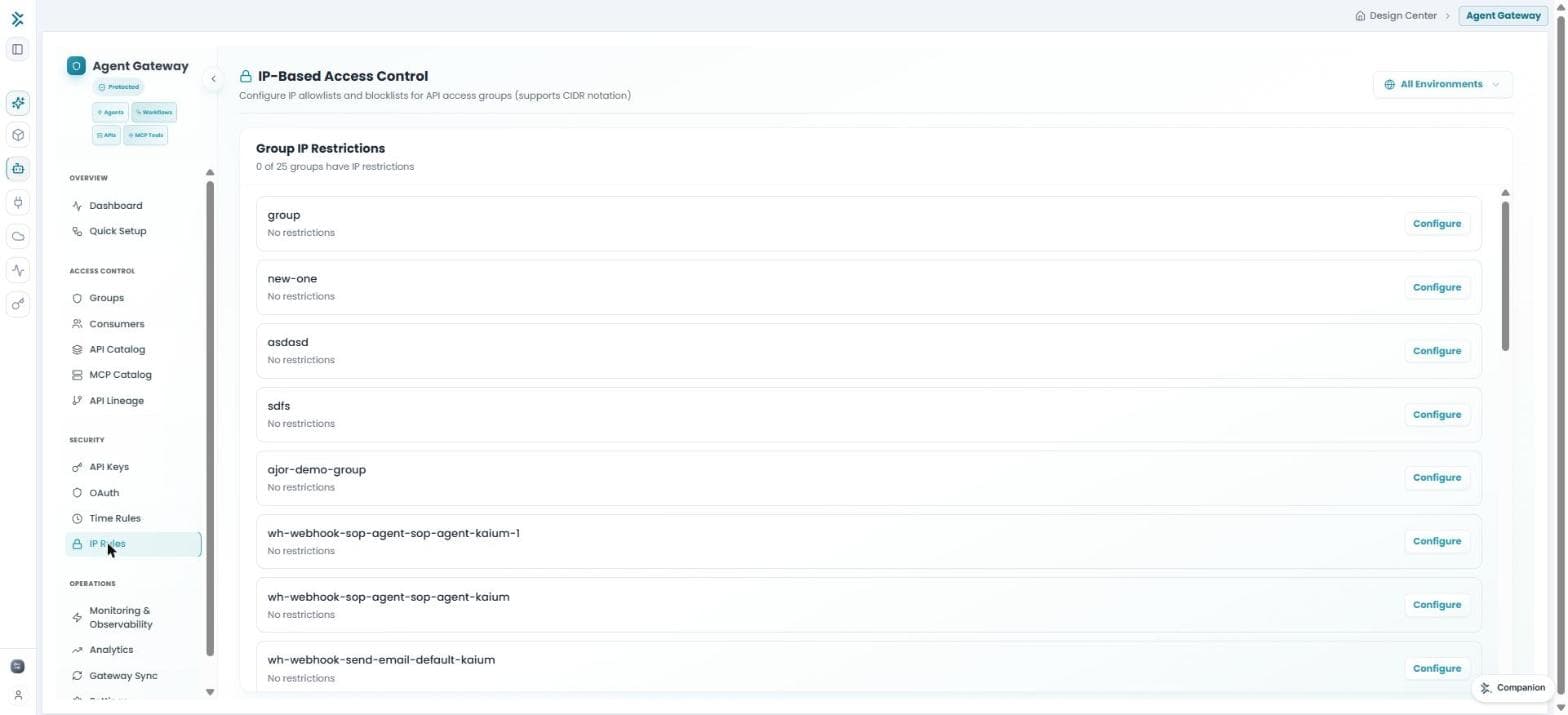
Click Configure for a group, then:
- Toggle Enable IP Restrictions
- Add an IP address or CIDR (e.g.
192.168.1.0/24,10.0.0.1,2001:db8::/32) - Choose Allow (whitelist) or Deny (blacklist) for each rule and click +
- Save Restrictions
Deny takes precedence over allow. If an IP matches both an allow and a deny rule, it is denied. A consumer must satisfy the IP restrictions of all groups it belongs to.
Common uses: office-only access, VPN-only access, partner IP whitelisting, and blocking known-malicious ranges.
API Gateway Synchronization
All ACL configuration — groups, consumers, allowed/denied routes, IP and time restrictions, and API keys — is synchronized to the API Gateway (Kong) for enforcement. Open Operations → Gateway Sync.
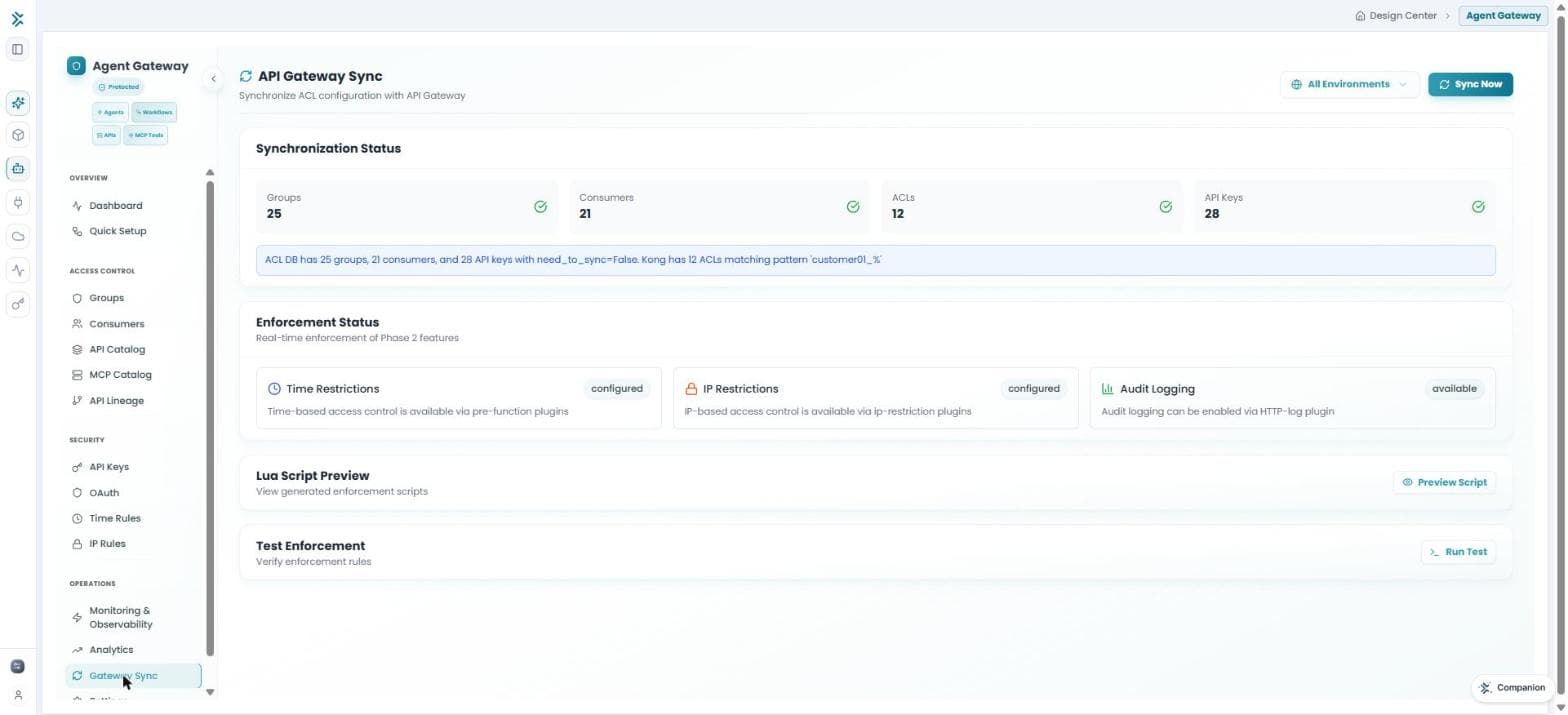
- Synchronization Status — synced counts for Groups, Consumers, ACLs, and API Keys, with a summary of DB vs. gateway state
- Enforcement Status — whether Time Restrictions, IP Restrictions, and Audit Logging are configured/available
- Lua Script Preview — view the generated enforcement scripts
- Test Enforcement — verify enforcement rules
- Sync Now — trigger an immediate synchronization after making critical permission changes
Tenant Settings
Operations → Settings shows your tenant's configuration, quotas, and resource usage.
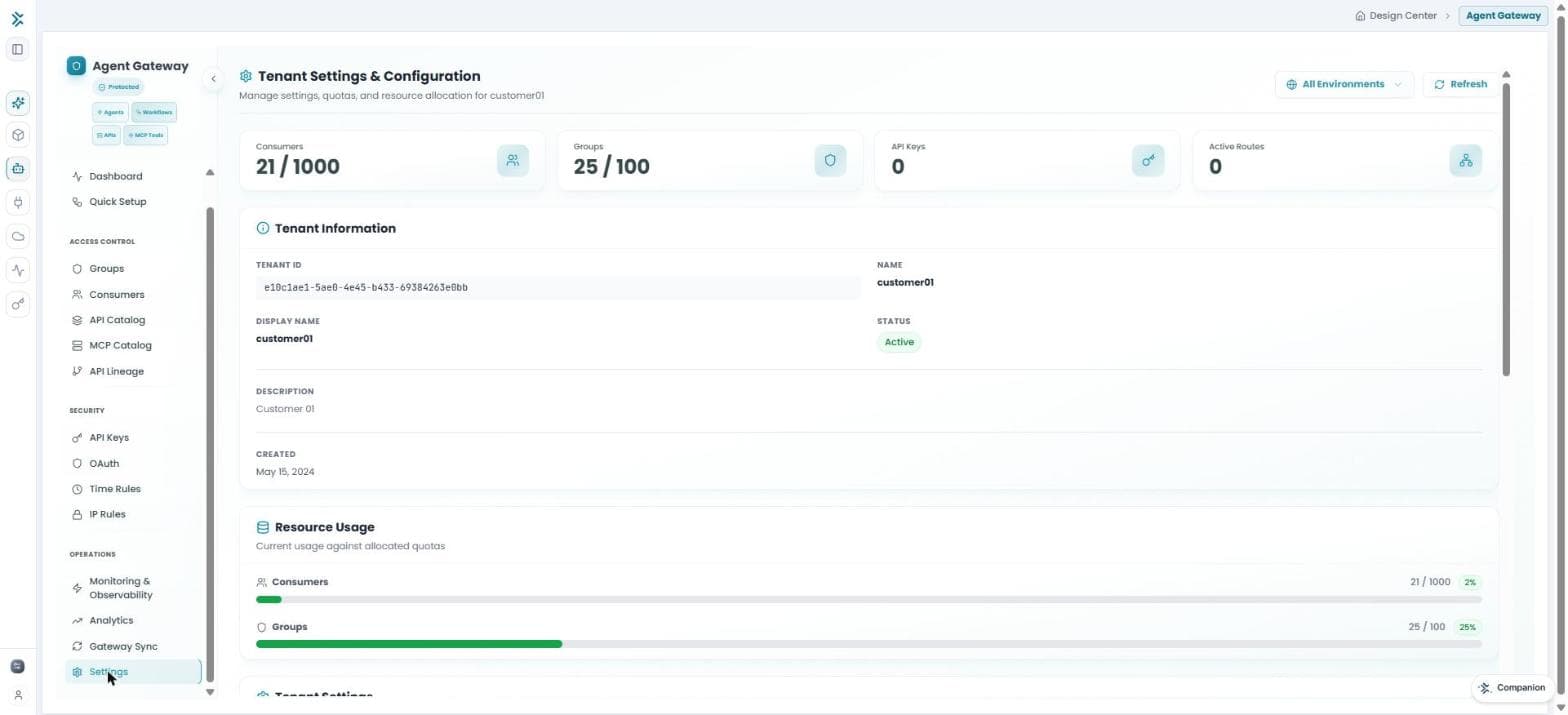
- Quotas — current usage against allocated limits for Consumers, Groups, API Keys, and Active Routes
- Tenant Information — tenant ID, name, status, description, and creation date
- Resource Usage — usage bars for each quota
Runtime Fabric
How the FlowGenX Runtime Fabric executes workflows and agents: execution model, runtime instances, workers and resources, scaling and observability.
Deploying and Scheduling Workflows
Deploy workflows to production, configure automated schedules, and manage deployment lifecycles across environments.